
Go to documentation repository

Documentation for Axxon PSIM 2.0. Documentation for other versions of Axxon PSIM is available too.
Previous page Next page

The object icon on the map can be visible or hidden. An object can be hidden in one of the following ways:
At the system configuration stage. Visible objects are always displayed on the map, whereas hidden objects are displayed only in the hidden objects display mode. You can enable the hidden objects display mode using the Show hidden item in the map function menu that you can access by right-clicking any place on the map that is free from object icons:
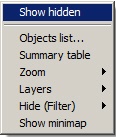
The status of the mode is indicated by a checkbox next to the Show hidden item—it is checked when the mode is enabled and it is clear when the mode is disabled: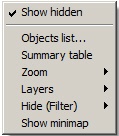
Note
The hidden objects display mode applies to all map layers.
- With the filter on the map layer. This filter applies only to the current layer and hides all objects of the specified type or the names of objects. You can hide and display objects using the Hide (Filter) command in the map function menu that you can access by right-clicking any place on the map that is free from object icons:
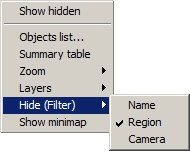
Hidden objects are marked with a checkbox.
The Name item is used to hide the names of all objects on the current map layer: if it is selected, then only graphic images of objects (icons, lines, and so on) are displayed on the layer without captions.
Features of hiding objects:
- The hiding specified at the system setup stage has priority over the hiding selected on the map layer. Therefore, if an object is hidden at the setup stage, it isn't displayed even if the checkbox in the Hide (Filter) menu item is clear.
- If the names of objects are hidden and an alarm event occurs, the name of the object with the alarm event is displayed during the alarm. Similarly, a hidden camera is displayed during an alarm.
- The display mode of hidden objects (the Show hidden item checkbox is set) does not affect the object filters applied on the layer: if objects are hidden using the Hide (Filter) item, then even if the Show hidden item checkbox is set, they remain hidden on this map layer.
Overview
Content Tools