
Go to documentation repository
Previous page Next page
The handrail grip detection is used to detect safety violations when a person is walking on stairs and doesn’t hold a handrail with their hands.
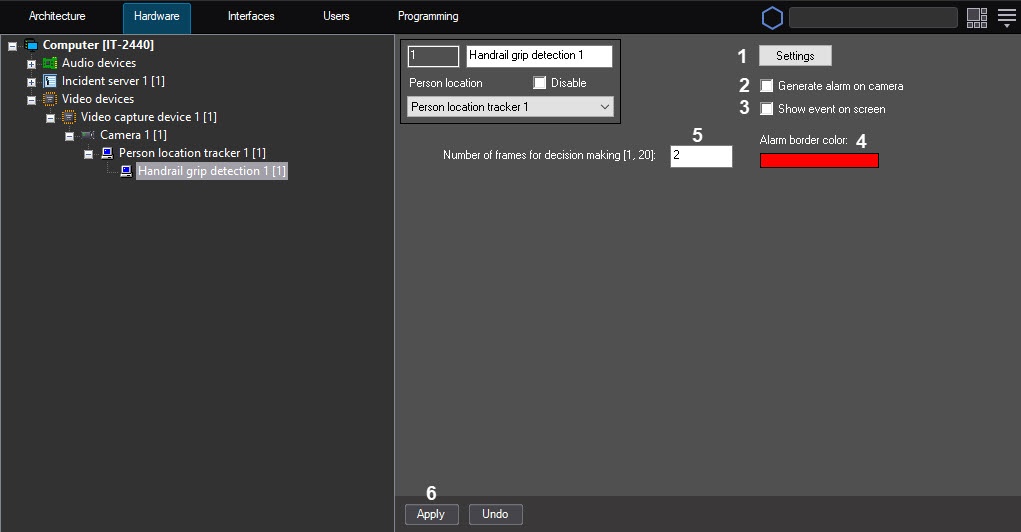
To configure the handrail grip detection, do the following:
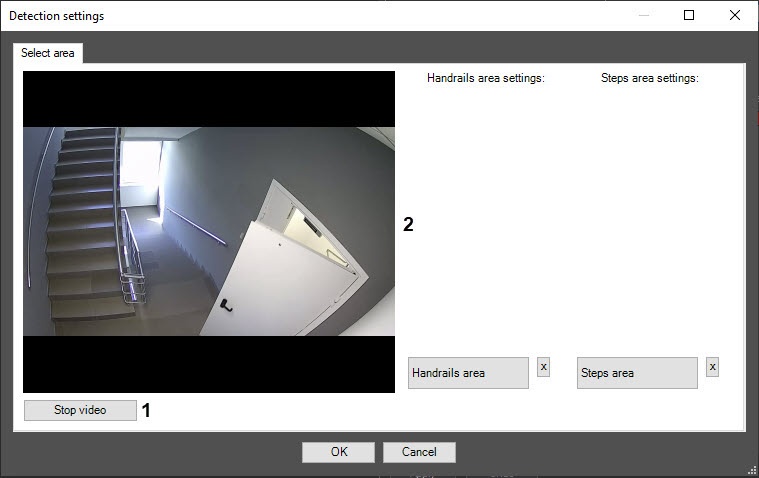
On the captured frame, set at least one handrail area (3) and at least one step area (4). To add an area, enable the corresponding Handrails area or Steps area button by clicking it. The active button is highlighted in blue (5).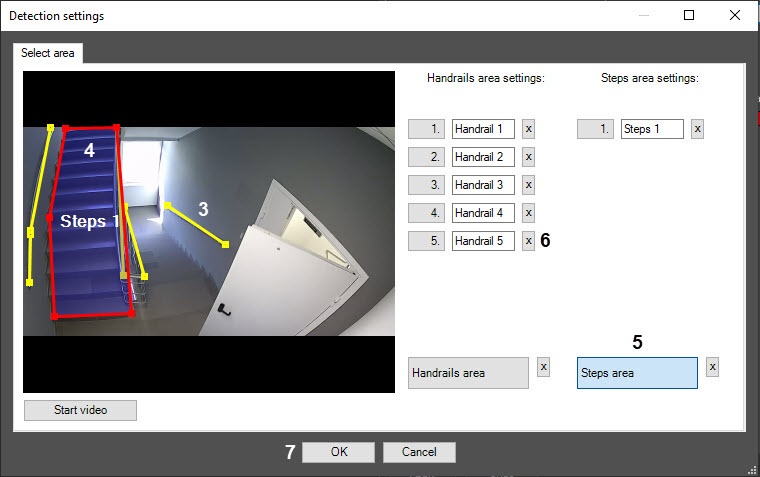
Note
 button to the right of the corresponding step or handrail area (6).
Set the Show event on screen checkbox (3) to display an alarm border on the screen when the detector generates an event. You can specify the color of the alarm border in the next step. By default, the checkbox is cleared.
In the Alarm border color field (4), set the color of the alarm border using the color palette. The default color is red. You can open the Color palette by double-clicking the color field. After you select the frame color, click the OK button to save the settings.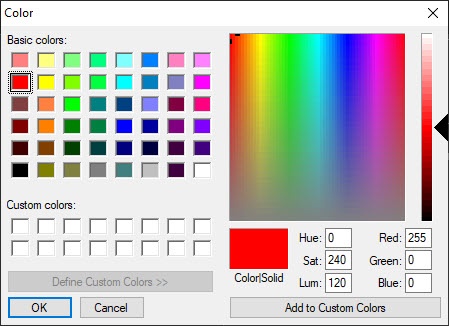
In the Number of frames for decision making [1, 20] field (5), enter the required number of frames from 1 to 20, on which a person is walking on stairs and doesn’t hold a handrail to generate the corresponding event. The default value is 2.
Configuring the Handrail grip detection is complete.

