
Go to documentation repository

Documentation for Face PSIM 2.0.
Previous page Next page

The following figure shows the Analytics window interface:
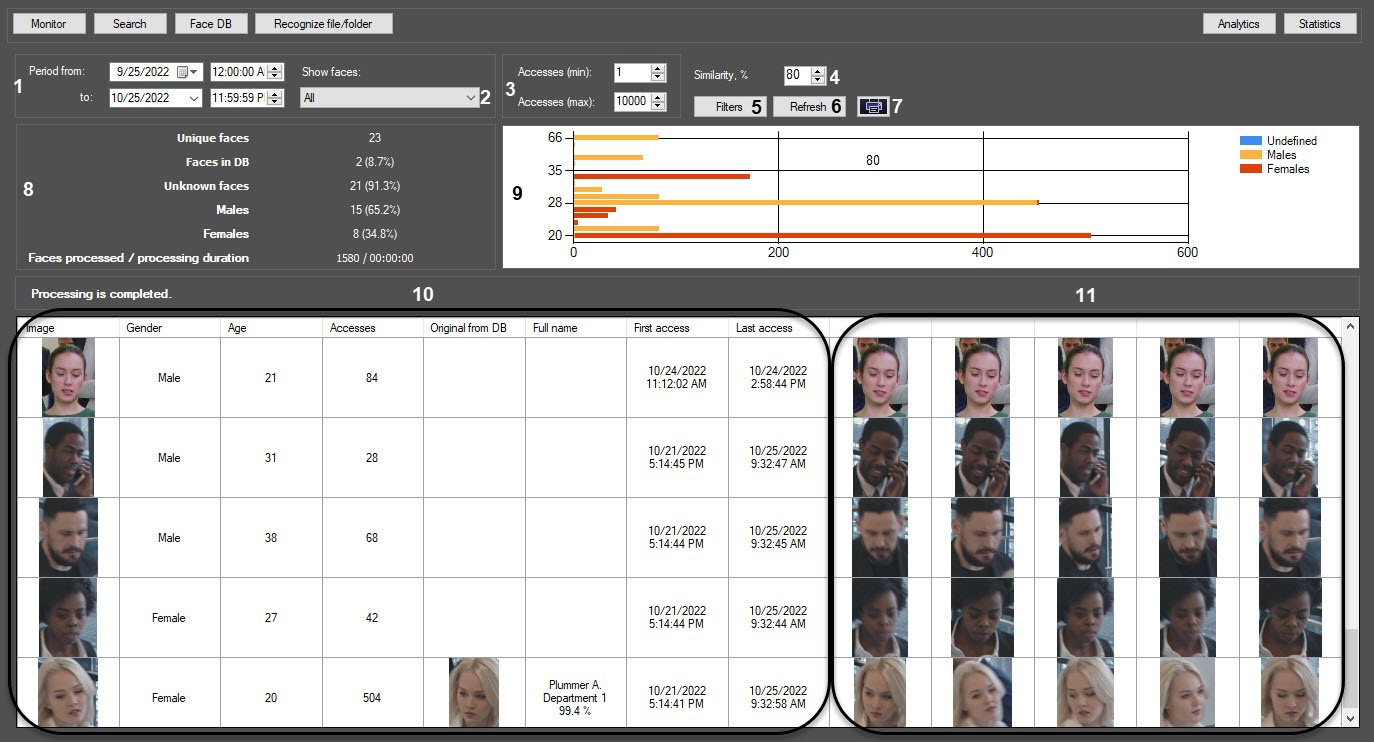
The components of the Analytics interface are described in the following table.
Component number | Comments |
|---|---|
| 1 | The elements for specifying the time period of the analysis. |
| 2 | Show faces drop-down list to select the captured persons display option: All, Only recognized, Only unrecognized. |
| 3 | The Accesses (min) and Accesses (max) fields for specifying the minimum and maximum number of passes of a person. |
| 4 | A Similarity, % field for specifying the similarity level between the captured face and the reference face in percent. If the specified value is exceeded, the person is considered as recognized. |
| 5 | A Filters button for specifying the filter. |
| 6 | A Refresh button for updating the displayed data. |
| 7 | A button for exporting the displayed analytical data to the report file. |
| 8 | The information panel for displaying the general data on all faces. |
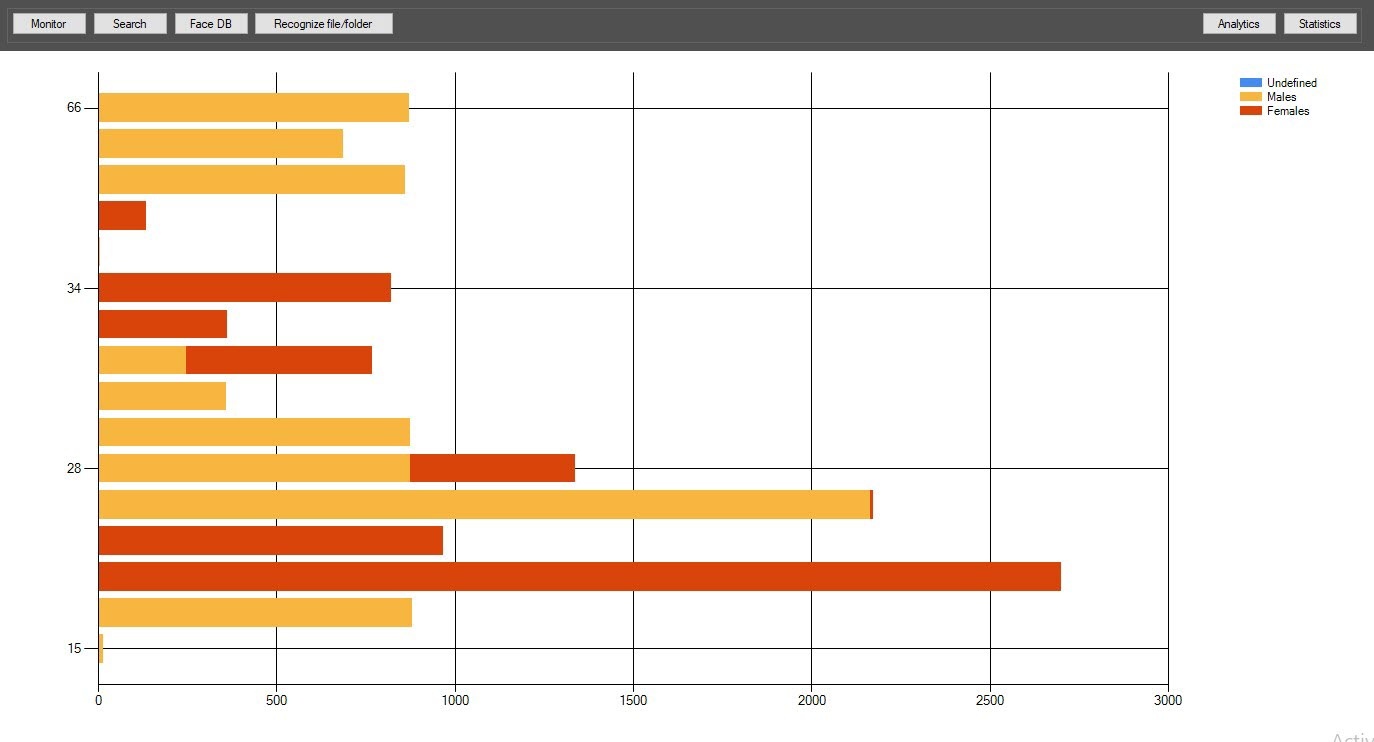
| 9 | The diagram: the horizontal axis shows the total number of passes; the vertical axis shows the age of the detected faces. |
| 10 | The Image column displays the unique faces. Their quantity corresponds to the Unique faces parameter displayed in the section (8). |
| 11 | The area displayed the duplicates of the unique faces. |
Note
Double left-click the diagram (9) to zoom it in, and double right-click it to zoom it out.
Overview
Content Tools