
Go to documentation repository

Documentation for Axxon PSIM 2.0. Documentation for other versions of Axxon PSIM is available too.
Previous page Next page

To set the field's options, do the following:
- To set the field's options, select the object in the workspace the parameters of which you want to set and open the Field's options window in one of the following ways:
- Click the
 button on the toolbar.
 In the object functional menu, select the Properties item.
Note
You can open the object functional menu by right-clicking the object border.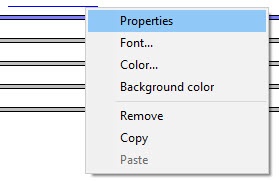
- Click the
- The Field's options window opens.
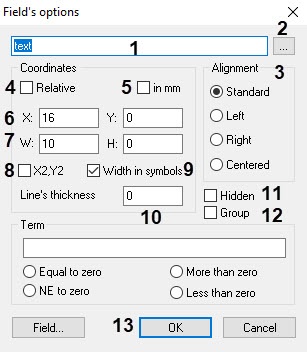
- In the text field (1), enter the information that describes the field:
- For the Text field object, enter the text that is displayed in the text field.
- For the Variable object, enter the variable name.
- For the Image object, enter the path to the image in quotes. You must place the image in one of the following folders:
- In the Axxon PSIM installation directory (for example, C:\Program Files\Axxon PSIM), then enter the image name only, for example, “image.bmp” in the field (1).
- In the Bmp folder of the Axxon PSIM installation directory (for example, C:\Program Files\Axxon PSIM\Bmp), then specify the path to the image file as "Bmp\image.bmp" or "Bmp/image.bmp".
- If you want to fill in the text field with the data from the text file or enter the large amount of data, then click the
 button (2) and use the editor (see the section in APPENDIX 2. Entering text using the editor).
 - Set the Alignment switch (3) to the position corresponding to the text alignment within the object.
- Select the units of measure in which the object coordinates are set:
- If you set the object size in millimeters, set the in mm checkbox (5).
If you set the object size in symbols, set the Width in symbols checkbox (9).
Note
By default, the object size is set in symbols.
- Set the coordinates of the upper left object corner in one of the following ways:
- Specify the absolute coordinates of the object. In this case, you must specify the coordinate of the upper left object corner in the selected form by the X axis in the X: field and the Y axis in the Y: field (6).
- Specify the relative coordinates of the object. In this case, you must set the Relative checkbox (4).
- You can set the width and height of the object in one of the following ways:
- Specify the width of the object in the W: field and the height of the object in the H: field (7).
- Specify the coordinates of the lower-right corner. To do this, set the X2, Y2 checkbox (8).
The W: and H: fields are replaced by X2 and Y2. After this, specify the coordinate of the lower-right object corner by the X axis in the X2: field and the Y axis in the Y2: field.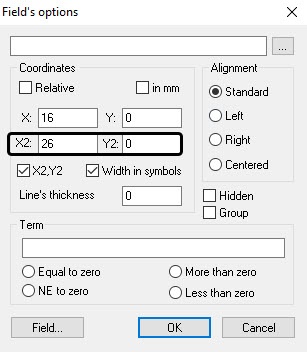
- Specify the line thickness in the selected units in the Line's thickness field (10).
- If the configured object must be on the badge or in the dialog window, but it must not be visible to the user, then set the Hidden checkbox (11).
- If you want to group the object, set the Group checkbox (12).
- Click the OK button (13).
Setting the field's options is complete.
Overview
Content Tools