
Go to documentation repository
Previous page Next page
Attention!
To create the Incident manager report with selected events, you must first create and configure the Incident manager (see Configuring the Incident manager interface object), Incident server and Incident handler objects (see Configuring Incident server and Incident handler) in Axxon PSIM.
Note
You can use templates when you create a report.
To add a new template, click Report templates → New template and fill in the Name and Description fields. The template will use the selected parameters of the current report.
Templates work the same way as templates in the scheduler and can be used interchangeably.
When you create a response using a template, click Report templates at the top of the page and select the required template from the list of saved templates (the required template is highlighted). As a result, the parameters of the current report are updated according to the selected template.
To create the incident manager report with selected events:
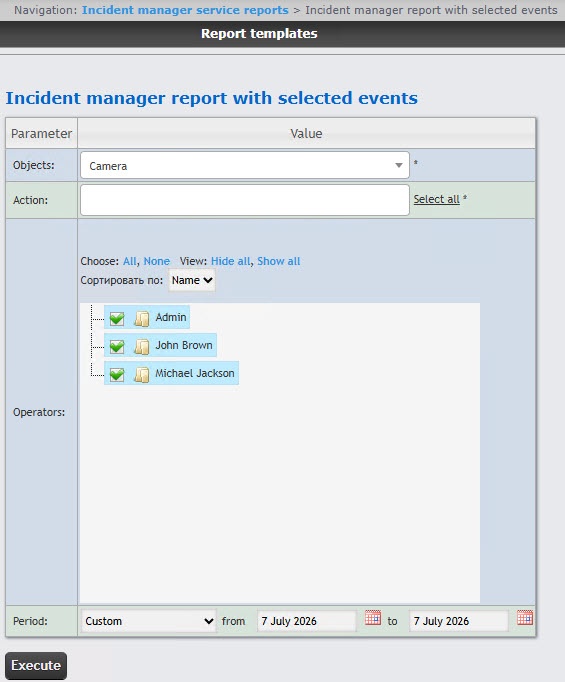
In the Objects field, from the drop-down list, select the object the actions with which you want to display in the report. You can also search for an object by name. For this, start entering the name of the object in the Objects field. The search works from the first character.
Note
The Objects field displays only those objects that can be assigned a status displayed on the map.
From the Period drop-down list, select the time period for which the report must be created.
If you select the Custom or Custom 2 period, enter the dates of the start and end periods for which the report must be created in the from and to fields using the Calendar tool.
If you select the Custom 2 period, additionally enter the time of start and end periods for which the report must be created.
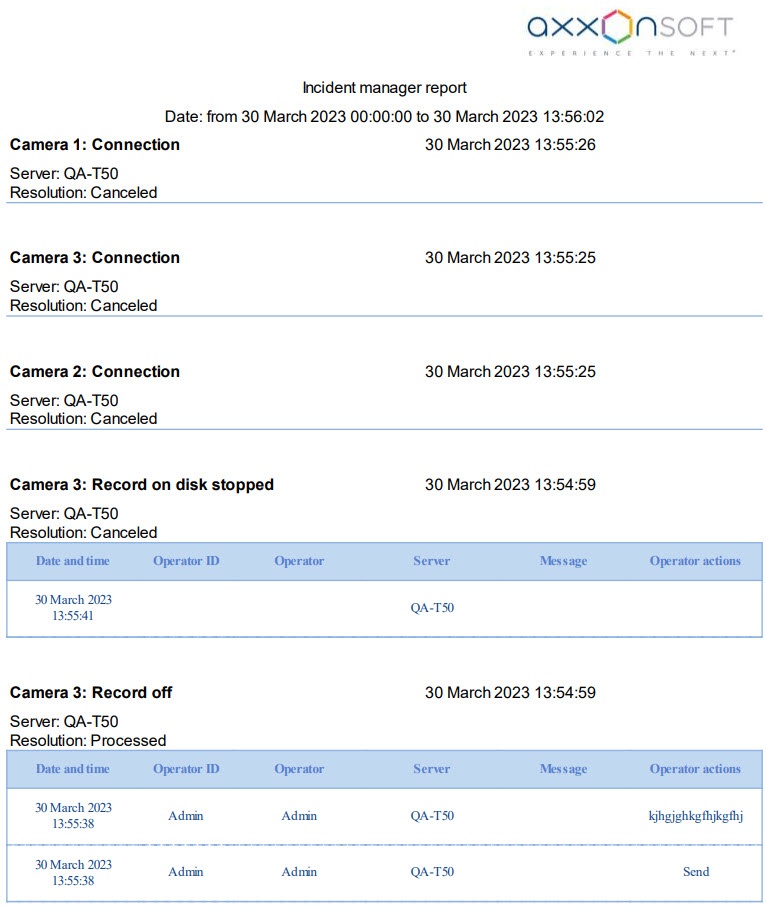
Example of the incident manager report with selected events.
Note
The incident manager report has a Resolution field with the Processed or Canceled values. When you close an event without going through all steps, Resolution: Canceled is displayed. When you close an event with going through all steps, Resolution: Processed is displayed. If an event wasn’t processed and wasn’t canceled (for example, an Axxon PSIM restart), the Resolution field is blank. This information is contained in the resolution column of the dbo.PROTOCOL_INC_SERVER table. When resolution=1, an alarm was closed without processing.

