
Go to documentation repository
Previous page Next page
Note
You can use templates when you create a report.
To add a new template, click Report templates → New template and fill in the Name and Description fields. The template will use the selected parameters of the current report.
Templates work the same way as templates in the scheduler and can be used interchangeably.
When you create a response using a template, click Report templates at the top of the page and select the required template from the list of saved templates (the required template is highlighted). As a result, the parameters of the current report are updated according to the selected template.
The Auto operators actions report allows you to get information about the actions of the selected operators for a certain time period.
To create the report:
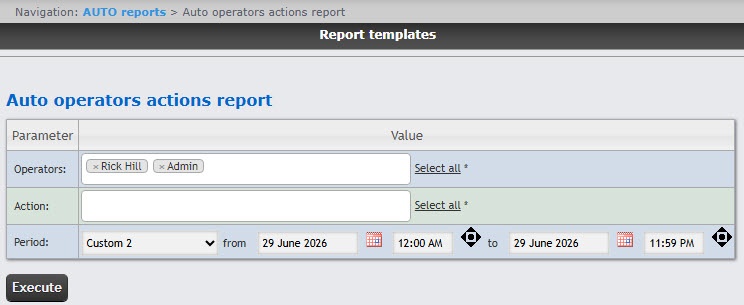
In the Operators field, select the auto operators whose actions you want to include in the report. Click any area of the empty Operators field to view a list of all available operators; select by clicking. To select all available operators, click Select all to the right of the Operators field.
You can also use the search. For this, start entering the name, surname, or patronymic of an employee in the Operators field. The search works from the first character.
From the Period drop-down list, select the time period for which the report must be created.
If you select the Custom or Custom 2 period, enter the dates of the start and end periods for which the report must be created in the from and to fields using the Calendar tool.
If you select the Custom 2 period, additionally enter the time of start and end periods for the report.
As a result, an auto operators actions report in the form of a table is displayed.
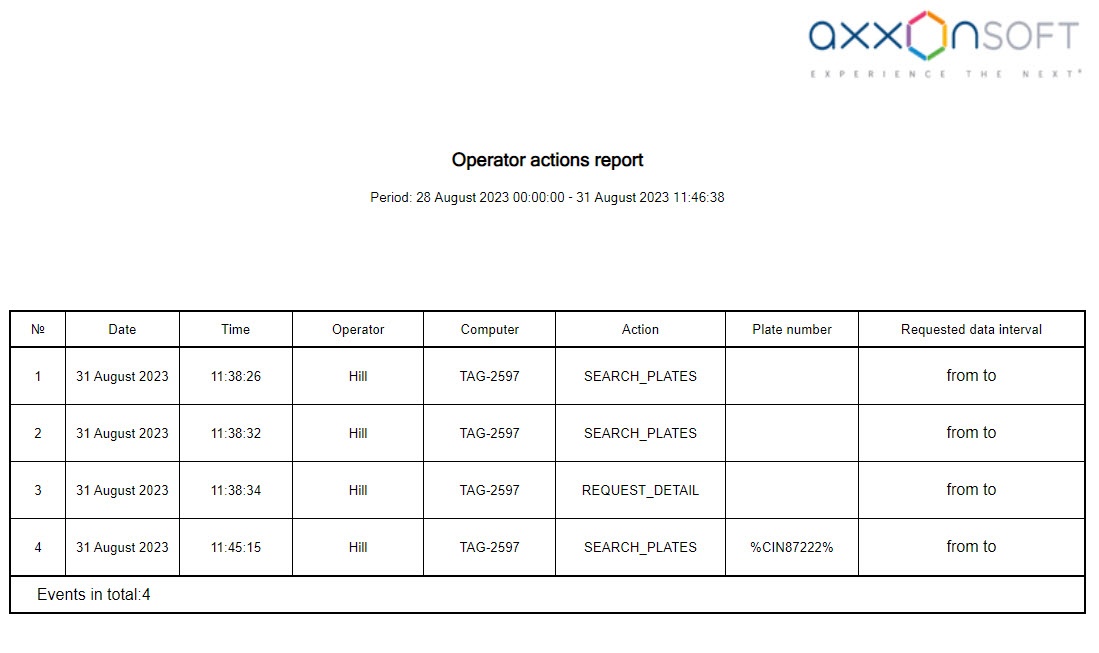
The Auto operators actions report is created.

