Documentation for Auto PSIM 1.0.1.

Previous page Next page

The active tracking database is the Auto PSIM database and is filled by the operator via the vehicle tracer module.

Note.

  • You cannot remove and change records via the vehicle tracer module except for changing the report status of the suspect vehicle.
  • All operator actions with the active tracking database (for example, adding or deleting a suspect vehicle report or changing the start or end date of the suspect vehicle report) are logged in the event viewer.

For total interaction between the active tracking database and the vehicle tracer module, the following conditions must be met:

  1. The active tracking database is connected to Auto PSIM as an external license plate database.
  2. This external database is used by the vehicle tracer module for analyzing the recognized license plates.

If the following conditions are met, the interaction between the active tracking database and the vehicle tracer module is performed in the following way:

  1. The operator adds the vehicle license plate to the active tracking database via the vehicle tracer module and specifies the reason for its adding. 
  2. The vehicle tracer module compares the license plate of the passing vehicle with the license plates stored in the active tracking database. If the correspondence between these license plates is established, the alarm event is generated, indicating that the license plate is in the corresponding database.

The active tracking feature is convenient to use in the Auto PSIM distributed system, as it enables the operator at their workstation to notify the remote workstation operators about the vehicle that must be captured.

You can add the information about the vehicle to the active tracking database as follows:
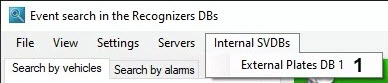
  1. In the Event search in the Recognizers DBs window, click Internal SVDBs and select the required external license plate database.
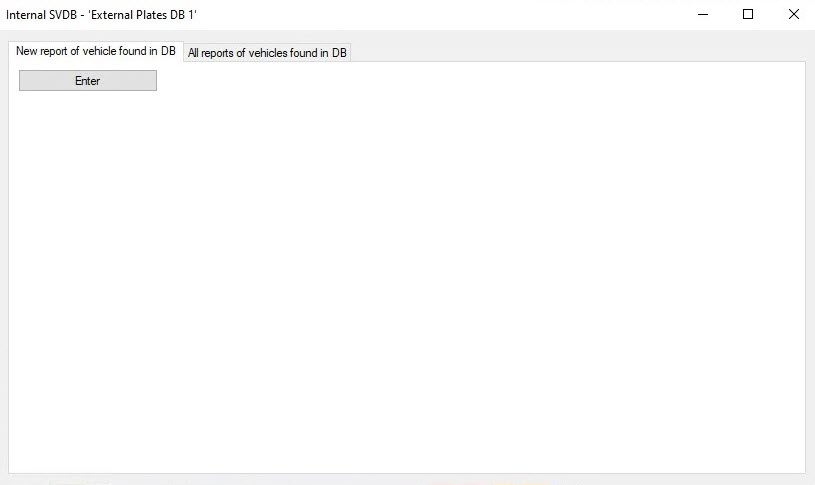
  2. As a result, the Internal SVDB window opens.
  3. Click the Enter button to add records to the database.
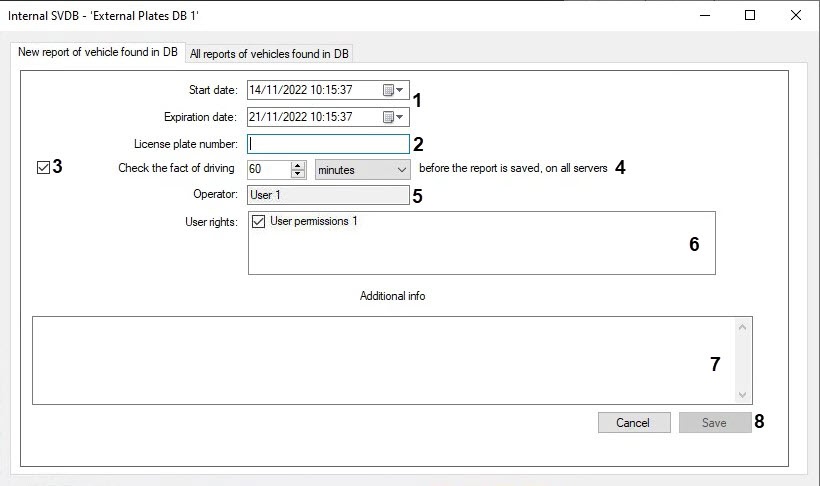
  4. Indicate the start and expiration date of the suspect vehicle report (1). All alarm events about the license plate being in the corresponding external license plate database are guaranteed to be stored until the expiration of the suspect vehicle report, despite the periodic procedure of clearing the event archive (see Configuring the retention period of the database records).

  5. In the License plate number field (2), specify the vehicle license plate. To enter a two-line license plate, use two underscore characters "__" as a line separator, for example: 123ABC__TH777.
  6. If it is necessary to check the fact of vehicle driving before the report is saved on all servers, do the following:
    • Set the Check the fact of driving checkbox (3).
    • Enter the time period for which it is required to check the fact of vehicle driving before the report is saved on all servers (4).
  7. The Operator field (5) indicates the current operator who is creating the report of the suspect vehicle.
  8. In the User rights list (6), set the checkboxes next to those Axxon PSIM rights of the users who must receive an alarm event when the license plate is found in the database. In order for the current operator to receive an alarm event only, clear all checkboxes in the User rights list.

    Note

    To receive alarm events, it is necessary that the selected user has full access to the External plates DB object, to which the suspect vehicle report is entered. If any restrictions are set in the user rights for the External plates DB object, then users with such rights don't receive alarm events.

  9. If necessary, in the Additional info field (7), enter a description of the reason for creating the suspect vehicle report.
  10. Click the Save button to save changes (8).

    Note.

    The suspect vehicle reports that are added to the database receive the Active status.
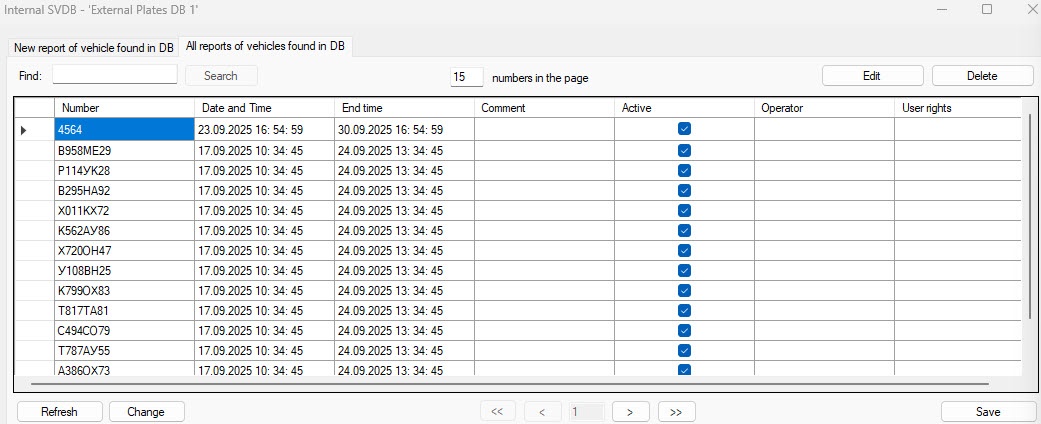
  11. Go to the All reports of vehicles found in DB tab to change the status of the suspect vehicle report.

  12. The table displays a list of all suspect vehicle reports in the database to which the current operator has access:
    • In the Number column, the license plates on the wanted list are displayed.
    • In the Date and Time column, the time of adding the vehicle report to the database is displayed.
    • In the End time column, the expiration time of the suspect vehicle report is displayed.
    • In the Comment column, the reason for the vehicle report creation is displayed.
    • In the Active column, the checkboxes are set for the active vehicle reports.
    • In the Operator column, the operator who added the vehicle report to the database is displayed.
    • In the User rights column, the rights of users who receive an alarm event about finding a license plate in the database are displayed.

      Note

      You can sort the reports in forward and return order by clicking the name of the corresponding column.

  13. You can edit the Number, Date and TimeEnd time, and Comment columns. To do this, select the corresponding value in the column, then double-click this value or click the Edit button.

    Note

    You cannot edit the Operator and User rights columns.

  14. To change the status of the report, in the Active column, set the checkboxes next to the reports that are active, or clear the checkboxes next to those reports that are inactive.
  15. To search for the vehicle in the table, enter the search request in the Find field and click the Search button. A list of vehicles matching the search request is displayed.

    Note

    The data is searched in the following fields: Number, Date and Time, Operator, Comment.

  16. You can enter the number of the displayed license plates in the numbers in the page field. The default value is 15. If necessary, you can change it. 
  17. To remove the selected report, click the Delete button.
  18. To save the changes, click Save (6).
  19. To update the list of reports, click the Refresh button.
  20. To save all reports to a CSV file, click the Change button and select the Save to CSV item.
  21. To load previously saved reports from a CSV file, click the Change button and select the Import from CSV item.
  22. You can navigate through the pages using the arrows at the bottom of the window.

Adding the vehicle data to the Internal SVDB is complete.

  • No labels