| Note |
|---|
|
For the correct operation of the Traffic lights detection module, a detector, the traffic light must always be always visible to in the camera FOV and must not be blocked by any objects or other vehicles. |
To configure the Traffic lights detection program module, do the following:
- Go to the settings panel of the Traffic lights detection
object settings panel, which - object that is created on the basis of the Camera object.
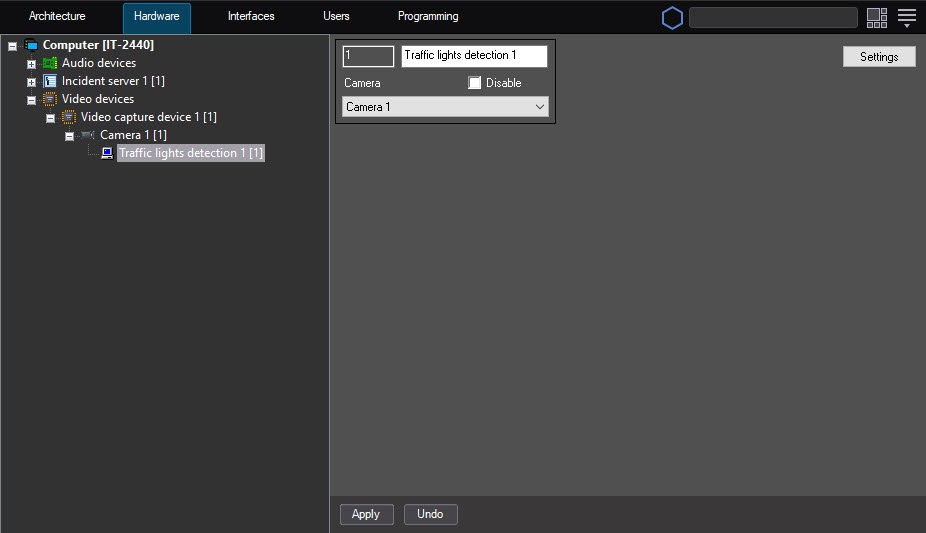 Image Modified
 - Click the Settings button (1). The Detection settings window
will open- opens.
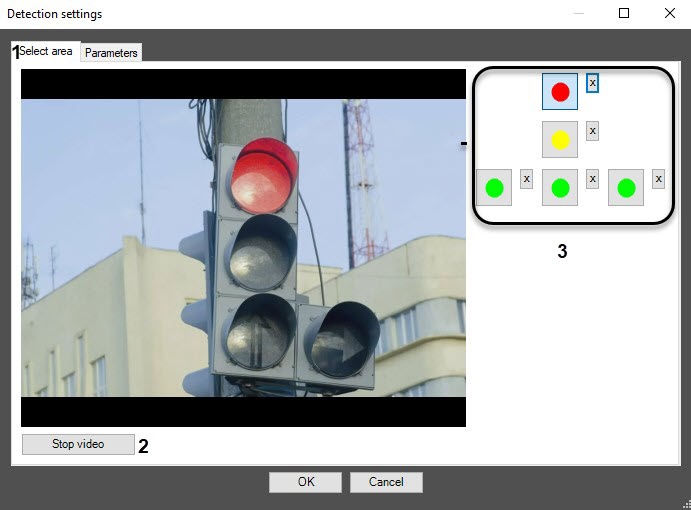 Image Modified
 In - On the Select area tab (1), specify the area of traffic light signals:
Click the Stop video button to capture the frame of the video
frame image (2).
Do the following actions for each traffic light signal:
.
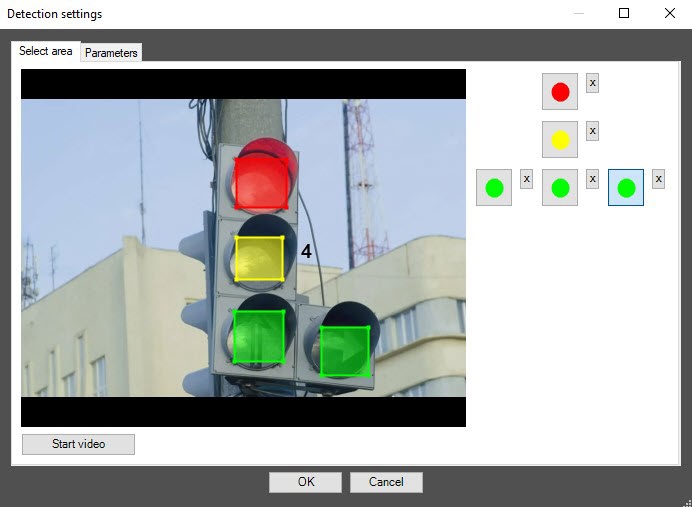 Image Modified
| Info |
|---|
|
To remove the area, click the  Image Modified Image Modified |
button next to the corresponding button. |
- Specify the
software - parameters of the program module
parameters- :
- Go to the
Parameters (1) )- Parameters tab.
- In the Detection sensitivity [0, 255] field
- , specify the detection sensitivity in conventional units in the range from 0 to 255. The default value is 215.
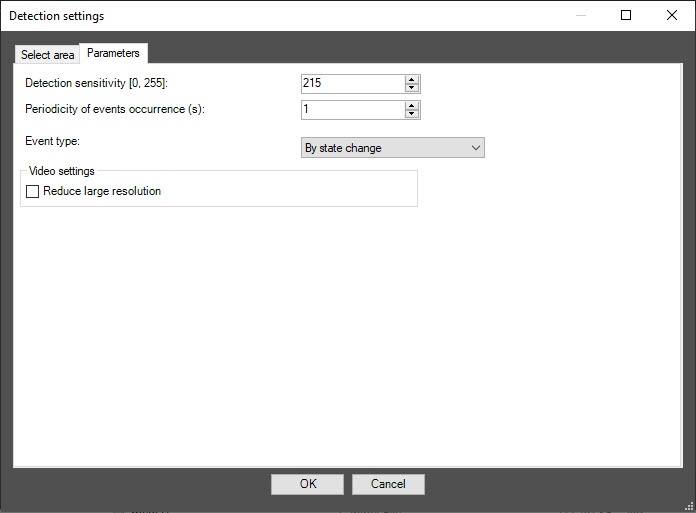 Image Modified
 - In the Periodicity of events occurrence
- (s) field
- , enter the time period
- in seconds
- between creating messages about the states of traffic light
- signals.
- From the Event type drop-down list
- , select the type of
- the created messages: By state change, By period, By period and state change.
- Set the Reduce large resolution checkbox if you want to recognize the
- states of the traffic light signal
- on the frame
- .
- Click
- the OK button to save the changes and return to the settings panel of the Traffic
- lights detection object
- .
To return to the settings panel of the Traffic |
lights detection object without saving the changes, click the Cancel button. |
- Click the Apply button
(2)- .
Configuring the Traffic light lights detection software program module is completedcomplete.


