
Go to documentation repository
Previous page Next page
Attention!
For the correct operation of the detector, the traffic light must always be in the camera FOV and not be blocked by any objects or vehicles.
To configure the Traffic lights detection program module, do the following:
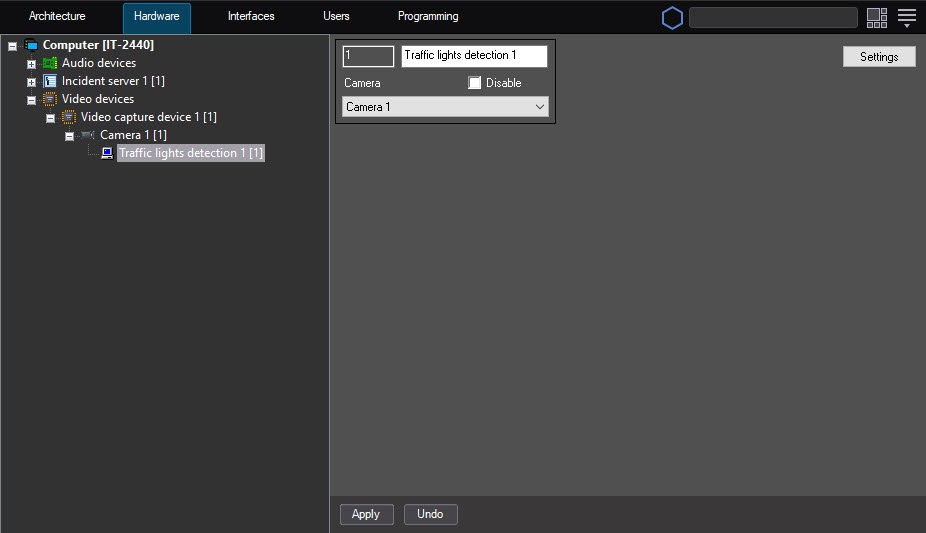
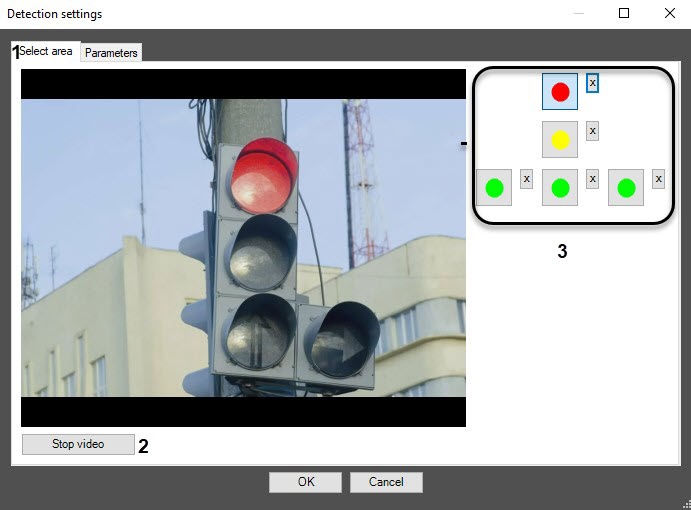
Click the Stop video button to capture the frame of the video image (2).
Do the following actions for each traffic light signal:
Click the button with the required signal (3).
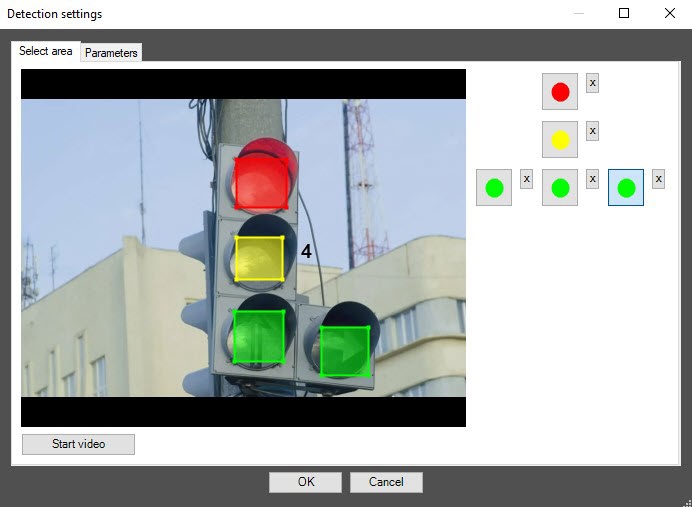
Specify the area of the given traffic signal on the captured video frame. To do this, click the left mouse button on the video frame, and while holding it, move the cursor.
Note
To remove the area, click the  button next to the corresponding button.
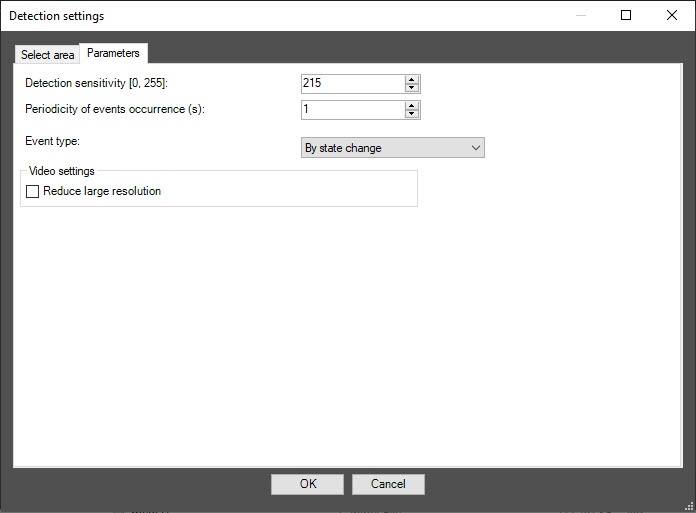
Note
To return to the settings panel of the Traffic lights detection object without saving the changes, click the Cancel button.
Note
To use the asynchronous hardware decoder and reduce CPU load, set the Use decoder NGP (GPU+CPU) checkbox on the settings panel of the camera (see Enable asynchronous hardware decoder NGP (GPU+CPU)). Then click the Apply button on the settings panel of the detector. Video decoding is now performed using the GPU (for more information, see Asynchronous hardware decoder NGP).
Configuring the Traffic lights detection program module is complete.

