...
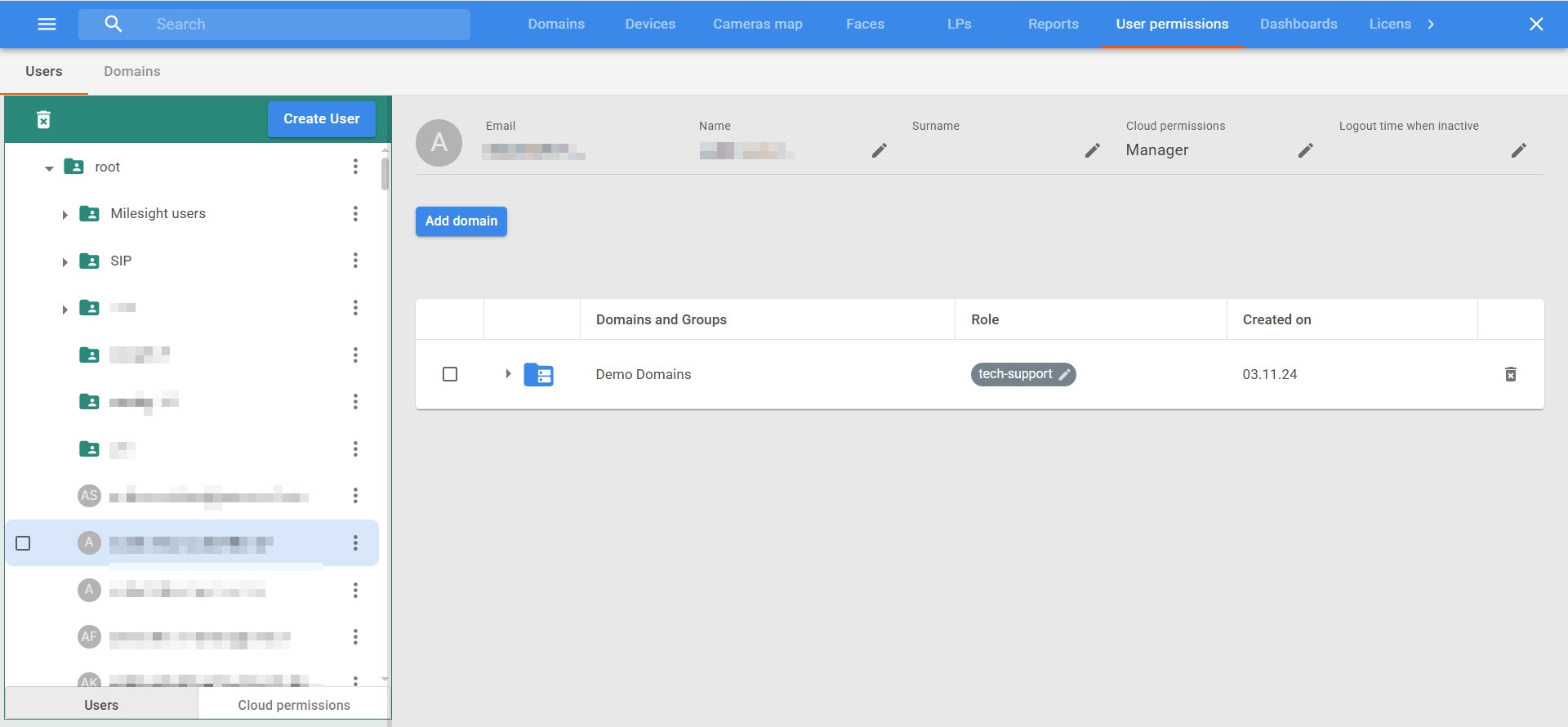
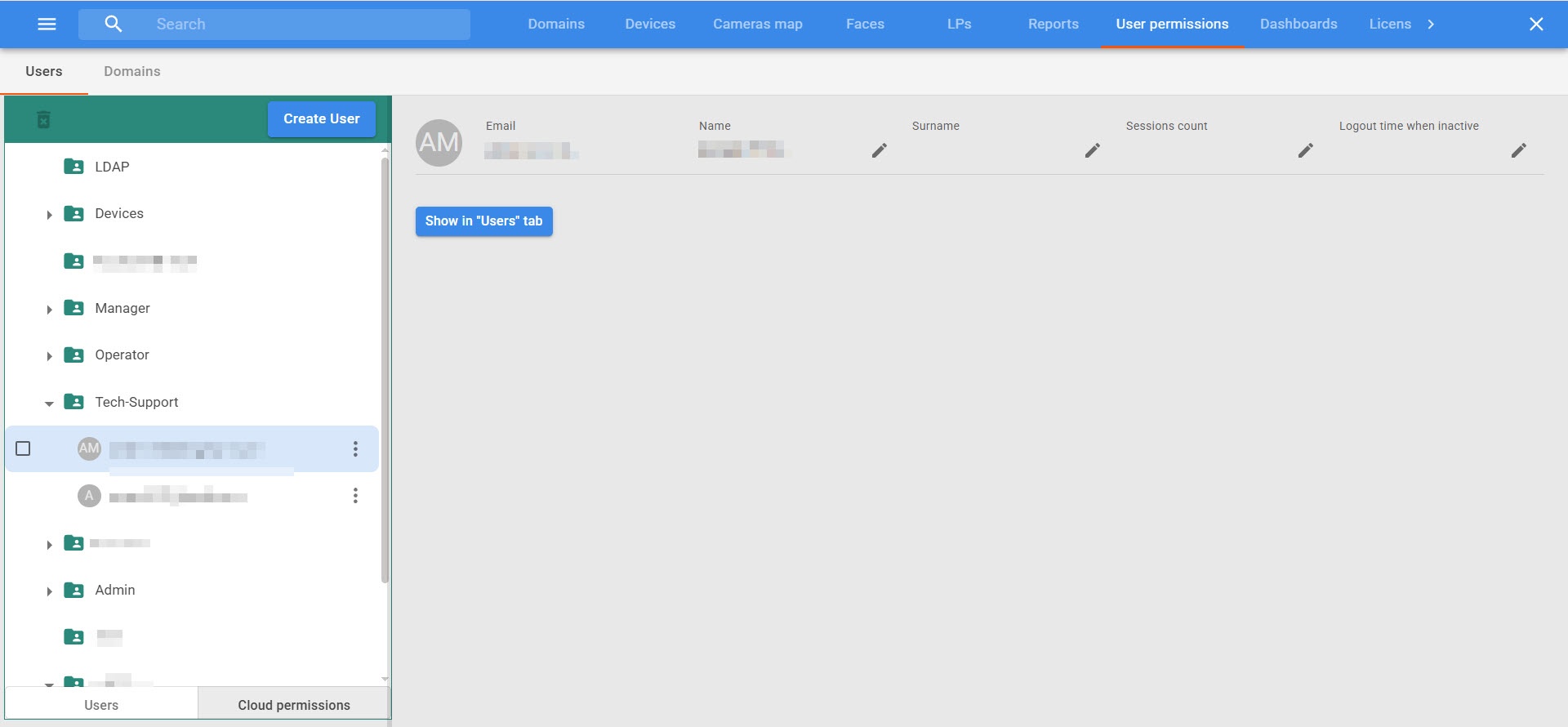
You can use the Users tab to manage user accounts in the system. The tab consists of two sections:
- Users;.
- Cloud permissions.
The main interface elements of the Users tab are listed in the table:
| Interface elements | Description |
|---|
| The Users section |
| The list of users | - It is located on the left side of the window.
- It displays all accounts registered in the system, including user groups
|
| Account management area | After you select an account, detailed user information is displayed on the right: Email—the user's email address. Name/Surname—personal information. Cloud permissions—the user's current cloud role
|
| Table of domains and groups | - It is located on the right side of the window in the account management area.
- It displays a list of domains and groups to which the selected user is bound.
- For each domain or group, the assigned role and creation date are indicated.
- If no domains are added, the message No policies found is displayed
|
| The Cloud permissions section |
List of roles | - It is located on the left side of the window.
- It displays groups of cloud roles and users assigned to each role. The following roles are available by default:
- Admin.
- Tech-Support.
- Manager.
- Operator.
- When you create a new cloud role, the corresponding group automatically appears in the list.
- Each role represents a set of access permissions. You can configure cloud roles in the System settings tab → the Cloud permissions tab (see Сloud permissions)
|
| User information | After you select an account, information about the selected user is displayed in the list on the right: - Email—the user's email address.
- Sessions count—displays the user's active connections.
- Logout time when inactive—specifies the automatic logout time when user is inactive.
- The Show in “Users” tab button allows you to go to the main tab to view detailed information about the selected user
|
Create a user
To create a new user:
...
Users with Admin and Tech-Support permissions (see Types of permissions) can assign any cloud role to a user in one of the following ways:
...
Users with Admin and Tech-Support permissions (see Types of permissions) can also add or change the name of other users using the  button.
...


