

Previous page Next page

General information
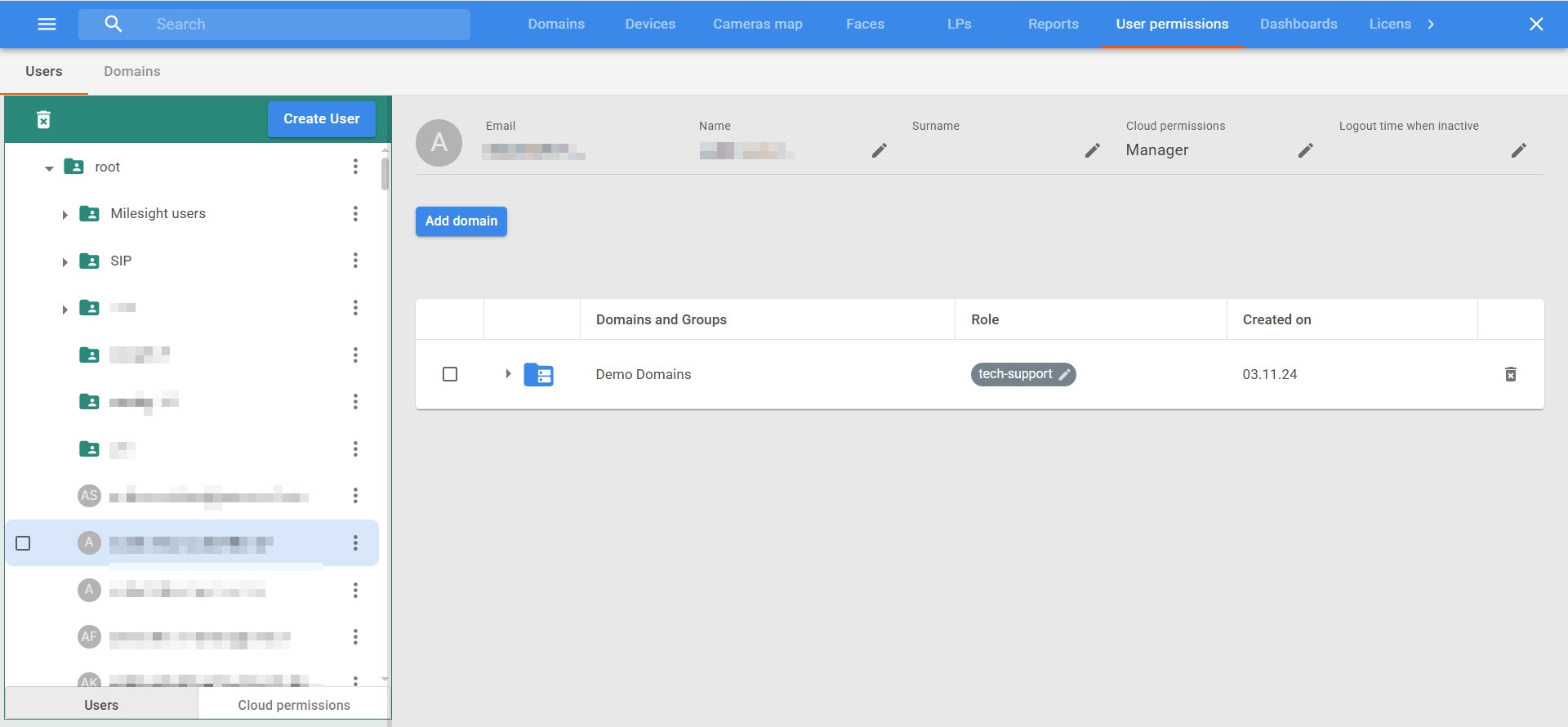
You can use the Users tab to manage user accounts in the system. The tab consists of two sections:
- Users;
- Cloud permissions.
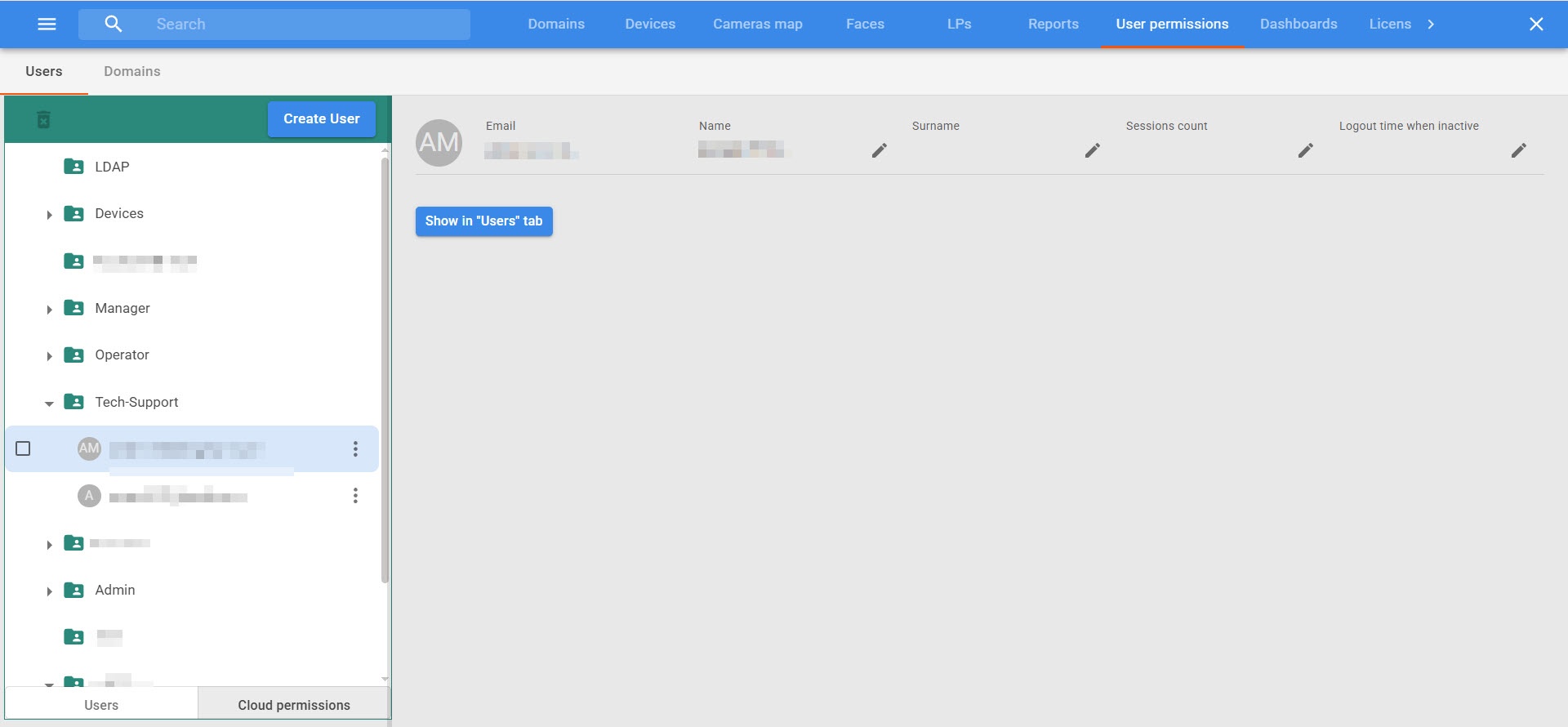
The main interface elements of the Users tab are listed in the table:
| Interface elements | Description |
|---|---|
| The Users section | |
| The list of users |
|
| Account management area | After you select an account, detailed user information is displayed on the right:
|
| Table of domains and groups |
|
| The Cloud permissions section | |
List of roles |
|
| User information | After you select an account, information about the selected user is displayed in the list on the right:
|
Create a user
To create a new user:
- Go to the User permissions tab → the Users section.
- Click the Create User button.
- In the Email field, enter the user’s email.
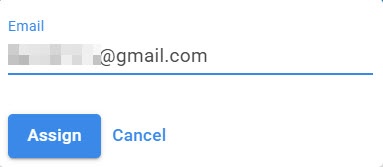
- Click the Assign button.
A new user is created. A one-time password is sent to the specified email address. The user must use this password during initial login. After the user logs into the system for the first time, they are prompted to change the password.
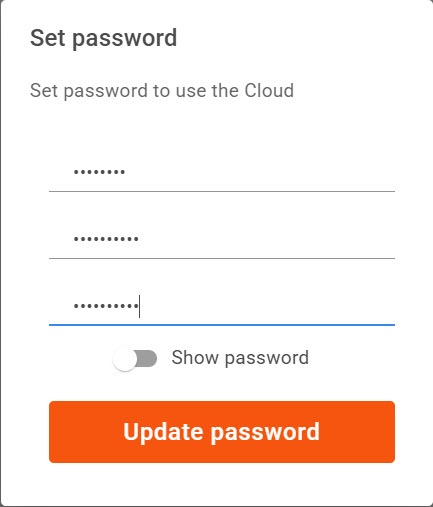
By default, a new user is assigned the Operator role. To change the role, contact the user with the administrator permissions.
You can also create a user in the Cloud permissions section. To do this:
- Go to the User permissions tab → the Cloud permissions section.
- Click the Create User button.
- In the Email field, enter the user's email address.
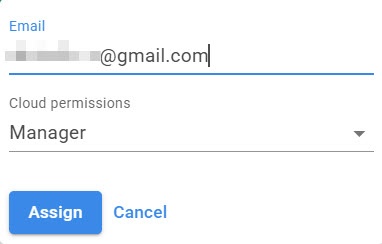
In the Cloud permissions field, select the cloud role you want to assign to the user from the drop-down list.
- Click the Assign button.
A new user is created. In this case, the new user is assigned the cloud role specified during creation.
Assign cloud roles
Users with Admin and Tech-Support permissions can assign any cloud role to a user in one of the following ways:
- Using the Cloud permissions field. To do this:
- Go to the User permissions tab → the Users section.
- Select the required user in the list. Detailed information about the user is displayed on the right.
- Click the Cloud permissions field.
- Select the required role from the cloud permissions.
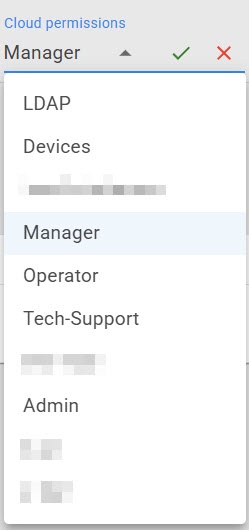
- Click the
 button to save the changes.
- Using the Users tab → the Cloud permissions section.
- Go to the User permissions tab.
- Go to the Cloud permissions section.
- Find the required user in the list.
Note
By default, all new users are assigned the Operator role and are located in the folder of the same name.
- Click the
 button next to the user name.
 - Click the Move to button.
- In the window that opens, select the role to which you want to move the user.
- Click the Apply
 button.
- Drag and drop the user from one role to another in the Cloud permissions section.
As a result, the user is assigned the corresponding role.
Users with Admin and Tech-Support permissions can also add or change the name of other users using the  button.
Assign domain roles
By default, a new user isn't added to any domain. To add a user to a domain:
- Go to the Users tab.
- Select a user in the list.
- Click the Add domain button.
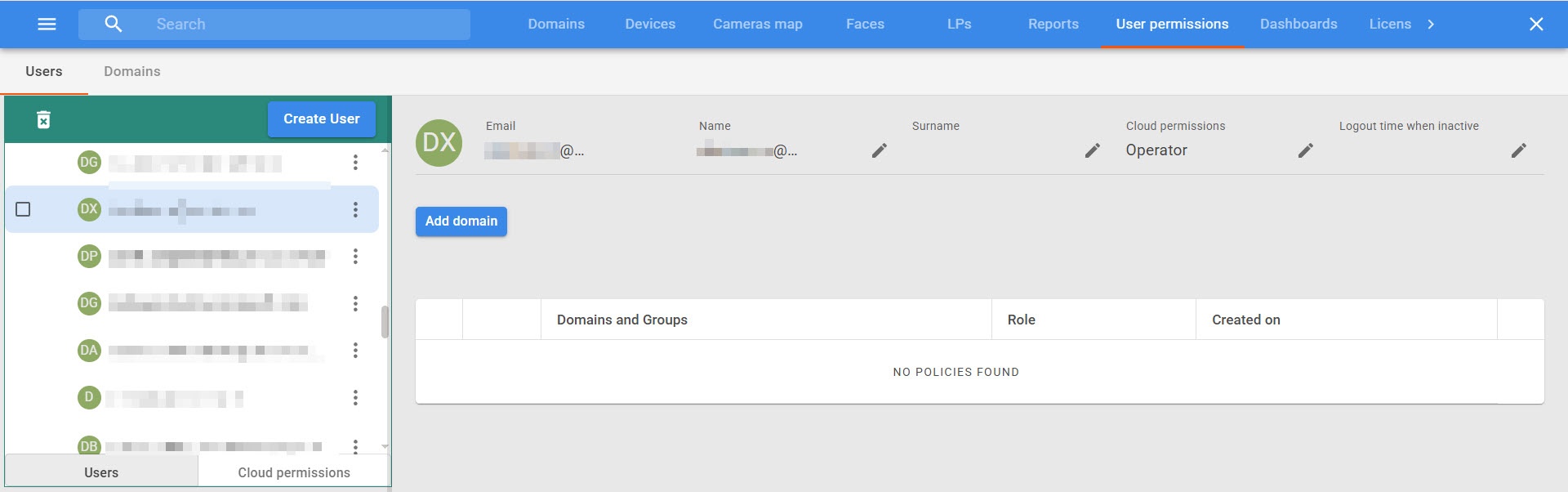
- Click the Domains and Groups field.
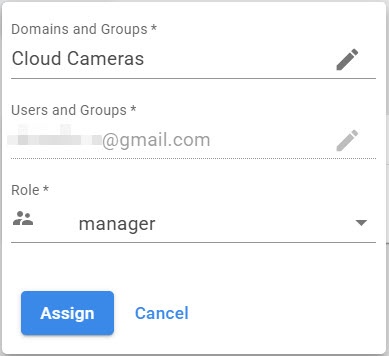
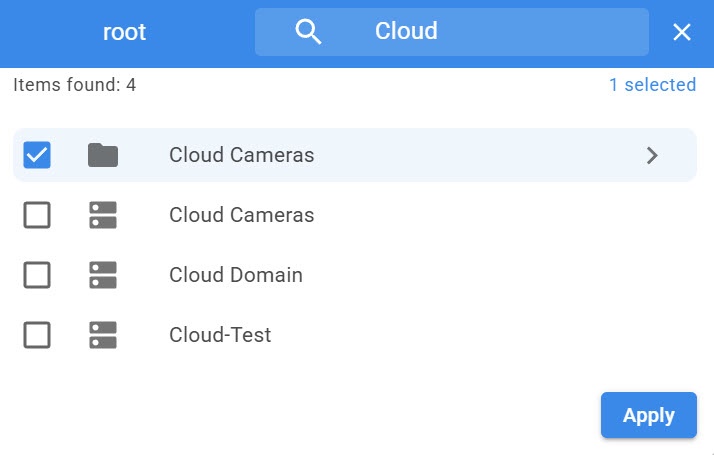
- In the window that opens, select the domain or group of domains to which you want to add the user.
Note
To search for a specific domain or group, use the search field.
- In the Role field, select the domain role you want to assign to the user.
- Click the Assign button.
As a result, the domain and domain role assigned to the user are displayed.
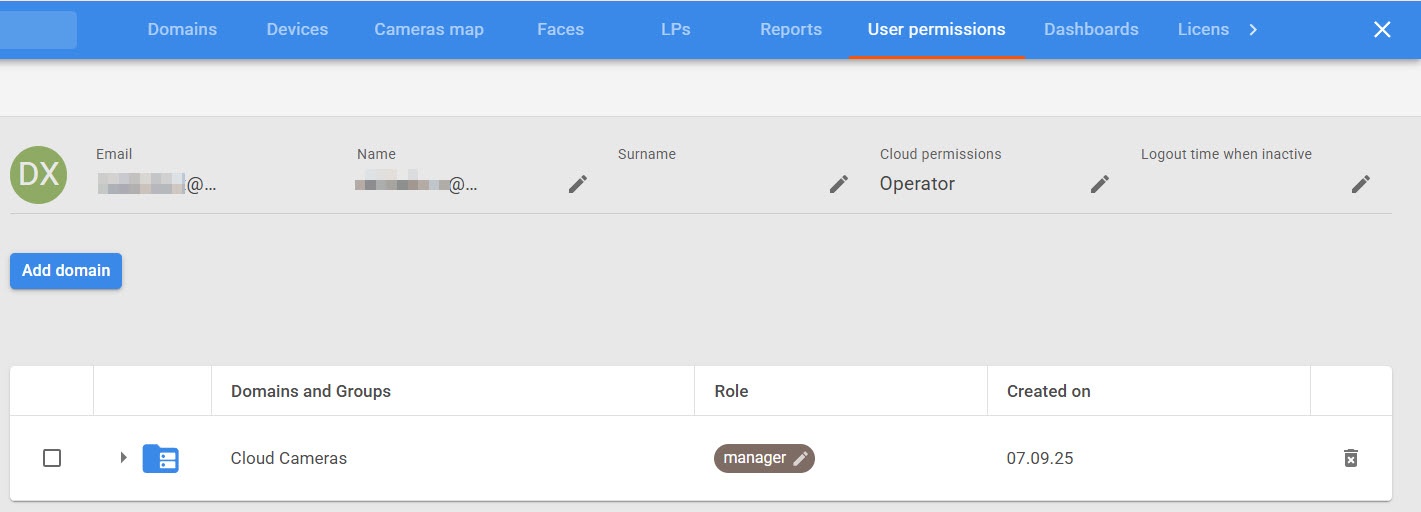
You can add a user group to a domain in a similar way. As a result, all users in the group belong to the same domain and have the same domain role.
Attention!
When you add a domain for the root group, all users of the system have access to the domain.
If necessary, you can change the domain role in the Role column. Increase of access level is performed upon request to users with higher access permissions (for example, users with the Admin role). To remove a user from the domain, click the Delete  button next to the domain name.
Create user groups
To create a user group:
- Click the button next to the group to which you want to add a new group. Initial groups are created in the root group.
- Click the Add group button.
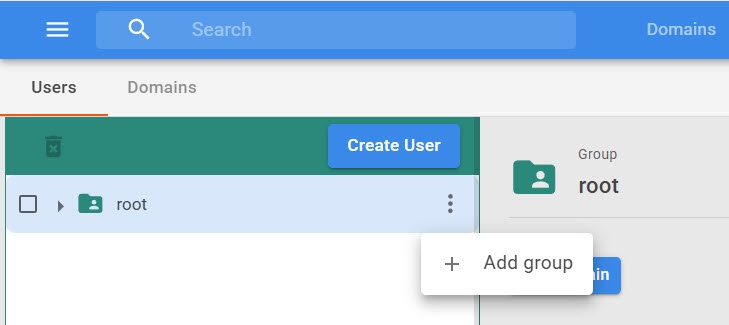
- In the window that opens, in the Name field, enter the name of the group.
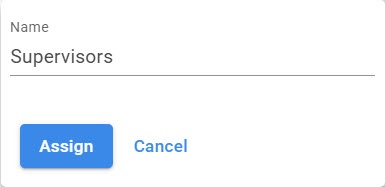
- Click the Assign button.
A new group is created.
When you click the button next to a group, the following actions are available:
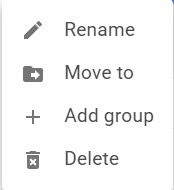
- You can rename a group.
- You can move a group.
- You can add a group.
- You can delete a group.
Note
You can only delete groups that don't contain any users.
Delete a user
To delete a user, select a user in the list in the Users section and click the Delete  button at the top of the window.