
Go to documentation repository


Page History
You can delete an
...
archive fragment using the timeline. To do this,
...
you must:
| Note | ||
|---|---|---|
| ||
|
- Open the required layout (see Configuring layouts).
- Select the required camera.
- Switch to the archive mode (see Switching to the Archive mode).
- On the timeline, select the interval to delete an archive fragment:
- Place the timeline pointer at
Specify the time interval of the archive that you want to delete:On the main timeline, set the indicator to - the beginning of the interval
, click the - .
- Click the
 button.
 - Scroll the timeline and place the pointer at the end of the interval
and click the - On the advanced navigation panel, you can specify the time interval in the same way using the

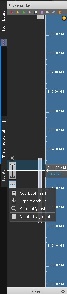 buttons. You cannot select the interval with the mouse on the advanced panel.
 - Click the
 button in the Surveillance window.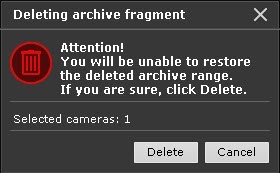
- If several cameras are in the Archive mode, to delete the selected interval for several devices, set the All checkbox.
- Click the
 button.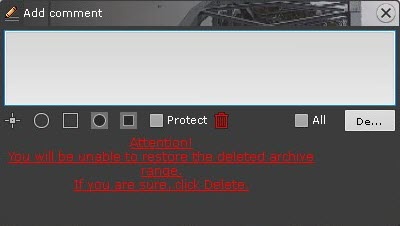
Click the Delete button to confirm the deletion.
Note title Attention! You cannot recover deleted videos.
If several archives were selected for viewing (see Viewing a combined archive), video is deleted from all of them.
- .
- Click the
 button.
- Click the
 button.
 - Click the
 button.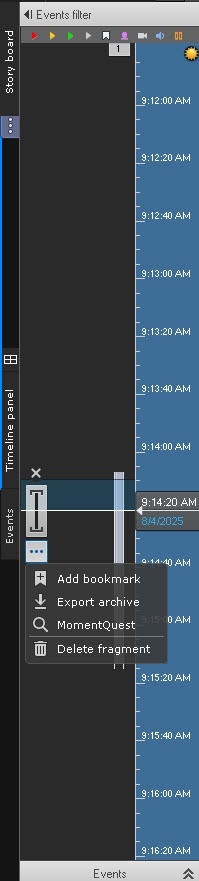
- Click the Delete fragment button.
- In the window that opens, set the parameter settings, which are specified in the table:
Deleting an archive fragment Start [date], [month], [year], [hours], [minutes], [seconds] By default, the interval selected on the timeline is displayed. If necessary, you can change the date and time to delete an archive fragment
Note title Attention! When you change the time range in the timeline or in the advanced navigation panel, the date and time values are updated automatically in the opened dialog window.
End Selected cameras 1 If you switch to the archive by one camera, the archive fragment of the selected camera is deleted. You can also select multiple or all cameras; for this you need to:
- Open the required layout (see Configuring layouts).
- Switch to the archive mode (see Switching to the Archive mode).
- Click the Archive panel button.
- On the timeline, select the interval to delete an archive fragment
- Click the button.
- In the warning window that opens, click the button again.
 button, then set the indicator to
  button again. You can also select the export interval with the right mouse button. To delete the interval, click the
  button.
Deleting an archive fragment is completeAfter deleting a part of the archive, artifacts can appear on the video near the borders of the deleted interval.
Overview
Content Tools