
Go to documentation repository


Page History
...
- Left-click the found moment on the search results panel.
- Using the playback panel (1), start playback of the fragment in the Surveillance surveillance window (2).
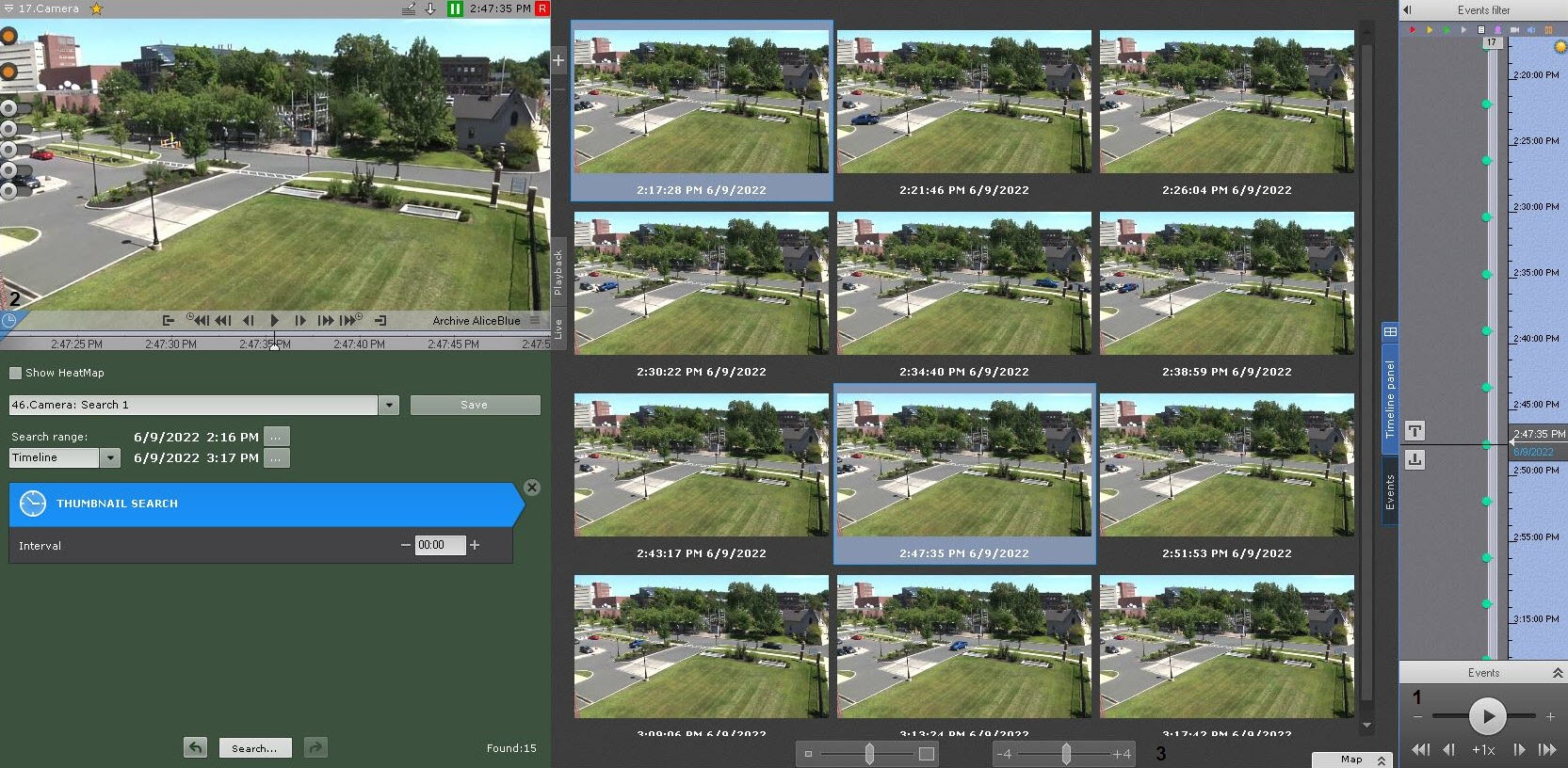
By default, the playback starts with the time specified below the thumbnail. You can use the control (3) to change the start time. If the control is in the leftmost position, playback starts four seconds later then than the start time. If the control is in the far right position, playback starts four seconds earlier.
| Info | ||
|---|---|---|
| ||
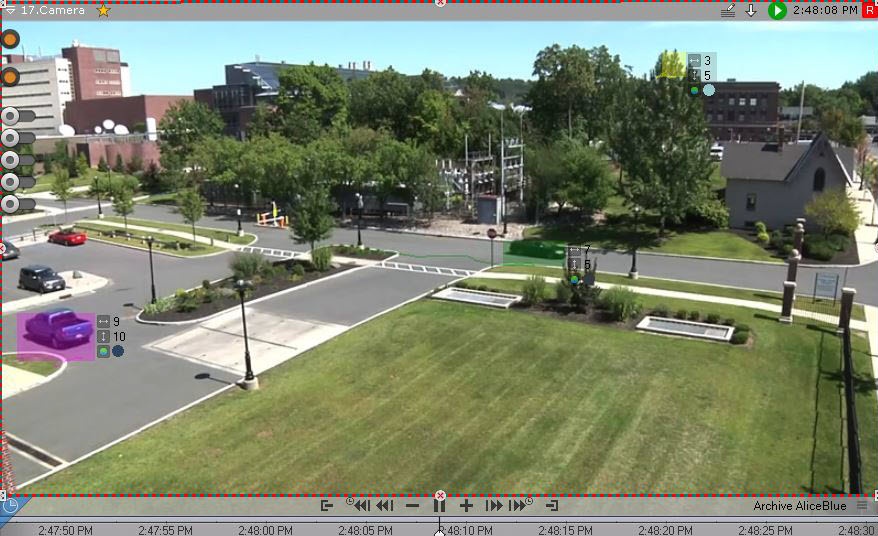
If object tracking is activated in the Surveillance surveillance window, then the properties of tracked objects (width and height as a percentage of the width or height of the frame) are displayed when viewing video fragments found using the Search search in archive. |
| Info | ||
|---|---|---|
| ||
| To switch between video fragments, use the corresponding buttons on the playback panel or on the advanced navigation panel (see Navigating using the advanced panel and Navigating using the Playback panel). |
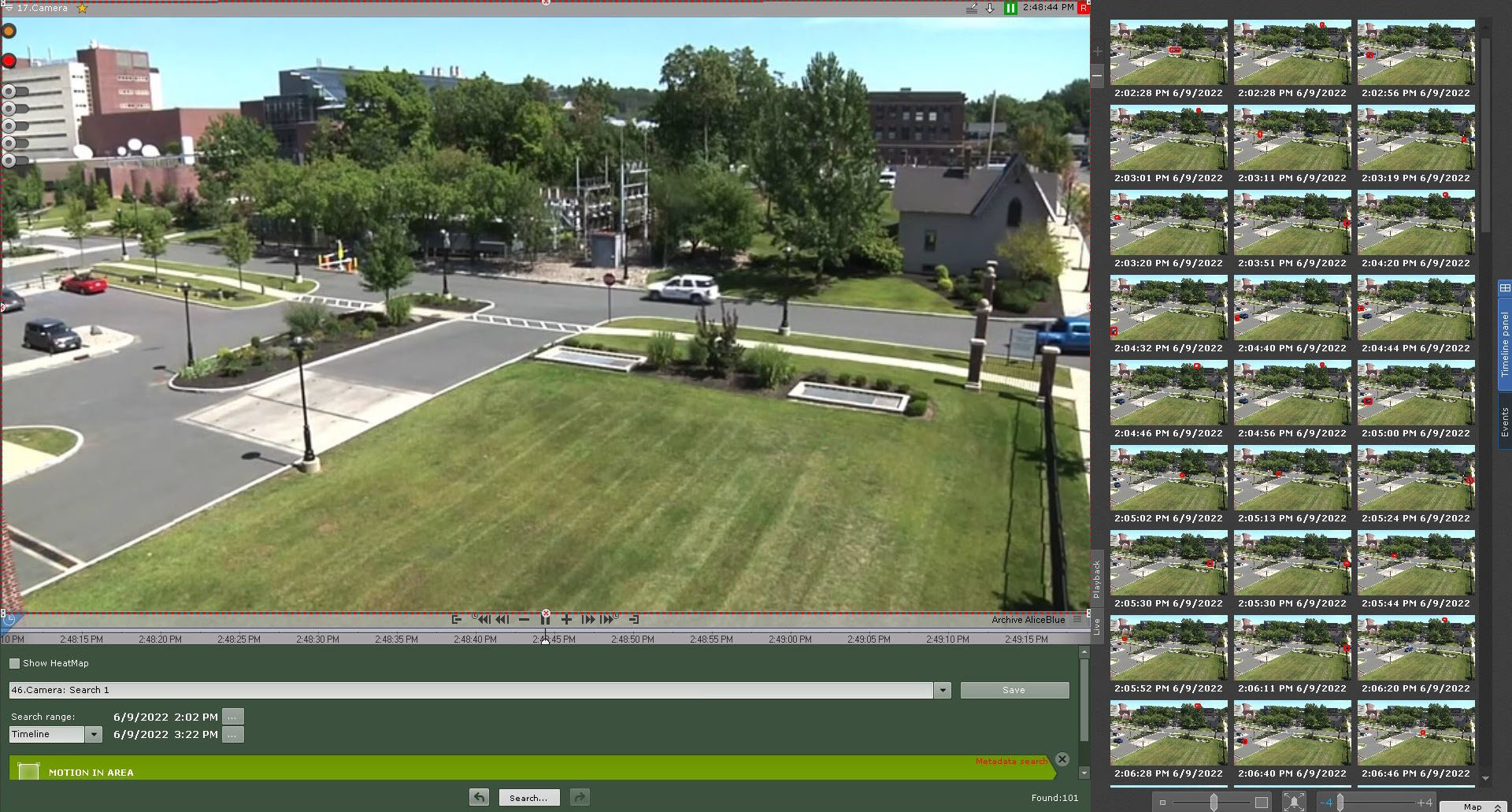
When the Surveillance surveillance window is maximized (see see Scaling the Surveillance window), the search conditions and the archive navigation panel are hidden.
Overview
Content Tools