
Go to documentation repository
Documentation for Axxon One 3.0/3.1 version. Documentation for Axxon One 2.0 version is also available.

On the page:
View search results
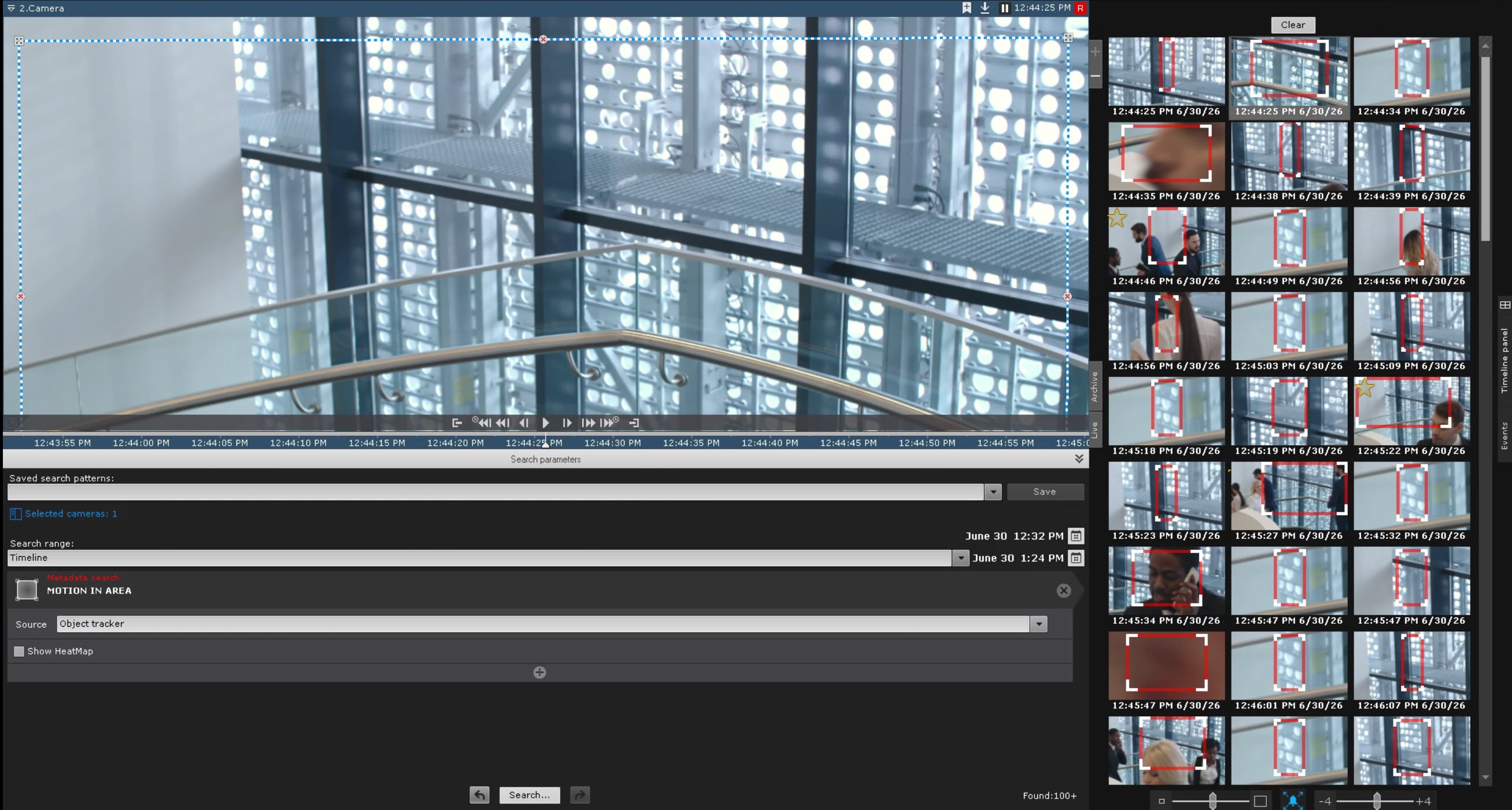
When the search is complete, the search control panel shows how many moments are found.

The search results panel displays archive frames that correspond to the specified search criteria. The time and date are displayed below each frame. The found frames are the beginning of videos.
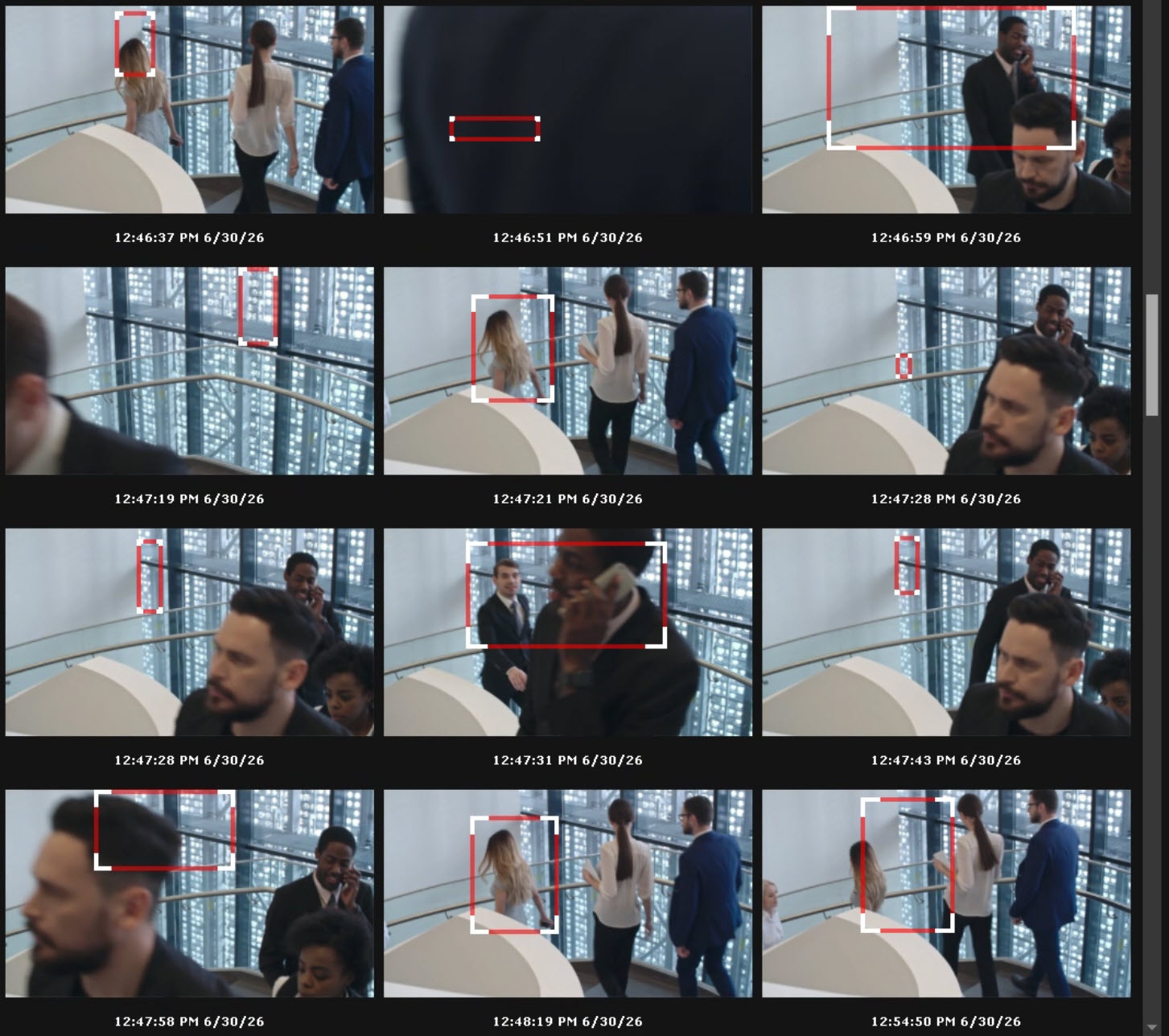
A scroll bar is located on the right side of the search results panel. Below it, there is a zoom slider  .
.
Note
If you select search results close to the limits of the timeline (see Setting a search interval), the search range can shift.
You can filter the search results and keep only the important frames:
- Double-click the frame that you want to keep for further analysis.
- Click the star
 icon. To remove the mark, click the star
  again.
 - Mark all frames that you want to keep.
- Click the Clear
 button to delete unmarked frames from the search results.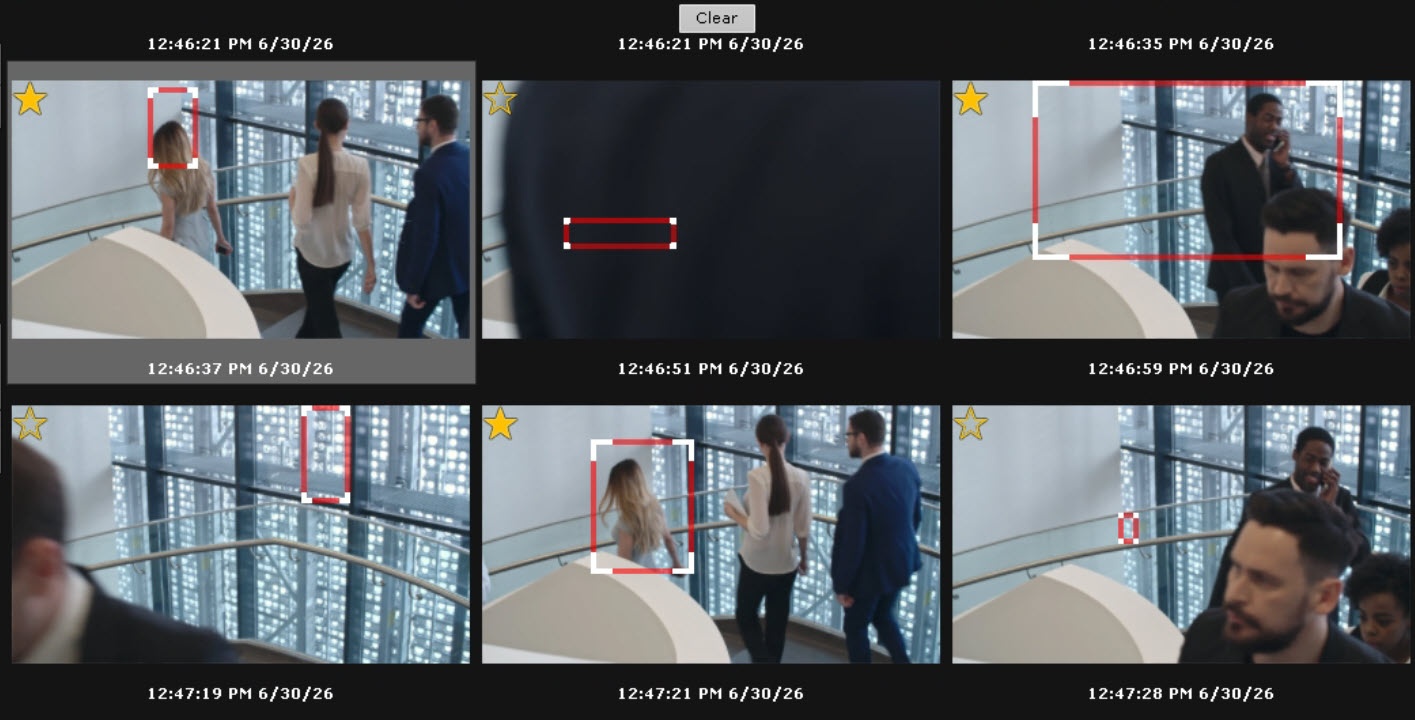
To copy the start time and date of the frame to the clipboard, right-click them. The alarm object is outlined with a red frame.
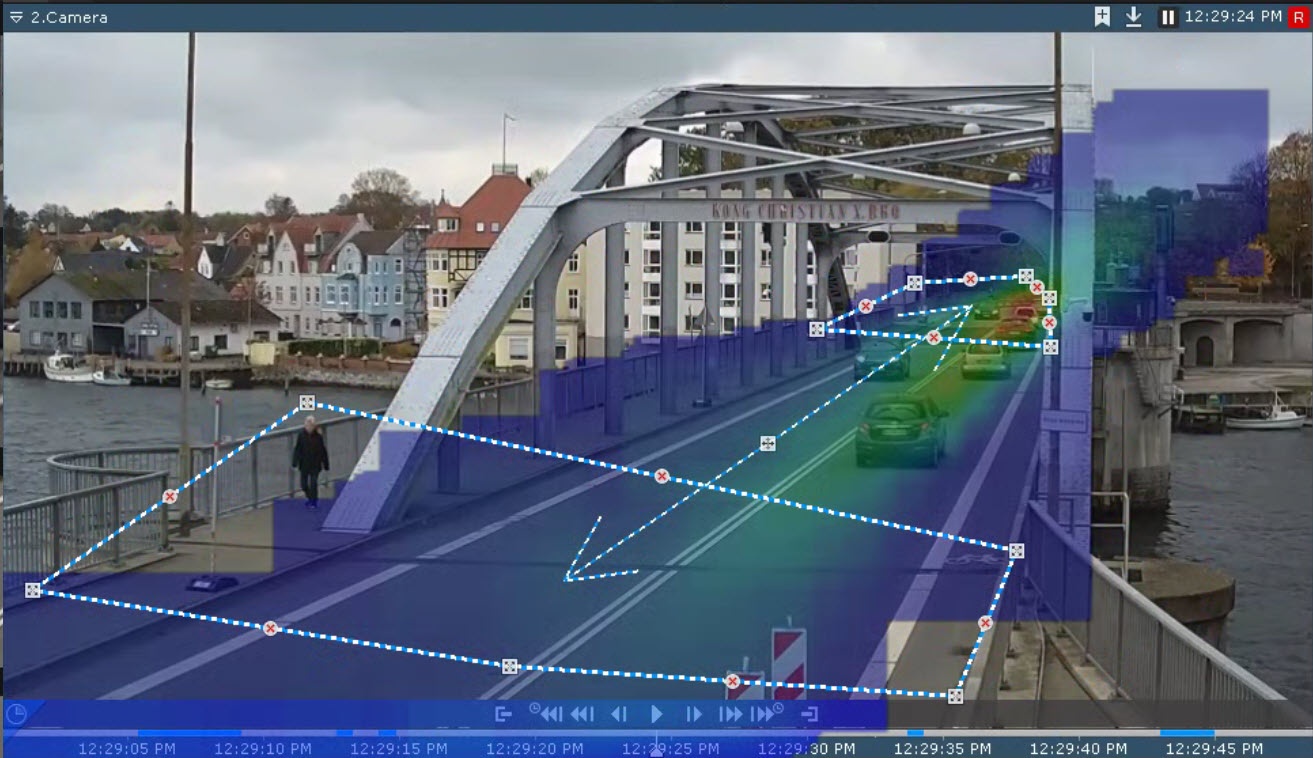
If you set the Show HeatMap checkbox when configuring the search criteria, the surveillance window displays the main flows of objects' movement:
Zoom in on found frames
On found frames, you can zoom in on an object that initiated an event from a detector, a track, or a selected area when creating a bookmark (see Bookmarks).
To zoom in, click the Enlarge the search result area  button below the search results. To disable zoom, click the Enlarge the search result area
  button again.
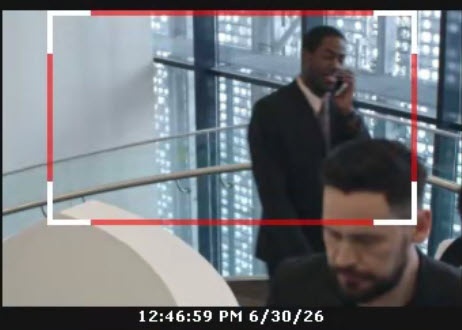
You can zoom in on a frame only in the following cases:
- If the height and width of the visual element specified in the settings of the search in archive are less than 1/3 of the frame.
- If the size of a tracked object is less than 1/3 of the frame.
- If the size of an object selected when creating a bookmark is less than 1/3 of the frame.
In all other cases, the found frames are displayed entirely.
Playback of frames
To view a video corresponding to a found frame in the archive, do the following:
- Left-click the found frame on the search results panel.
- Use the playback panel (see Navigating using the Playback panel) to start the playback of the frame in the surveillance window (see Surveillance window).
By default, the playback starts with the time specified below the frame. You can use the control  to change the start time:
- If the control is in the leftmost position, playback starts four seconds later than the start time.
- If the control is in the far right position, playback starts four seconds earlier.
Note
If object tracking is activated in the surveillance window, then the properties of tracked objects (width and height as a percentage of the width or height of the frame) are displayed when viewing videos found using the search in archive.
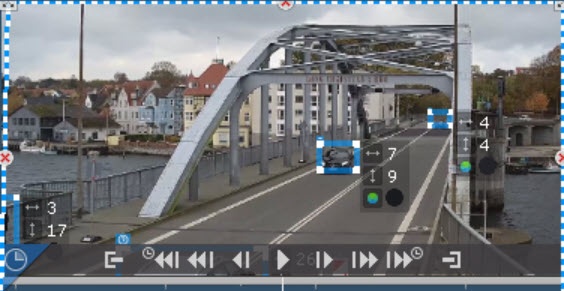
To switch between video fragments, use the corresponding buttons on the playback panel or on the advanced navigation panel (see Navigating using the advanced panel, Navigating using the Playback panel).
When you zoom in on the surveillance window using the  button (see Scaling the Surveillance window), the archive navigation panel is hidden. To maximize the surveillance window, click the
  button. When you click this button, the search criteria panel hides.
View search results in the TimeCompressor mode
You can view search results by metadata in the archive (see Metadata search) in the TimeCompressor mode (see Compressed playback of archives (TimeCompressor)).
To do this, click the Time Compressor  button located in the left corner on the horizontal timeline in the surveillance window.
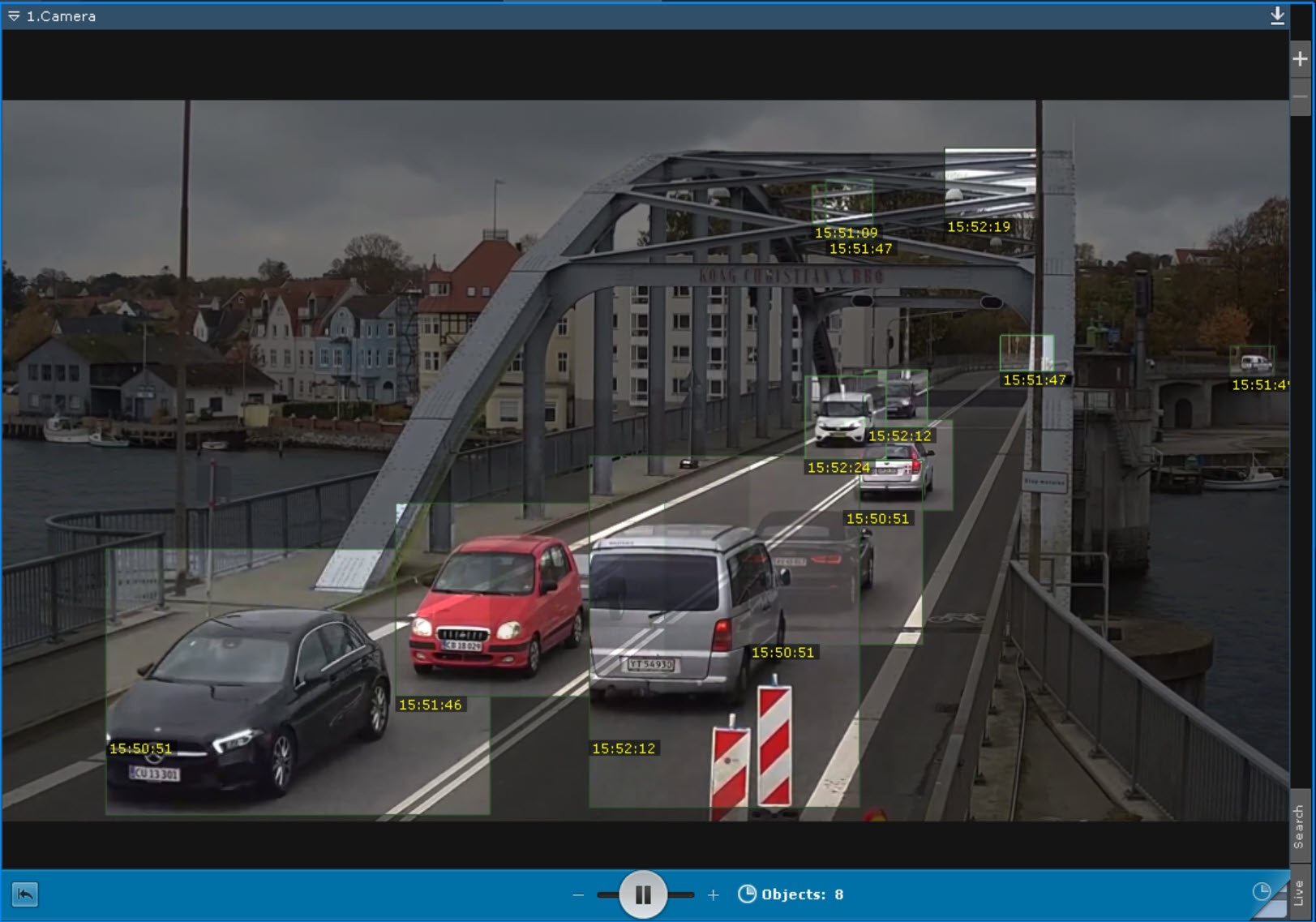
To exit the compressed view mode, click the Time Compressor  button, located in the right corner of the horizontal timeline in the surveillance window.
Navigate between search results
If you run a search more than once and haven't exited the search in archive mode during that time, you can switch between search results.
Note
The number of stored search results is limited only by the RAM of the server.
To go to the previous search result, use the Go to previous search  button on the search control panel. To go to the next search result, use the Go to next search
  button. Each time you navigate between results, the search results panel displays the frames corresponding to the previous/next result.
Save a search query
Saving a search query allows you to quickly navigate to its results and apply these search criteria to other cameras.
To save a search query:
- In the Saved search patterns field, enter the name of a search template.
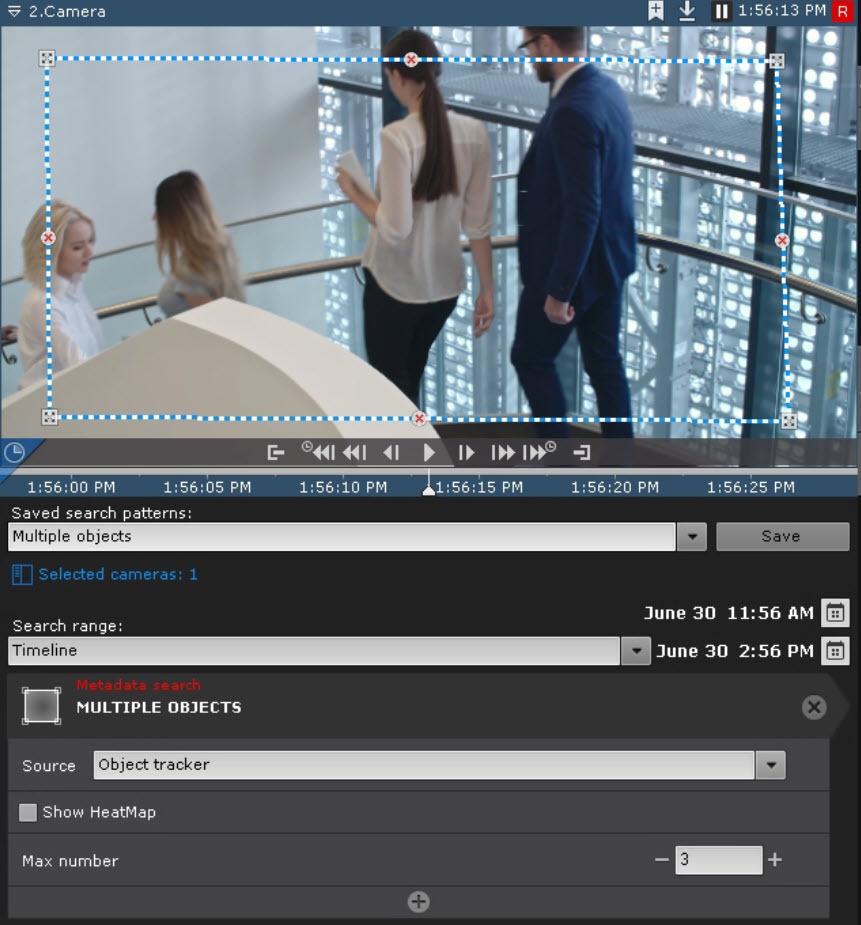
- Click the Save
 button. After this, the template for this search query can be added to the lower right corner of the surveillance window (see View the results of a saved search query).
Attention!
The search range is not saved.
To apply the saved search criteria to another camera archive:
- Go to search in archive of the required camera (see Search in archive).
- In the Saved search patterns field, select the search query from the drop-down list.
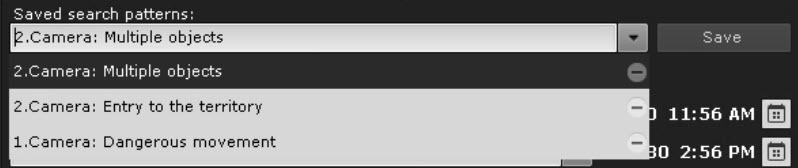
To edit a search query:
- In the Saved search patterns field, open the drop-down list.
- Select the search query and change its name.
- Click the Save button. The query will be saved under a new name; the old query will be available without changes.
To delete a search query, click the  button.
Overview
Content Tools