...
- Select the Report by first and last card presenting per calendar day (see Selecting Select the type of Access Manager report). As a result, the dialog box for specifying the report parameters will be displayed.
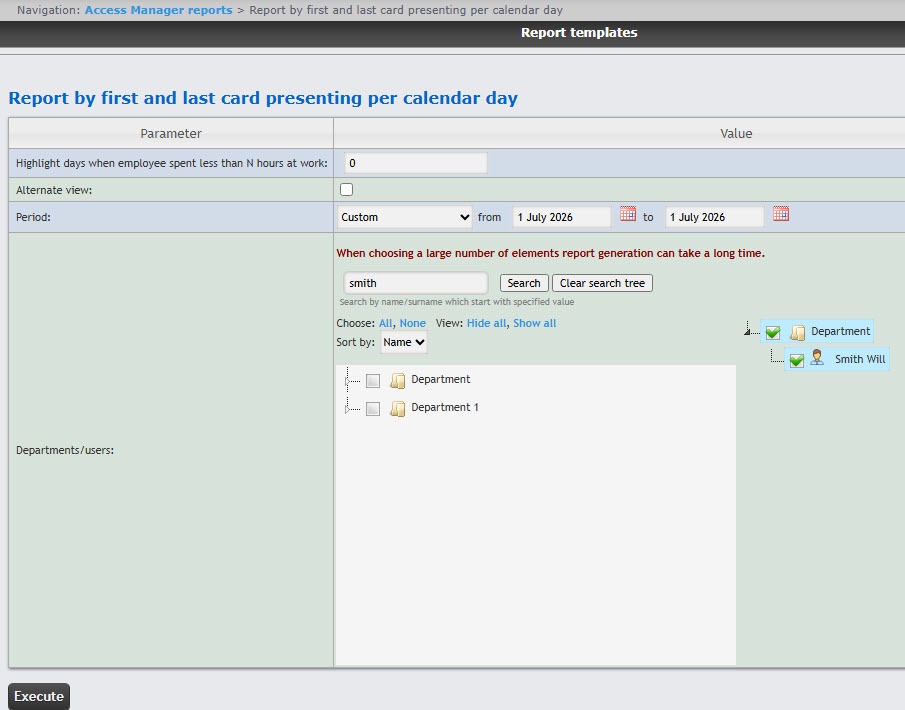
- In the Highlight days when employee spent less than N hours at work field (1), enter the number of hours that employees must spend at work in a day. If employees spent less than the specified number of hours at work in a day, these days will be highlighted in orange.
- From the Period drop drop-down list (2), select the time period for which the report should be created. If the Custom period is selected, enter the date of start and end periods for which the report should be created in the from and to fields using the Calendar tool. Click the
 button near the corresponding field to use the Calendar tool.
 - In the Departments/users field (3) field, set the checkboxes next to those departments or employees, the information on which should be displayed in the report. Click All to select all found departments and employees, click None to deselect. Click Show all to expand the department structure, click Hide all to hide the structure.
- You can find an employee by
their first - name or surname using the search.
For this- To do it, enter
in the search field (4) - at least 4 first characters of the employee's first name or surname
and - in the search field and click the
- Search
- button
(5)- . The department to which the found employee belongs will be displayed in the
search - additional object tree
in - to the
area 6- right. To clear the search field and the search tree, click the
- Clear search tree
button (7)- button.
- Be default, the list of departments and employees is sorted by name. To sort by number, select this option from the Sort by drop-down list.
- Click the Execute button (8) to the Execute button to create the report.
As a result, the report with the specified parameters will be displayed.
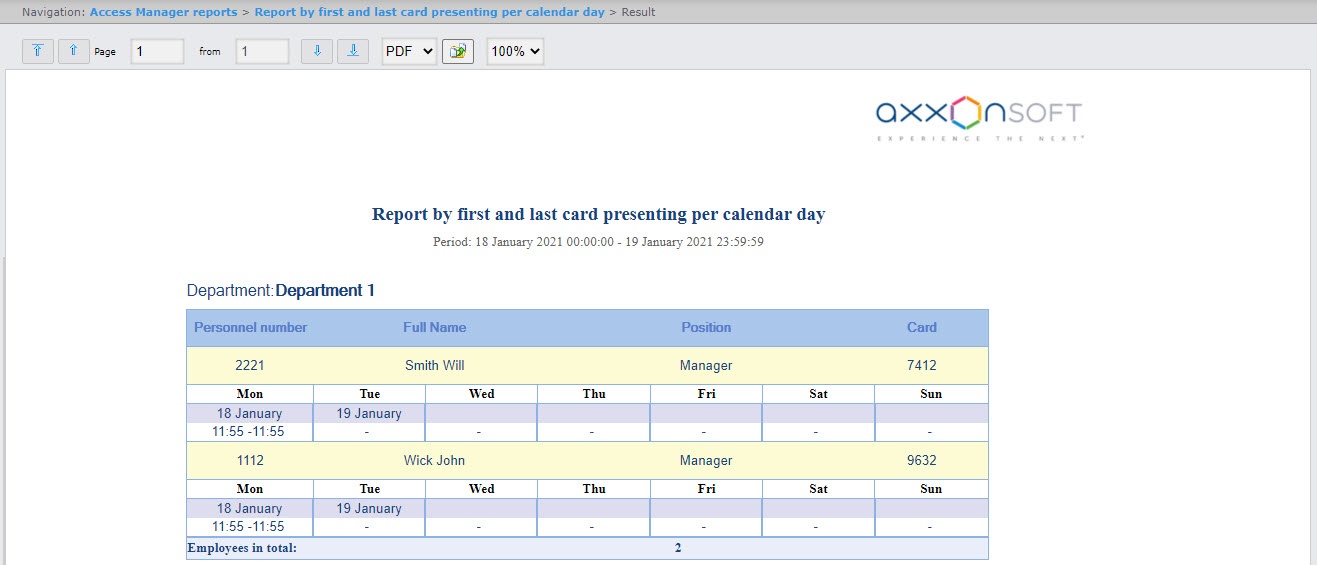
The report fields are described in the table.
| Field | Description |
|---|
| Personnel number | Personnel number of an employee |
| Full Name | Full name of an employee |
| Position | Position of an employee |
| Card | Employee card number |
| Time of first/last presenting of card | A table indicating the time of the first/last presenting of the card on each day within the selected time period |
| The Employees in total line displays the number of employees included in this report |
| Info |
|---|
|
If the report was created automatically in Excel format (see Setting up WEB Report System PSIM operation in the automatic mode), it will contain the information about the department to which the employee belongs. |
...


