
Go to documentation repository


Page History
| Tip |
|---|
Dialog board allows users to view info about alerts/detection events and quickly start macros to respondThe dialog board is used to display information about selected events and enable quick response to them by manually launching macro commands.
In addition, the panel board can display:
- video from the selected camera on the layout;
- video from the Related related camera for the selected camera on the layout;
- video from the Related related camera for the camera linked to the panelboard;
- alarm event from the selected or linked camera;
- still image.
You can To configure the Dialog board as follows, do the following:
- Add an information a board to the layout (see Adding information boards to cells).
In the upper-right corner, click the
 button button.
- To allow the operators to hide the information board , select the from the layout, set the checkbox in the Allow hiding panel check box (1) field.
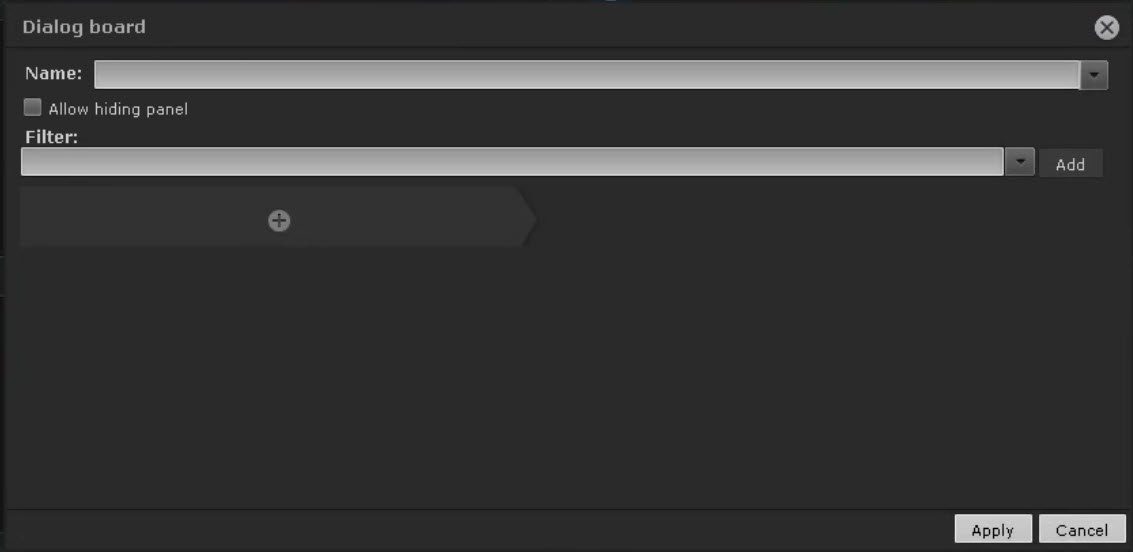
Select the event types that you want to display on the board and click the Add button.
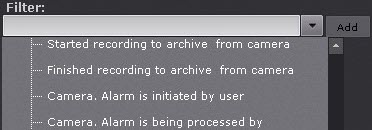
To add events of the same type from different devices, enter the name of the event in the Filter field. This will list only the events of the chosen specified type. To go back to the full list of all events, select any event and clear the filter field.
Info title Note title Note- To remove an added event type, click the
 button.
Info - If you use the board
- to display a video, it isn't necessary to specify the event filter
- .
If
noyou don't select any event type
is selected, all system events are displayed on
the informationthis board.
Configure the information board:- To remove an added event type, click the
- If you want video on the board, then necessary, click the
 button and select the item in the menu. You cannot add other elements if you have video here.
 - Selected camera – if you want to display video from the selected camera (1).

Related camera of selected camera – if you want to display video from the related (alternative, see Camera) camera of the selected camera (2).
Related camera of linked camera – if you want to display video from the related (alternative, see Camera) camera of the linked camera (3). In this case, the panel must be connected to some camera window.
- Selected camera – if you want to display video from the selected camera (1).
If you want to display a still image on the panel, select the Image element. To do this, select a desired image in JPEG, PNG or BMP format (1) and, if necessary, adjust it to panel size (2).

If you want to display an alarm event in the panel from the selected or linked camera, select Alarm. If the panel is linked to any camera window, then alarms from this camera will be displayed. If the panel is not linked to any tile, then alarms from any selected camera will be displayed.
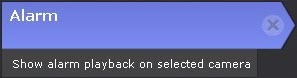
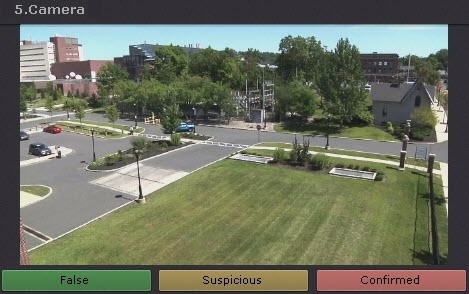
When you add the Alarm item to the message panel, you can also add pre-programmed buttons to evaluate the alarm event. It is color-coded as follows: green – False alarm, yellow – Non-critical alarm, red – Critical alarm.
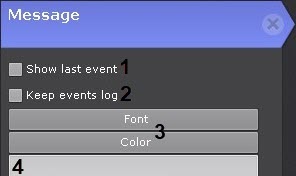
- If necessary, add a message that will be displayed on the panel in case of event (4). You can select the font and color (3) of the message. If it is necessary to display the event text, set the Show last event checkbox (1). To keep all events on the panel and be able to navigate between them, set the Keep events log checkbox (2).
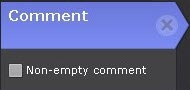
- If necessary, add the comments field. Select the appropriate check box to make comments mandatory.
- Add one or more Response Buttons.
To configure Response Buttons, you should set the mandatory and optional parameters (by clicking ):
):- enter the name of the Button (1);
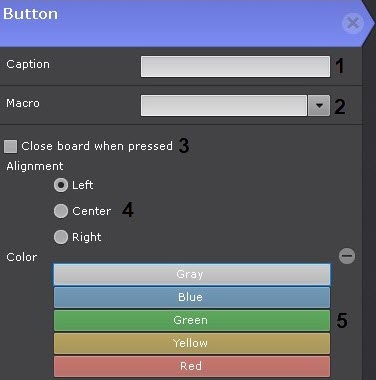
- select a macro that will start when you click the Button (2);
- if you want to hide the board after pressing the Response Button, select the checkbox (3);
- select location for the Button: on the left, in the center, on the right (4);
- select a color (5).
- enter the name of the Button (1);
- Click Apply to save the changes
-
 button and configure additional parameters of the board interface.
Parameter Value Description Сообщение Show last event By default, the checkbox is clear. If you want to display the last event, set the checkbox
Keep events log By default, the checkbox is clear. If you want to keep events log, set the checkbox
Font If necessary, change the font style, size, modification, and character set
Color Main colors If necessary, select the required color from the palette
Bookmark Mandatory comment 
By default, the checkbox is clear. To make the bookmark mandatory, set the checkbox
Selected camera Show selected camera Select this parameter if you want to display video from the selected camera
Alarm Show alarm playack on selecteed camera1 Select this parameter if you want to display alarm events from the selected or linked camera on the board. If the board is linked to any video surveillance window (see Linking cells), only alarms from this camera are displayed. If the board isn't linked to any video surveillance window, alarms from any selected camera are displayed
Note title Attention! When you add the Alarm element on the dialog board, you can add pre-configured buttons to assess the alarm event. The green button indicates the assigning of the False alarm status—Suspicious situation, the red one—Confirmed alarm. It isn't necessary to link macros with buttons in this mode (see Configuring Alarmed cameras layout).
Related camera of selected camera Show related camera from selected camera Select this parameter if you want to display the video of the related camera from the selected camera
Related camera of linked camera Show related camera with linked camera Select this parameter if you want to display the video of the related camera from the linked camera. In this case, the board must be linked to any video surveillance window (see Linking cells)
Button Enter text Enter the name of the button Macro
From the drop-down list, select the macro that triggers when you press the button Close board when clicked By default, the checkbox is clear. If you want to hide the board from the layout after clicking on the button, set the checkbox
Alignment Left
Select the location of the button on the board: left edge, center, right edge
Center
Right
Color Gray
Select the color of the button
Blue
Green
Yellow
Red
Image Fit to frame By default, the checkbox is clear. If you want to fit the image to the size of the board, set the checkbox
Load from file... Select this parameter if you want the board to display the still image. Allowable image format: jpeg, png, or bmp
- Click the Apply button to save the changes.
Configuring Configuration of the Dialog board is complete.
Overview
Content Tools