
Go to documentation repository


Page History
You can use the Logon to automatically log out and/or lock the client if the system user is inactive for a certain period of time, that is, there are no signals from input devices (keyboard, mouse, or joystick).
The feature Autorun of Axxon One, instead of autostart is also available, which replaces the standard Windows OS shell, is used in cases where you need to restrict access to computers running . You can use autostart when it is necessary to restrict the use of the base computers of the digital video surveillance system, including preventing the launch : prevent the start of various applicationsapps, file copying and deletion of files, various working with Windows operationsOS windows, and other non-standard use of the computers.computer usage. If you configure Axxon One to autorun autostart instead of the standard Windows OS shell, Axxon One will launch launches immediately after the Windows OS boots, instead of Windows Explorer immediately after Windows loads. This makes it impossible for prevents the user to launch certain applications from launching various apps installed on the computer or to work with certain this computer and interacting with program dialog boxeswindows.
To activate autorun of the Axxon One software package instead of the standard Windows shell, select the Use as OS shell (3) check box in Settings → Options → User Interface (1-2) and click Apply.
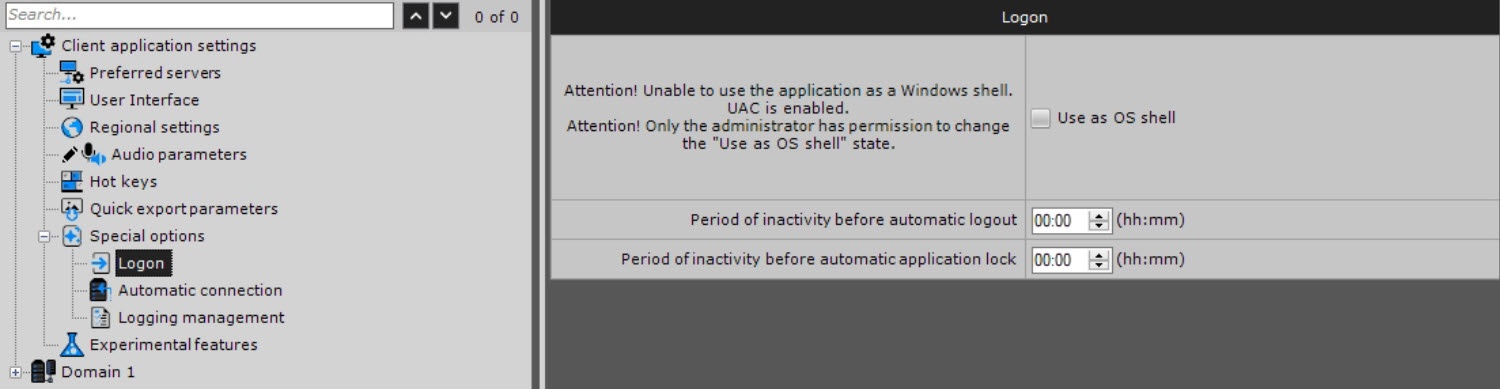
specify the required settings:
- Go to the Settings tab → Options → Special options → Logon.
- Specify the required settings listed in the table:
Parameter Value Description Logon Use as OS shell 
By default, the standard Windows OS shell is launched (the checkbox is clear). If you want to enable Axxon One autostart
...
instead of the standard Windows OS shell, set the checkbox. The next time you start Windows
...
OS, Axxon One launches instead of the standard shell
Info title Note If User
...
Account Control (UAC) is enabled in the Windows OS, Axxon One
...
doesn’t automatically launch instead of the standard Windows OS shell (the
...
corresponding checkbox is inactive).
...
You must disable UAC.
- In Windows 10
...
- , you
...
- must also edit the registry and reboot.

Period of inactivity before automatic logout (hh:mm) The default value is 00:00. Specify the time of user inactivity before automatic logout. If you don’t specify the parameter or set it to 00:00, the user doesn’t automatically log out. The value must be in the range:
- hh [00, 23]
- mm [00, 59]
Period of inactivity before automatic application lock (hh:mm) The default value is 00:00. Specify the time of user inactivity after which the client must be locked. Re-authentication is required to continue using the client. If you don’t specify the parameter or it is set to 00:00, the client isn’t locked. The value must be in the range:
- hh [00, 23]
- mm [00, 59]
Info title Note - The client doesn’t automatically lock if the camera layout is open.
You can also manually lock the client at any time using key combinations (see Hot keys).
- Click the Apply
 button. To cancel the actions, click the Cancel
  button.
Configuration of autostart, automatic client logout, and automatic client lock is complete.
Overview
Content Tools