Versions Compared

Key

  • This line was added.
  • This line was removed.
  • Formatting was changed.

...

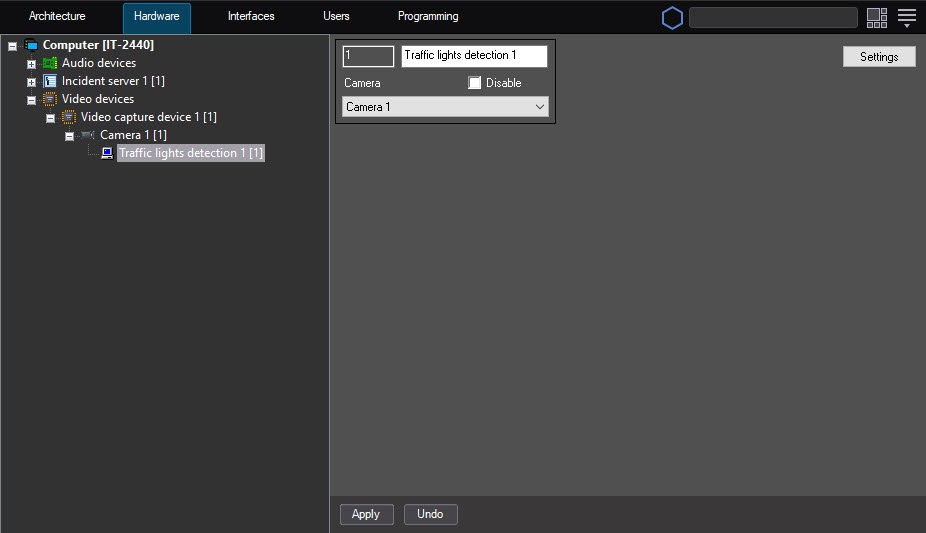
  1. Go to the settings panel of the Traffic lights detection object that is created on the basis of the Camera object.
  2. Click the Settings button. The Detection settings window opens. 
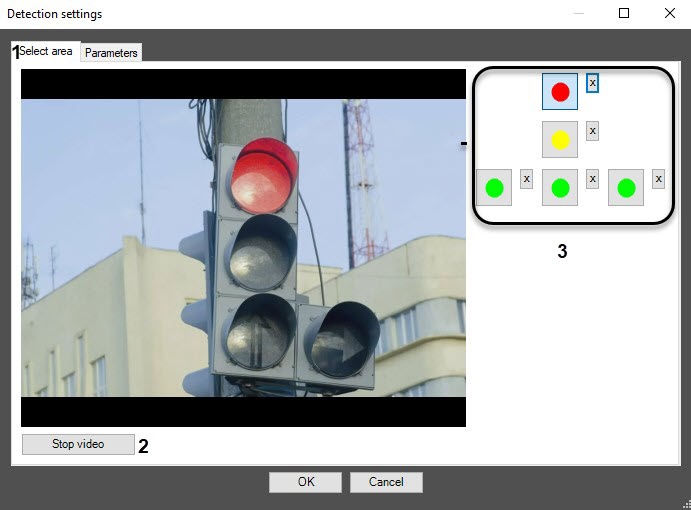
  3. On the Select area tab (1), specify the area of traffic light signals:
    1. Click the Stop video button to capture the frame of the video image (2).

    2. Do the following actions for each traffic light signal:

      • Click the button with this the required signal (3).

      • Specify the area of the given traffic signal on the captured video frame. To do this, click the left mouse button on the video frame, and while holding it, move the cursor.
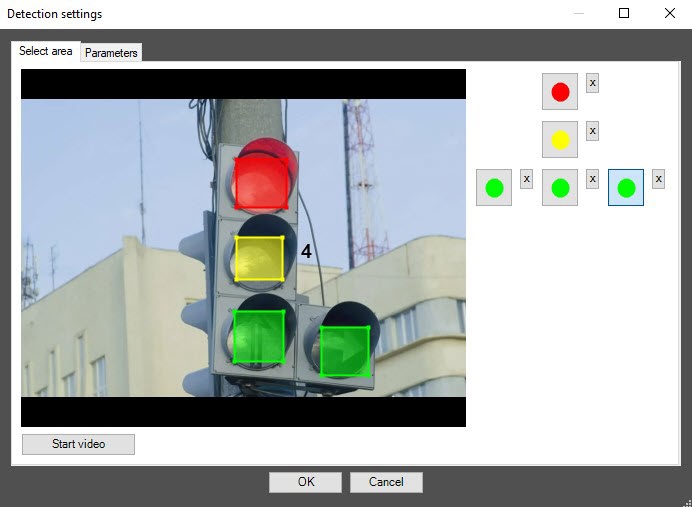
        Info
        titleNote

        To remove the area, click the button next to the corresponding button.

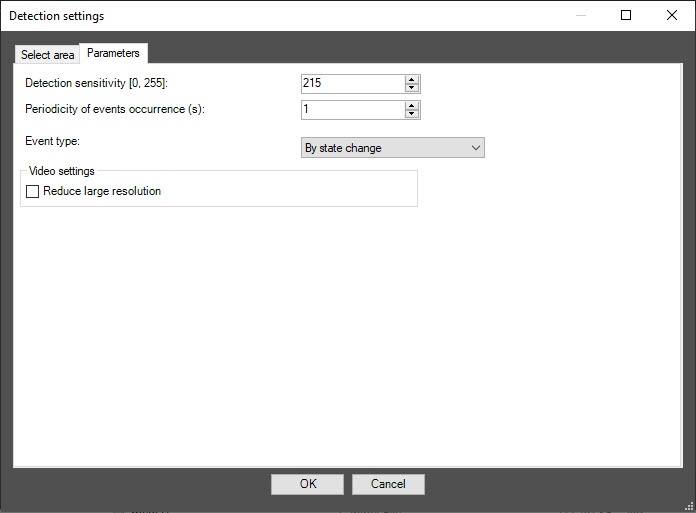
  4. Specify the parameters of the program module:
    1. Go to the Parameters tab.
    2. In the Detection sensitivity [0, 255] field, specify the detection sensitivity in conventional units in the range from 0 to 255. The default value is 215.
    3. In the Periodicity of events occurrence (s) field, enter the time period in seconds between creating messages about the states of traffic light signals.
    4. From the Event type drop-down list, select the type of the created messages: By state change, By period, By period and state change.
    5. Set the Reduce large resolution checkbox if you want to recognize the states of the traffic light signal on the frame.
    6. Click the OK button to save the changes and return to the settings panel of the Traffic lights detection object.
      Info
      titleNote

      To return to the settings panel of the Traffic lights detection object without saving the changes, click the Cancel button.

  5. Click the Apply button.

...