
Go to documentation repository


Page History
...
- To enable the ability to transmit the LPs' blacklist, set the CarPlatesBlackList=1 parameter value of the CarPlatesBlackList the HKEY_LOCAL_MACHINE\SOFTWARE\Wow6432Node\BitSoft\VHOST\VHostService registry key (see Vertical sollutionssolutions, for more information on working with the registry, see Working with Windows OS registry).
As a result, the Blacklist and Select file buttons are displayed on the toolbar of the Details window.
- Enable the visibility of other Blacklist and Blacklist download status columns on the Fields tab (for more details, see Information about an object).
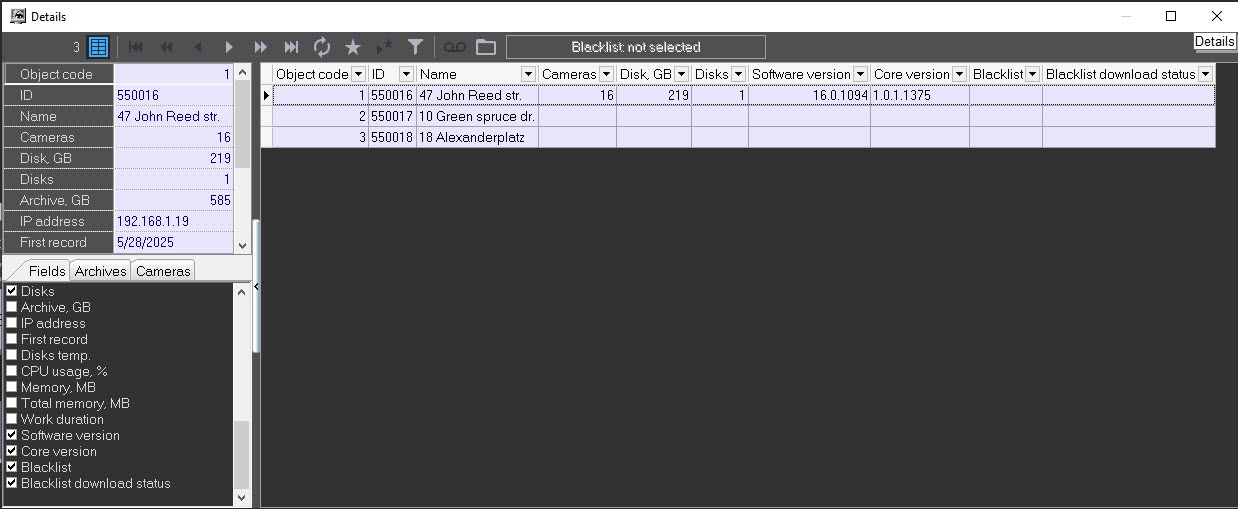
- Click the Select file
 button at the top of the toolbar.
 - In the Windows dialog window that opens, select the required file with the LPs' blacklist.
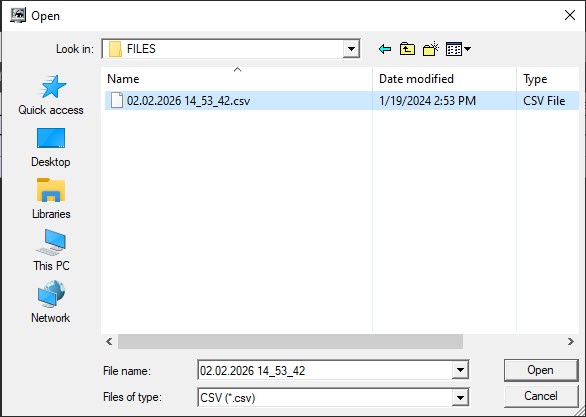
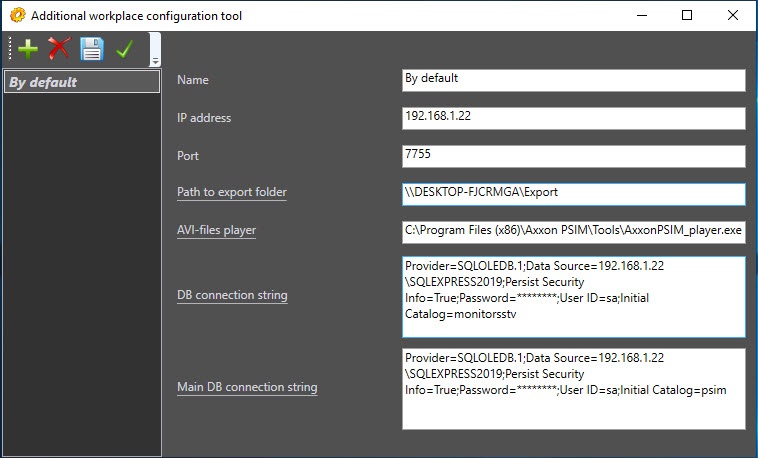
The selected file is copied to the Server of Control export directory that is located by default at C:\Export. If the operator of the Additional workplace module performs this operation, then make sure that the path to the export directory is correct.Info title Note The blacklist file format must match the export/import file format of the Auto PSIM "Active tracking" database (for more details, see Creating the Active tracking database).
Files whose names exceed 23 characters are ignored.
- Select where to send the LPs' blacklist file by clicking the Blacklist: Transmit to selected object or Transmit to all objects button.

If you try to send the LPs' blacklist without specifying a file, the corresponding error message appears.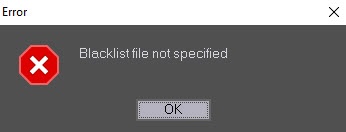
After you select the Transmit to all objects menu item, the Server of Control module sends the LPs' blacklist file to all system Agents of Control in parallel. If the sending to the Agent of Control issuccessful and the loading to the database is without errors, the Blacklist column displays the name of this accepted file, and the Blacklist download status column displays the Success row. If there are mistakes during the loading, they appear in the download status column.
...
- By default, the Server of Control module connects to the 8888 port of the Agent of Control module.The example of configuring at the side of the Agent of Control module.
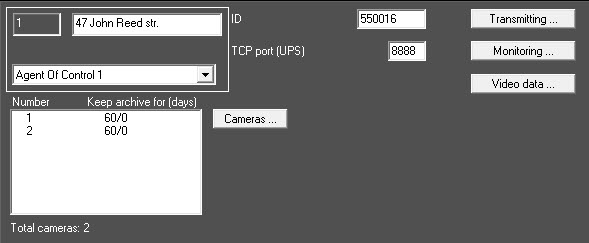
If you change this setting on the side of any Agent of Control module, you can specify another port number on the Server of Control side by using the TcpPortForBlackListregistry key for parameter for all Agent of Control modules and the TcpPortForBlackList<ID> key for parameter for separate Agent of Control modules modules of the HKEY_LOCAL_MACHINE\SOFTWARE\Wow6432Node\BitSoft\VHOST\VHostService registry key (see Vertical sollutionssolutions, for more information on working with the registry, see Working with Windows OS registry). - The operation with the External Plates DB object of a lower number is performed on the Agent of Control module.
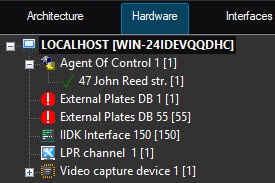
- You can only view the values of the Blacklist and Blacklist download status fields in the Details window on the Central Server of Control and the Additional workplace of CSC modules but cannot load the LPs' blacklist file to Agents of Control.
Overview
Content Tools