
Go to documentation repository
| Info | ||
|---|---|---|
| ||
You can use templates when you create a report. To add a new template, click Report templates → New template and fill in the Name and Description fields. The template will use the selected parameters of the current report. Templates work the same way as templates in the scheduler and can be used interchangeably. When you create a response using a template, click Report templates at the top of the page and select the required template from the list of saved templates (the required template is highlighted |
In order to generate a protocol report, do the following:
...
). As a result, |
...
the parameters of the current report are updated according to the selected template. |
To create this report, select the Protocol report from the list of General reports (see Select the type of general report). Specify report parameters in the form that opens. 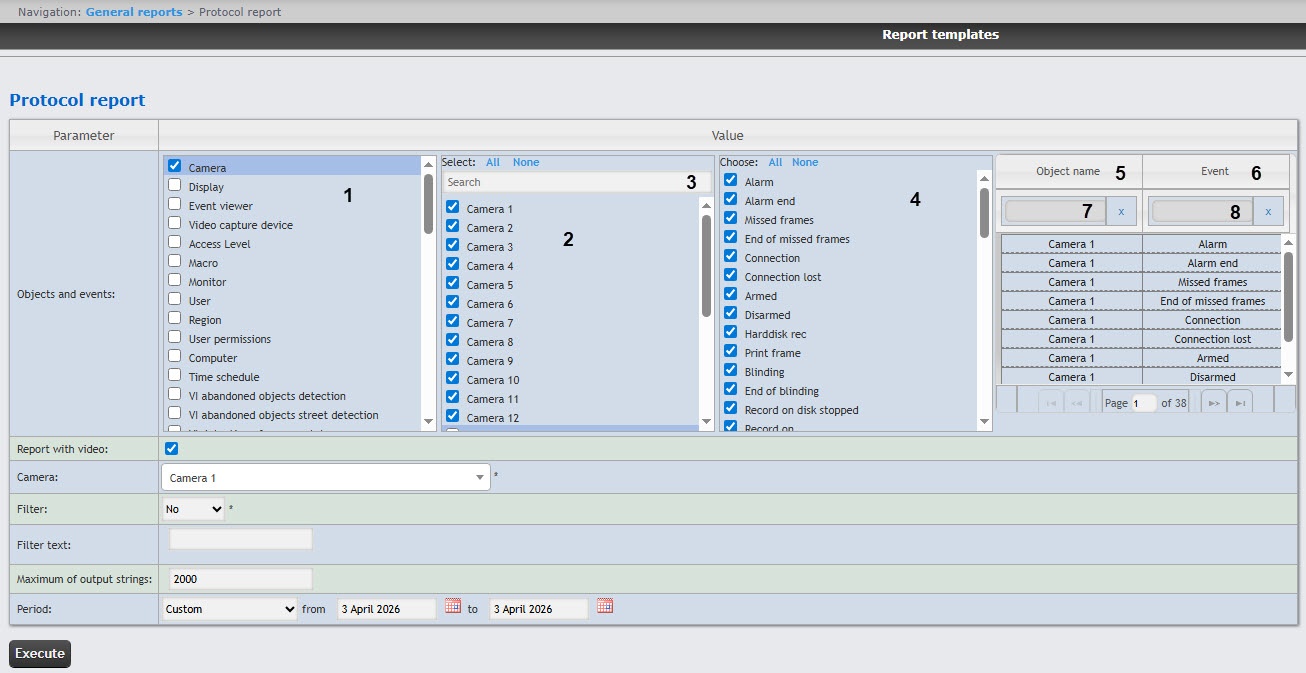
In the Objects and events list (1), select the necessary object type (1).the types of objects for the report by setting the corresponding checkboxes. All objects of this type are automatically selected (2). To cancel the selection, clear the checkbox for the object type.
| Info | ||
|---|---|---|
| ||
It is possible to You can select the view of the list of objects and events (see Selecting the view of the list of objects and events for the Protocol reportsee General report settings). |
 button (4). Click the
  button (5) to deselect. The objects selected for the report are displayed in the area 6.click All. To deselect, click None. After the search, when you click the All button, all objects from the filtered list of objects are selected. You can also select one or more objects using the Shift (select an object) and Ctrl (deselect an object) keys.
Set the Report with video checkbox (8) to create the report which will contain that contains the video image from the camera selected from the Camera drop-down list.
From the Filter drop-down list (10), select the rule by which the data will be are filtered when generating creating the report (7).
No—the filter will not be —filter isn't applied.
Equal—the report will be —report is generated only for those events where the Information column content is strictly equal to the filter value specified in the Filter text field (11).
Contains—the report will be —report is generated only for those events where the Information column contains the filter value specified in the Filter text field (11) field.
| Info | ||
|---|---|---|
| ||
The report is filtered only by the Information column (see the report fields description in the table below). |
In the Filter text field (11), enter specify the value for by which you want to filter the report filtering.
From the Period drop drop-down list (13), select the time period for which the report should must be created.
 button near the corresponding field to use the Calendar tool.
 button
Example of a protocol report:repor.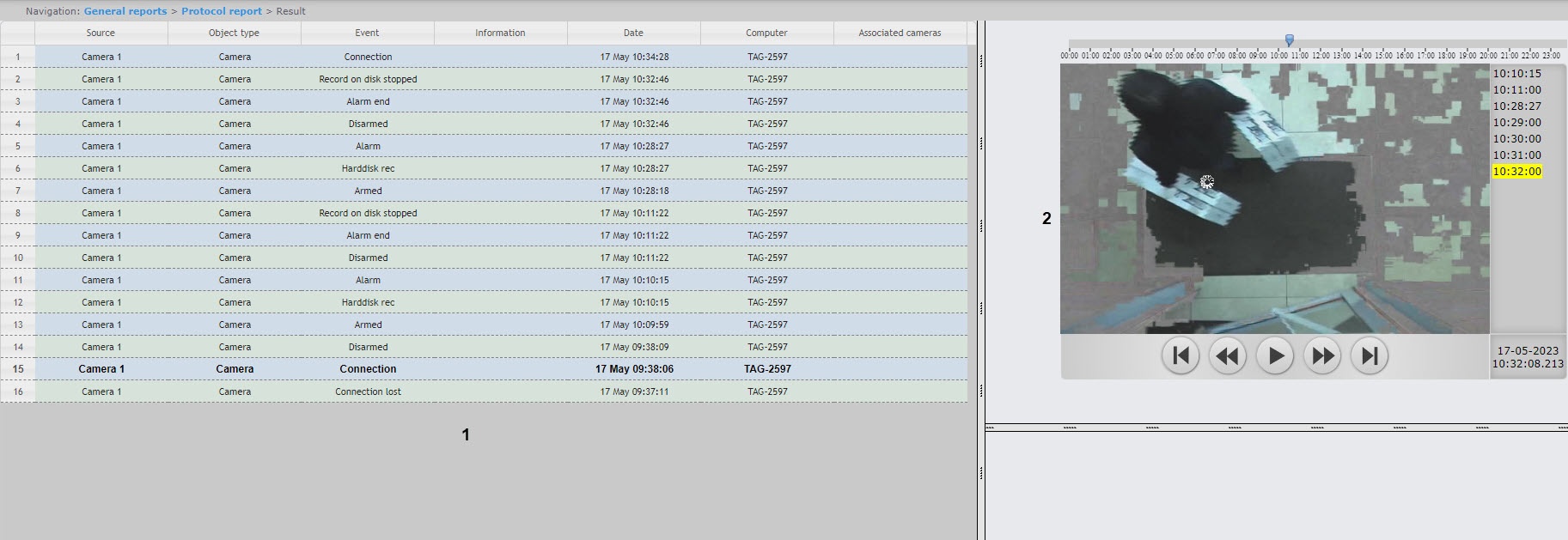
The form of the protocol report with the video displaying display feature consists of three parts. Part (1) is similar to the print form of the protocol report without the video displaying display feature. Part (Part 2) displays the video from the selected camera . The video is displayed if there is the a video archive for the specified period. Otherwise, the last frame from the archive is displayed.
The images photos corresponding to the employee passes access events will be are displayed when using you use the FSA/ACS module. Specify To display the photos, specify the path to the folder with the images photos in the <add key="PathToPhotos" value ="" /> parameter in the web.config file to display the images. By default, the " /BMP/Person/ " path is specified.
The names of the files with the images should photos must correspond to the ID IDs of the employees whose passes accesses are displayed in the report.
| Note | ||
|---|---|---|
| ||
| It is impossible to You cannot print the form of the protocol report with the video displayingdisplay feature. If you need to get the print form of the protocol report, create the report without video, i.e.that is, the Report with video checkbox (8) shouldmust be clear. When creatingyou create an autogenerated protocol report, you shouldmust select the report without the video displaying featuredisplay feature. |
Example of a print form of the protocol report.
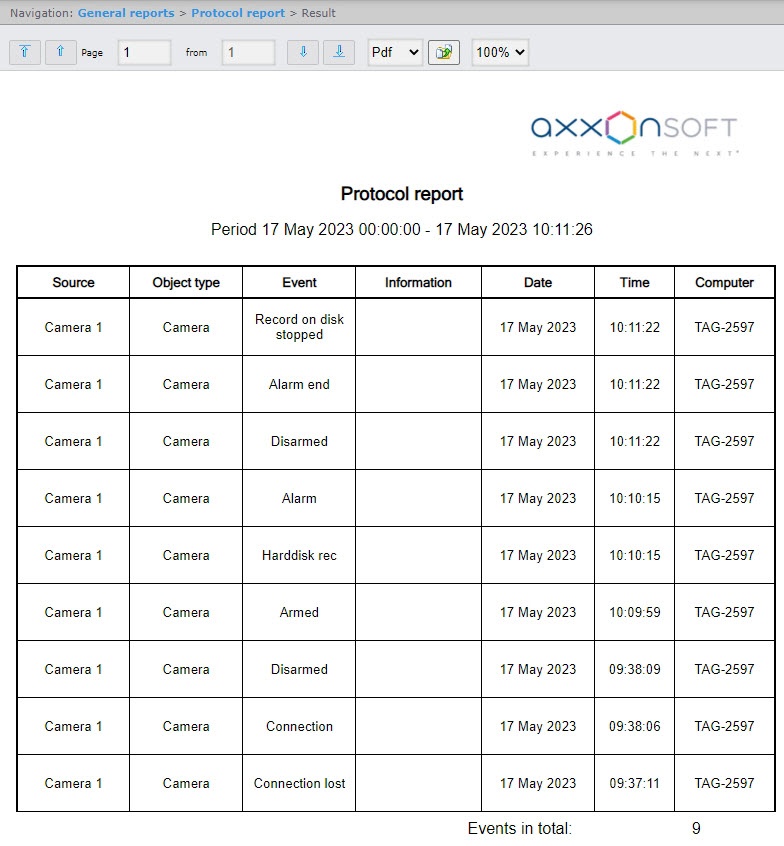
The description Description of the report fields is given in the table.
| Field name | Description |
|---|---|
| Source |
Identifier of the source object of the event |
(data from the objid column of the dbo.PROTOCOL table of the Axxon PSIM database) | |
Object type | Type of |
object |
to which an event belongs (data from the objtype column of the dbo.PROTOCOL table of the Axxon PSIM database) | |
| Event | Name of the event |
(data from the action column of the dbo.PROTOCOL table of the Axxon PSIM database) | |
| Information | Additional information about the event (if available), such as the name of the computer where the event occurred, the operator's comment, |
and so on (data from the param0 column of the dbo.PROTOCOL table of the Axxon PSIM database) | |
| Date | Date of the event |
(data from the date column of the dbo.PROTOCOL table of the Axxon PSIM database) | |
| Time | Time of the event |
(data from the date column of the dbo.PROTOCOL table of the Axxon PSIM database) | |
| Computer | Name of the computer where the event occurred |
| Info | ||
|---|---|---|
| ||
The operator's comment confirming the event in Eventthe Event Manager module is specified in the Information field in square brackets (see Example of working with the Event manager module). For details about the dbo.PROTOCOL table, see Base Axxon PSIM database tables. |
You can save the report in the following formats:
The protocol report is created.

