...
The Report by actions of Event Manager operator is a table which displays the that displays the requests received by the Event Manager operator and his operator and their reactions to themthe requests.
To create the Report by actions of Event Manager operator, do the following:
- Select the Report by actions of Event Manager operator (see Select the type of Access Manager report). As a result the dialog box for specifying the report parameters will be displayed.
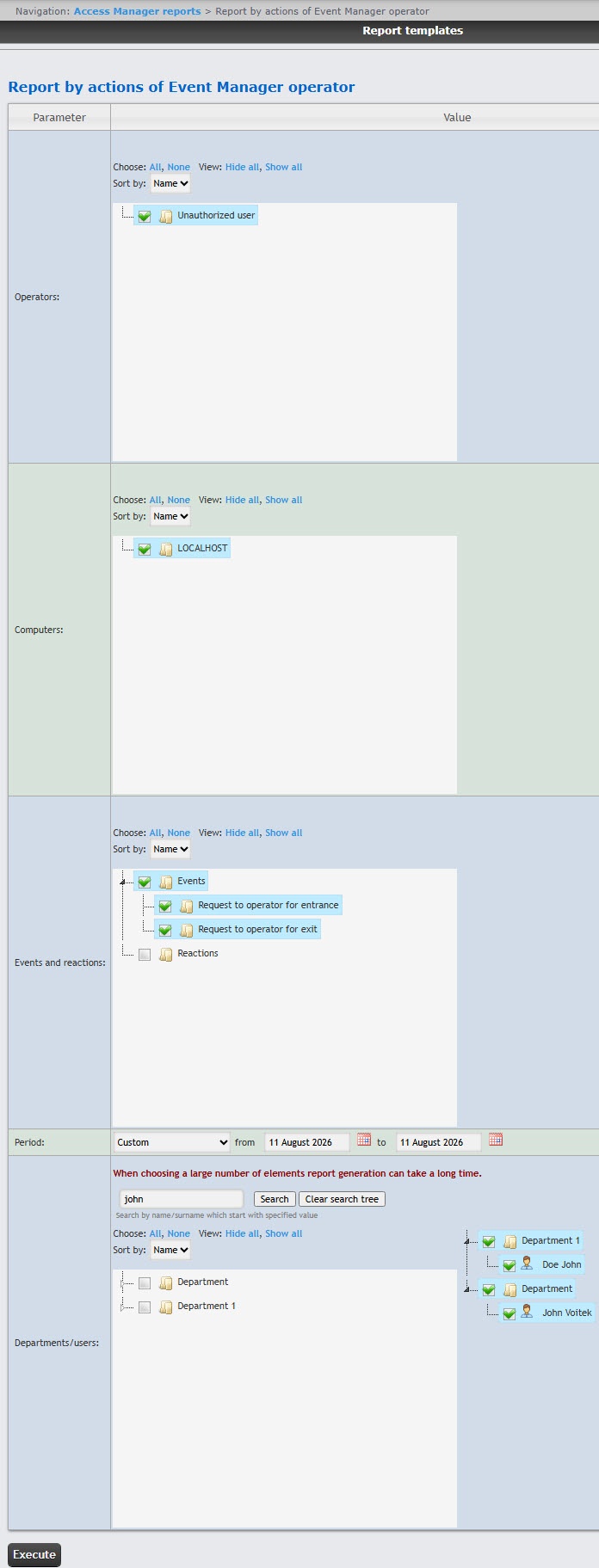
- In the Operators
field set - field, set the checkboxes for the operators whose actions
should - must be displayed in the report. Click All to select all available operators, click None to deselect. Click Show all to expand the
operators - operator structure, click Hide all to hide the structure.
Be - By default, the list of operators is sorted by name. To sort by number, select this option from
the - the Sort by drop-down list.
- In the Computers
field set - field, set the checkboxes
for - next to the computers
the information on which should be displayed - that you want to include in the report. Click All to select all available computers, click None to deselect. Click Show all to expand the
computers - computer structure, click Hide all to hide the structure.
Be - By default, the list of computers is sorted by name. To sort by number, select this option from the Sort by drop-down list.
- In the Events and reactions
field set - field, set the checkboxes
for - next to the events and reactions
the information on which should be displayed - whose information you want to display in the report. Click All to select all available events and reactions, click None to deselect. Click Show all to expand the
events - event and
reactions - reaction structure, click Hide all to hide the structure.
Be - By default, the list of events and reactions is sorted by name. To sort by number, select this option from the Sort by drop-down list.
- From the Period drop-down list select the time period for which the report
is to - must be created.
- If
the - you select the Custom or Custom 2 time period
- , enter the
- dates of the start and end periods for which the report
- must be created in the from and to fields using the Calendar
-
 Image Removed button near the corresponding field to use the Calendar
 - tool.
- For the Custom 2 time period,
- you can also
- enter the
- start and end period
 Image Removed
- .
- In the Departments/users field, set the checkboxes next to those departments or employees
, the information on which should be displayed - whose information you want to display in the report. Click All to select all found departments and employees, click None to deselect. Click Show all to expand the department structure, click Hide all to hide the structure.
- You can find an employee by name or surname using the search. To do it, enter at least
4 - four first characters of the employee's first name or surname in the search
field and - field and click the Search button. The department to which the found employee belongs
will be - is displayed in the additional object tree to the right. To clear the search field and the search tree, click
the - the Clear search tree button.
Be - By default, the list of departments and employees is sorted by name. To sort by number, select this option from
the - the Sort by drop-down list.
- To create
a - the report, click the Execute button.
As Example of a result the report with specified parameters is displayedreport by actions of Event Manager operator.
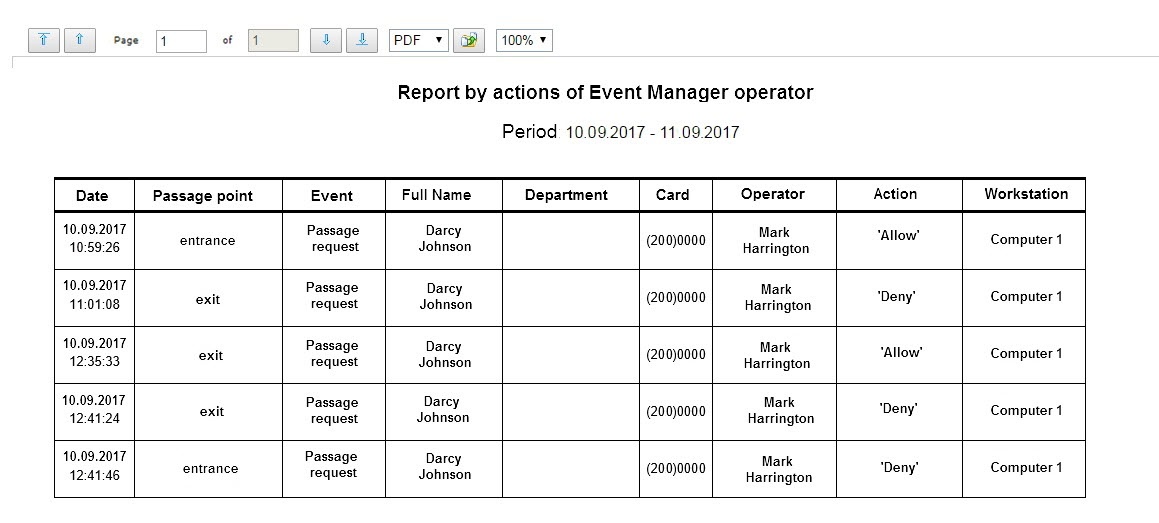
The report fields are described in the table.
| Field name | Description |
|---|
| Date | Date of the request received by the operator |
| Passage point | The passage access point controlled by theEvent Manager module |
| Event | Request received by the operator |
| Full Name | Full name of the requesting person |
| Department | Department of the requesting person |
| Card | Card number of the requesting person |
| Operator | Full name of the operator |
| Action | Operator reaction to a request |
| Workstation | The name of the computer on which the operator action was performed |
You can save the report in the following formats:
The Report by actions of Event Manager operator is created.


