To configure the user security policy, do the following:
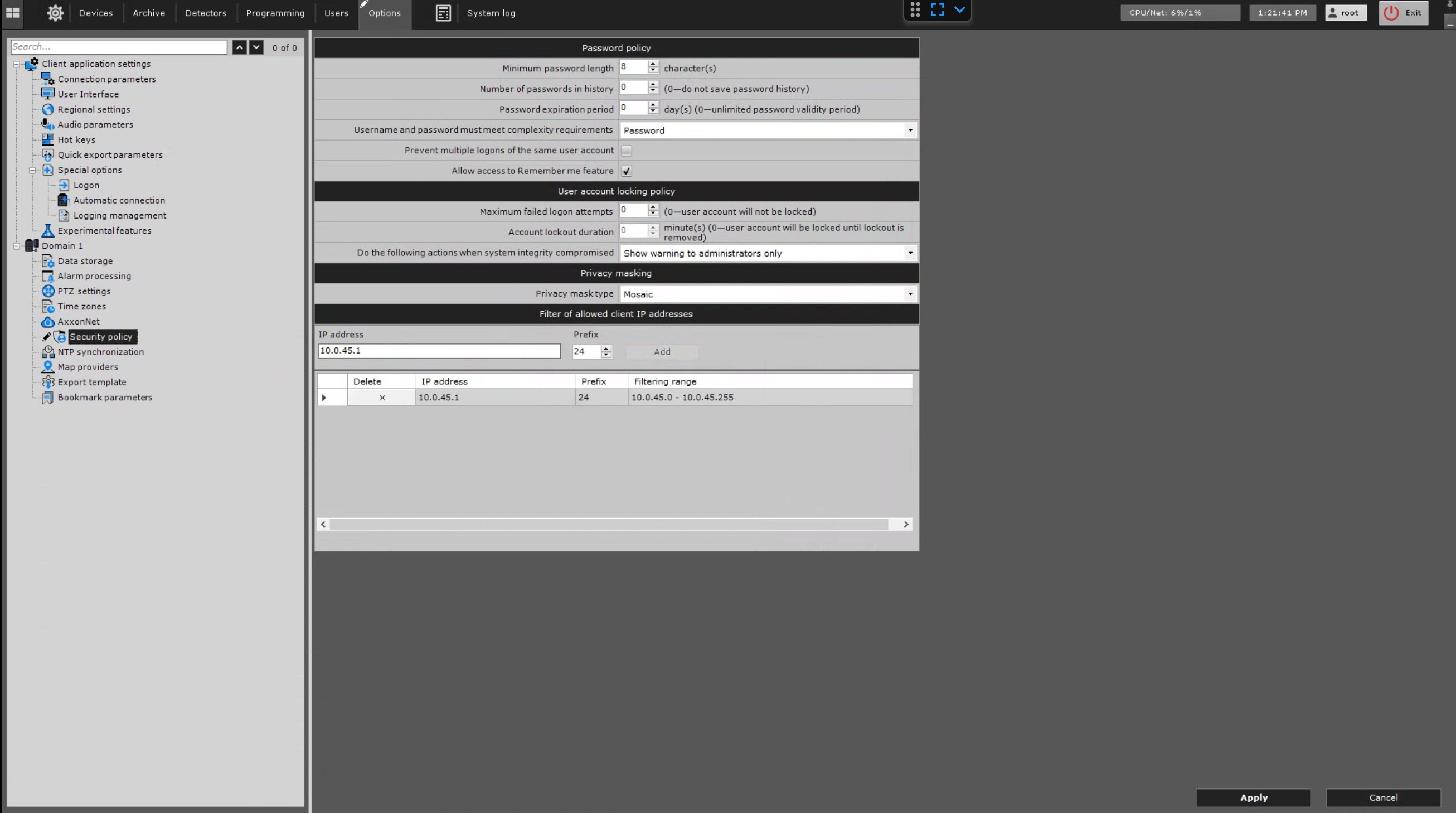
| Parameter | Value | Description | |
|---|---|---|---|
| Password policy | |||
| Minimum password length | 8 | The default value is 8. If necessary, change the minimum password length. The value must be in the range [8, 20] | |
| Number of passwords in history | 0 | The default value is 0, which means that the system doesn't store the password history. If there is a different value from 0, then you cannot use the passwords that are stored in the history when specifying the new password. Specify the number of last passwords for each user that you want to store in the history. The value must be in the range [0, 24] | |
| Password expiration period | 0 | The default value is 0, which means that the password expiration period is unlimited. Specify the password expiration period in days. After the end of the specified period, the user is offered to specify the new password. The value must be in the range [0, 999] | |
| Username and password must meet complexity requirements | None | The default value is Password. Select the value from the drop-down list that must correspond to the complexity requirements
| |
| Username and password | |||
| Password | |||
| Prevent multiple logons of the same user account |
| By default, there is no prohibition for multiple logons of the same user account (the checkbox is cleared). If you want to prevent multiple logons of the same user account, set the checkbox. This requirement also refers to Web clients and mobile clients | |
| |||
| Allow access to Remember me feature |
| By default, when you connect to the domain, you can set/clear the Remember me checkbox on the initial authorization window (the checkbox is set). If you clear the Allow access to Remember me feature checkbox, then the Remember me checkbox is unavailable on the initial authorization window. For example, if you as a new client connects to the old server, then the "Remember me" tip is absent | |
| |||
| User account locking policy | |||
| Maximum failed logon attempts | 0 | The default value is 0, which means that the user account isn't blocked after failed logon attempts. Specify the number of failed user authentication attempts after which the user account is locked. The value must be in the range [0, 999]
| |
| Account lockout duration | 0 |
The default value is 0, which means that the administrator can only unlock the user account (see Configuring local users, Configuring LDAP users). Specify the account lockout duration after failed authentication attempts in minutes. The value must be in the range [0, 99999] | |
| Do the following actions when system integrity compromised | When you start each server and client, Axxon One automatically checks all executable files (exe, dll, so) for the correspondence of a watermark. If all files are found and correspond to a watermark, the system log saves the System integrity check passed successfully event (see System log). If the files' and system directories' integrity is compromised, altered by malware, or someone attempts to hack into the system, Axxon One automatically displays one of the preset actions | ||
| Show warning to administrators only | The value is set by default. When users of the admin role start a client, the corresponding notification is displayed: "System integrity compromised. Details: Client status: Server status compromised: Server status checked: unknown". To proceed the client loading, you must click the Continue button, to close—No, to open the text file with the list of compromised files—Details | ||
| Show warning to all users | Notification is displayed for all users | ||
| Block users without administrator rights | The client logs out, and the corresponding notification is displayed for all users that were in the system during the check except for the users of the admin role. Also these users cannot connect to the server | ||
| Stop non-vital services | The operation of all objects that must be licensed (cameras, detectors, and so on) stops. When you start a client, the corresponding warning is displayed for all users | ||
| Privacy masking | |||
| Privacy mask type | Mosaic | The default privacy mask type is Mosaic. Select the required privacy mask type from the drop-down list | |
| Black | |||
 button. To cancel an action, click the Cancel
 button.
Configuring the user's security policy is complete.
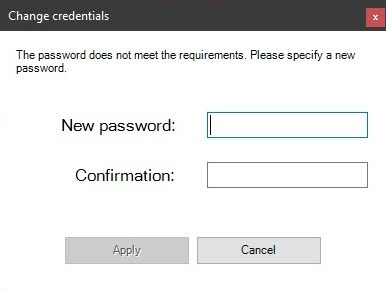
If user accounts whose username and password don't correspond to new requirements were created in the system before you apply new security policy parameters, then the first time you connect them, the option to specify the new password is offered. |
You can limit IP addresses from which remote clients can connect to the server. For this, do the following:
 button. button. To cancel an action, click the Cancel button.
As a result, the range of addresses is added to the list. The connection from the addresses that aren't included in the list is unavailable.
To delete an address or the range of addresses from the list, do the following:
 button in the Delete column. button. To cancel an action, click the Cancel button.