
Go to documentation repository
Previous page Next page
To configure the LPR channel detector, do the following:
Go to the settings panel of the LPR channel object corresponding to the activated software module (see Activation of the software module used for license plates recognition).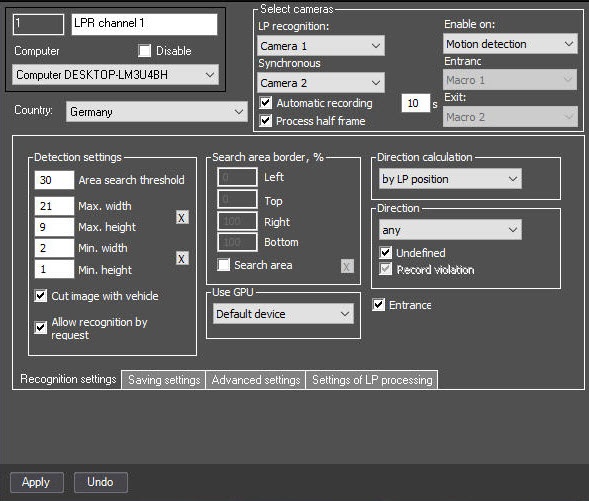
Note
The availability of the parameters depends on the activated software modules (for details, see The settings panel of the LPR channel object).
Specify the Max. width and Max. height parameters:
Click the  button next to the parameters. An interactive interface for setting up parameters of an area opens. It represents an image from the corresponding camera.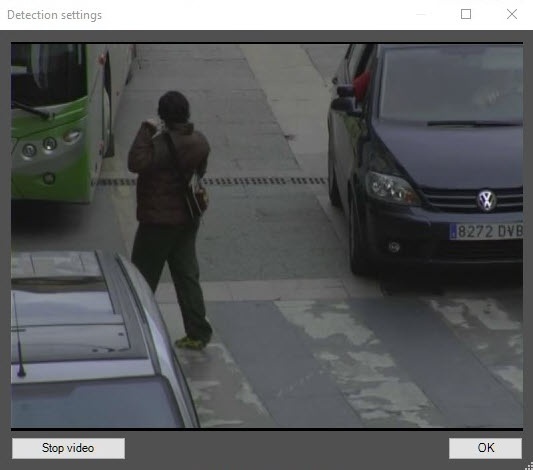
At the required moment, click the Stop video button, then select the required area using the left mouse button and click the OK button.
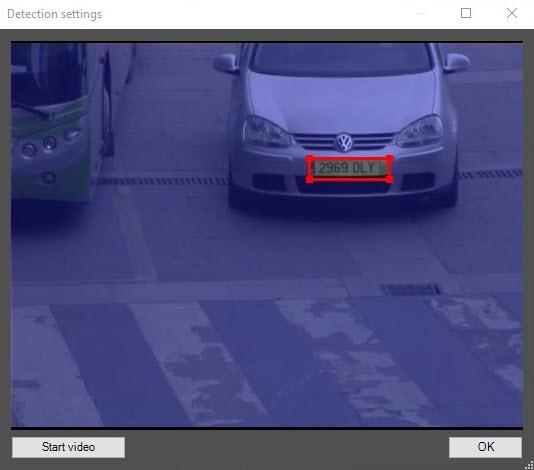
Note
You can select the required area in the same way in the Live video mode.
The area parameters are automatically entered in the Max. width and Max. height fields.
Note
We don't recommend setting maximum sizes greater than required, as this slows down the processing but doesn't improve the recognition quality.
button.If necessary, set the Cut image with vehicle checkbox.
Note
The Cut image with vehicle setting is used only when you work with megapixel surveillance cameras.
Note
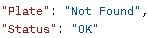
Image recognition by request works only for the RR (see Searching for a license plate by image) and VT (see Search for a license plate by image for the VT recognition module) modules. For this, use the POST http://IP address:port/lprserver/FindNumbersByImage query.
The response can contain the following errors:


Configuration of the LPR channel detector is complete.

