
Go to documentation repository
Previous page Next page
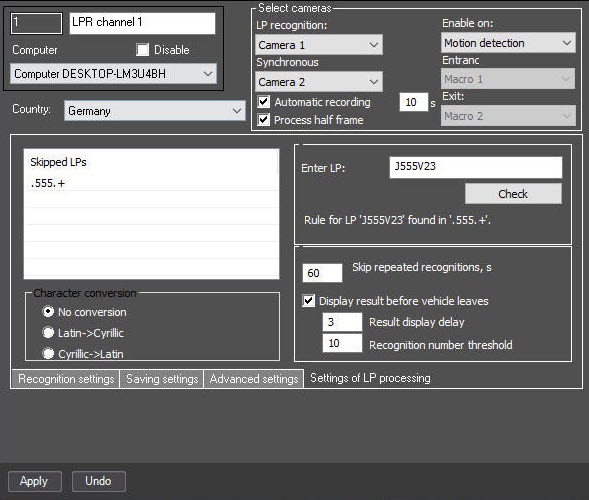
Settings of license plate processing include the following functionality:
To configure license plate processing, do the following:
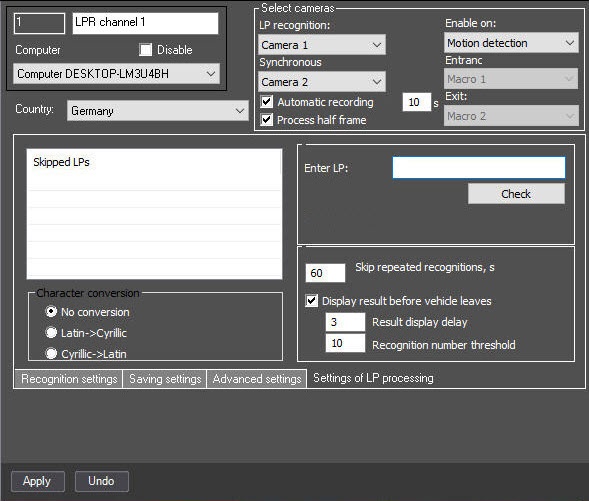
If it is necessary to ignore repeated license plate recognition, in the Skip repeated recognitions, s field, enter the time period in seconds greater than 0 during which the captured license plate must not be recognized again.
Note
The value of the Skip repeated recognitions, s field has a limit of 86400 seconds (number of seconds in a day).
To configure the ignoring of license plates according to the list of rules, do the following:
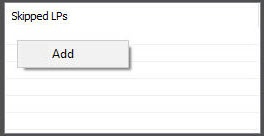
Right-click the Skipped LPs field, and then click the Add button.
Enter the required rule using regular expressions. A rule can contain either an exact license plate or a regular expression.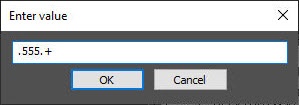
Note
For example, the regular expression ".555.+" means that there can be only one arbitrary character before "555", and many arbitrary characters after "555".
Click the OK button.
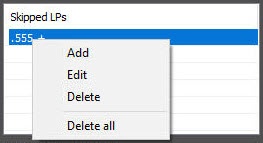
You can check if a rule is correct. To do this, enter the test license plate in the Enter LP field and click the Check button. The result appears in the area below the Check button.
Note
The maximum number of characters in the Enter LP field is 30.
The license plate processing is now set up.

