


General information
The Departments tab is used to manage the structure of a company’s departments and the users assigned to them. The interface of the tab allows you to navigate through the department hierarchy, view and edit their settings, and manage user accounts and their access settings.
Create a department
To create a new department:
- Click the
 button in the left side menu of the Access Manager module.
 - Go to the Departments tab.
- To create a department in the root of the hierarchy, right-click in a free area of the department hierarchy and select Create department in root in the menu that opens or click the
 button.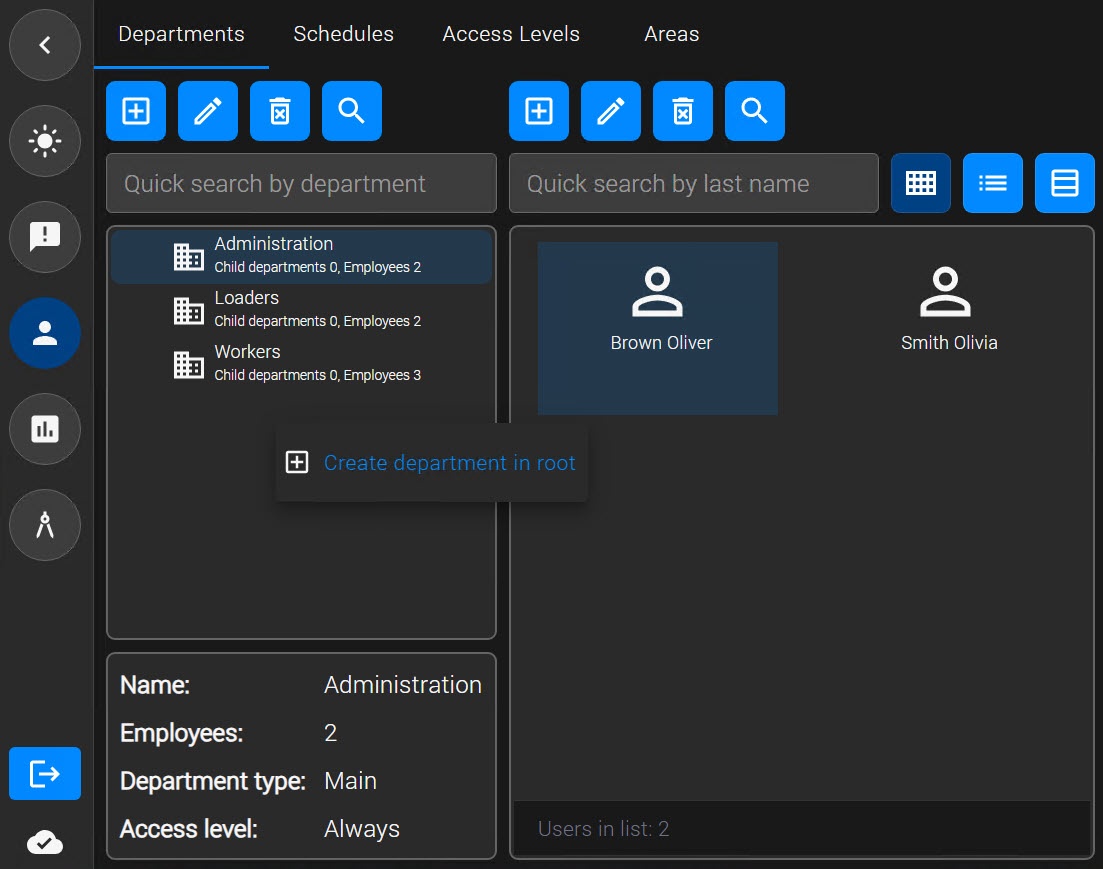
The Department settings window opens. - In the Name field, enter the name of the department.
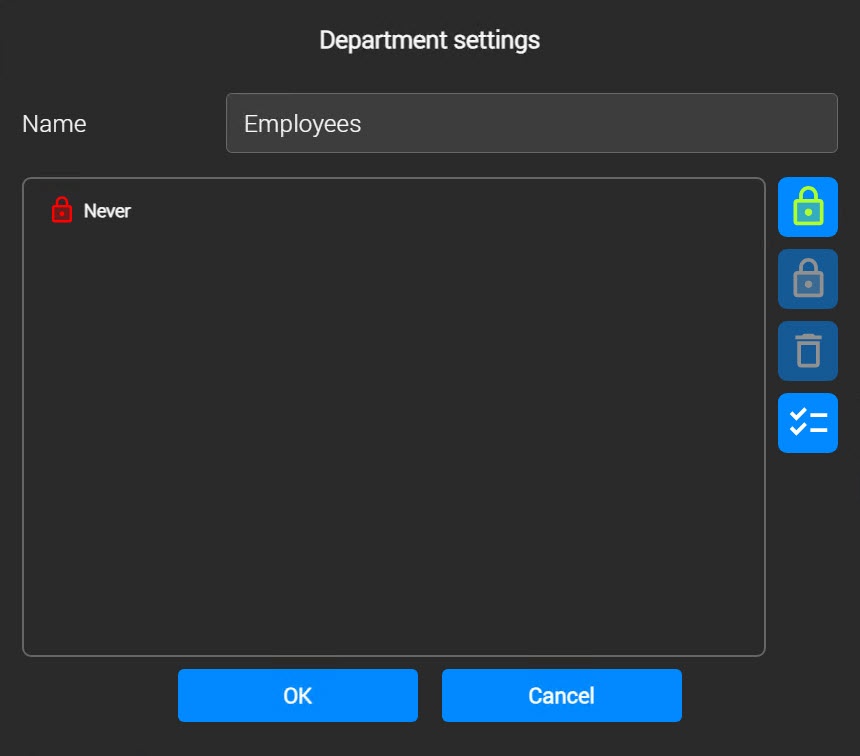
- The default system access level is Never. To change the access level:
- Select the access level.
- Click the button to assign system access levels to the department:
 Set always access level.
 Set never access level.
- Or click the Select access levels
 button to change the access level.
- Select the required access levels in the Search Access level window that opens.
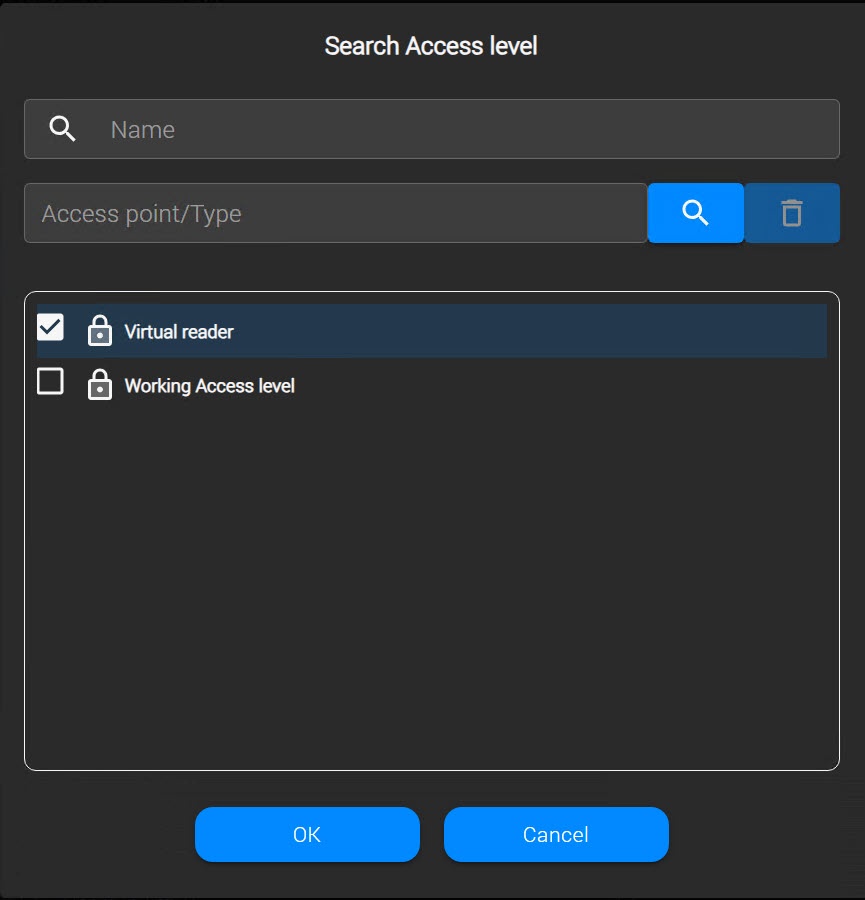
- Click the OK button. As a result, the selected access levels are displayed in the department edit form. The access levels of the department are also inherited by all users in the department after you save the settings.
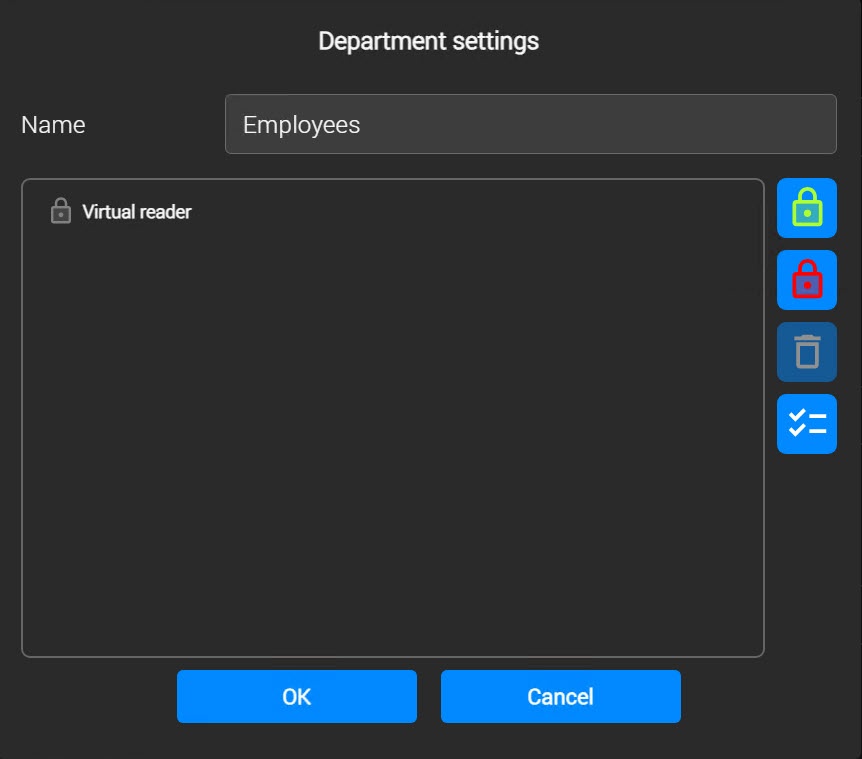
- To delete an access level, select the required level and click the Delete
 button on the panel to the right, or right-click the level you want to delete and select Delete.
- To save the department settings, click the OK button.
The department is added to the tree. The department creation is complete.
Create child departments
To create a department on the basis of an existing department:
- Right-click the required department and select Create child department.
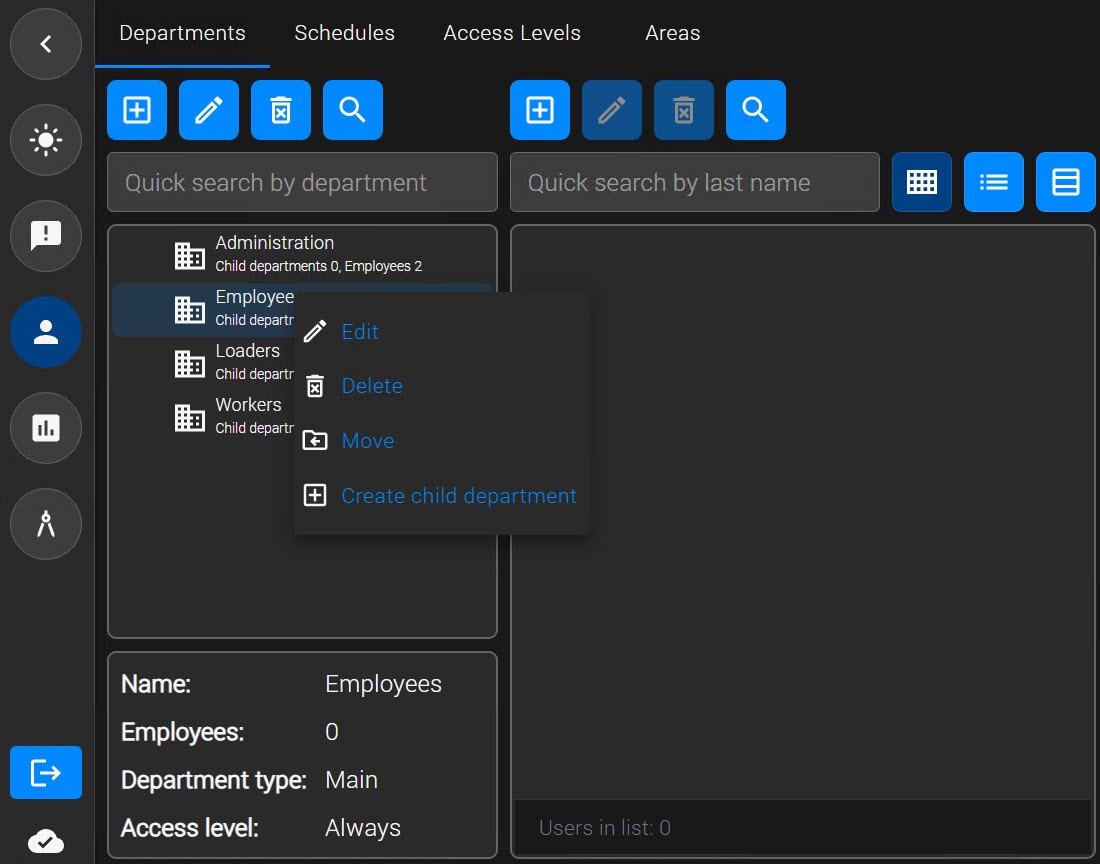
- Configure the child department in the same way as the root department (see Create a department).
The child department appears below the root department. You can create additional child departments in the same way.
Edit a department
In department edit mode, you can change department settings. To edit a department, right-click the required department and select Edit, or click the  button.
The Department settings window opens. You can work with this window in the same way as described in Create a department.
Search for a department
In the Access Manager module, you can search for a department by name and access level.
To search for a department:
- Go to the Departments tab.
- Click the
 button. The Search Department window opens.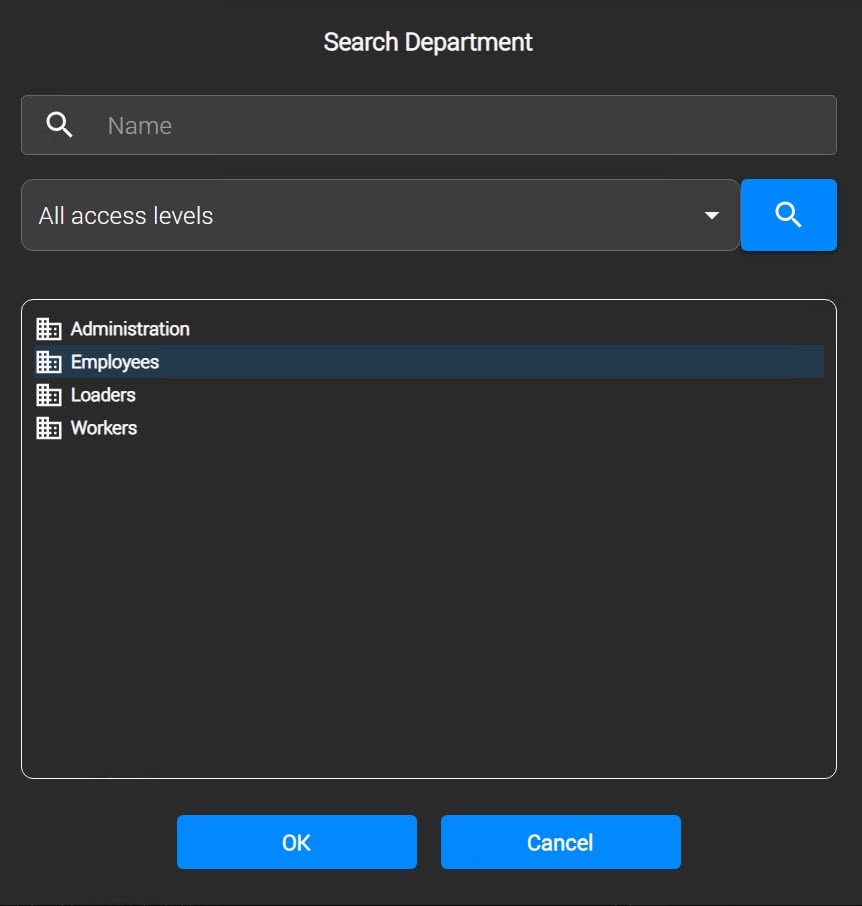
- To search by name, enter the name or part of the name of the department in the Name field.
- To search by access level, select the access level assigned to the department from the drop-down list.
- Click the Enter key on the keyboard. As a result, a list of departments that meet the specified search parameters is displayed. Search is case-insensitive. All objects, the corresponding fields of which contain the specified values, are found.
When you double-click the department name in the search results, the Search Department window closes, and the department is selected in the department tree or in the form from which you opened the Search Department window.
The search for a department is complete.
Change the hierarchy
You can change the department hierarchy in one of the following ways:
- You can change the parent department. Right-click the department name and select Move. As a result, the Search Department window opens. Select a new parent department in this window (see Search for a department).
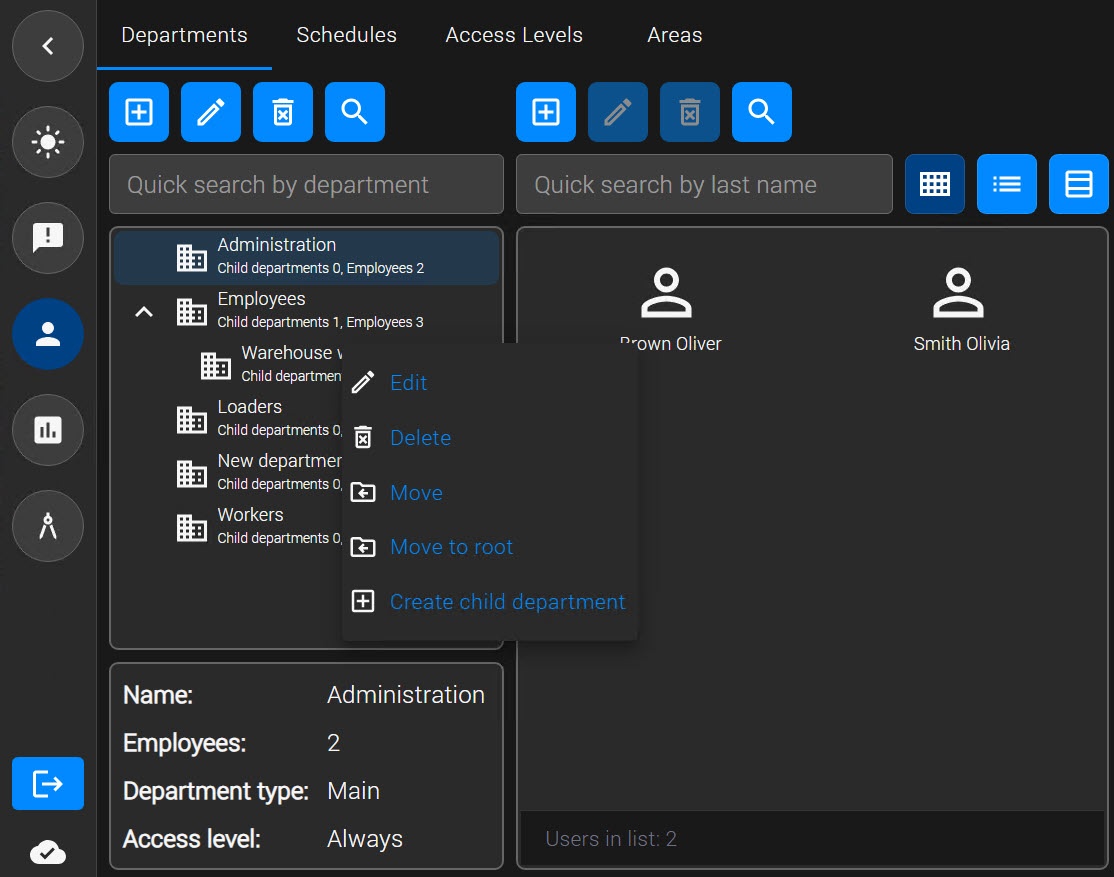
- Move a child department to the root of the hierarchy. To do this, right-click the department name in the department tree and select Move to root. As a result, the department is moved to the root of the department hierarchy.
Note
Departments are moved with their child departments in the hierarchy.
Delete a department
To delete a department:
- Right-click the department and select Delete.
- Confirm the deletion of the department.
Deletion of the department is complete.