
Go to documentation repository
Documentation for Axxon One 3.0/3.1 version. Documentation for Axxon One 2.0 version is also available.

In Axxon One, you can create virtual inputs that can change their states (Closed/Open) and generate a corresponding event upon receiving an HTTP request.
Create and configure virtual inputs
To create and configure a virtual input:
- Run the IP Device Discovery Wizard (see Search, add, configure, and remove IP devices).
- In the form for manually adding an IP device, select HttpListener in the Manufacturer drop-down list.
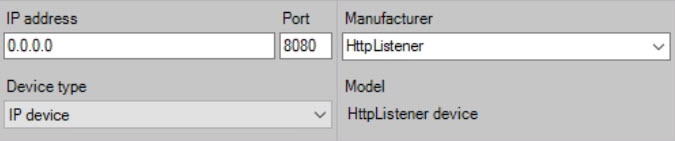
- In the Port field, enter the port number that is used for input status queries.
- Click the
 button.
The IP server object is automatically added. On the basis of this object, four virtual inputs will be created.
Attention!
For the virtual input to work correctly, select Open in Normal status.
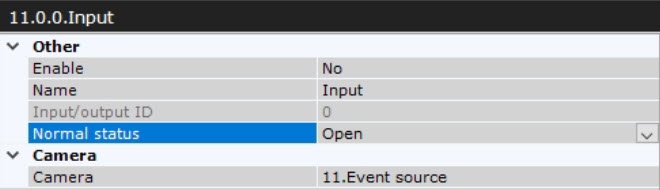
You can configure virtual inputs in the same way as real ones. Also, you can specify the time-out when virtual inputs reset their status in the Alarm Expiration Time field of the IP server object. It ranges from 0 to 100. If you enter 0, the input doesn't automatically return to its normal status.

This setting is applied only after you disable and enable the input again.
Change the status of virtual inputs
To change the status of virtual inputs, the HTTP request is used (see Switch between virtual IP device states (HttpListener)).
You can run the request using a macro (see Execute web query). Create two macros for each virtual input: to switch to Closed state and to switch to Open state.
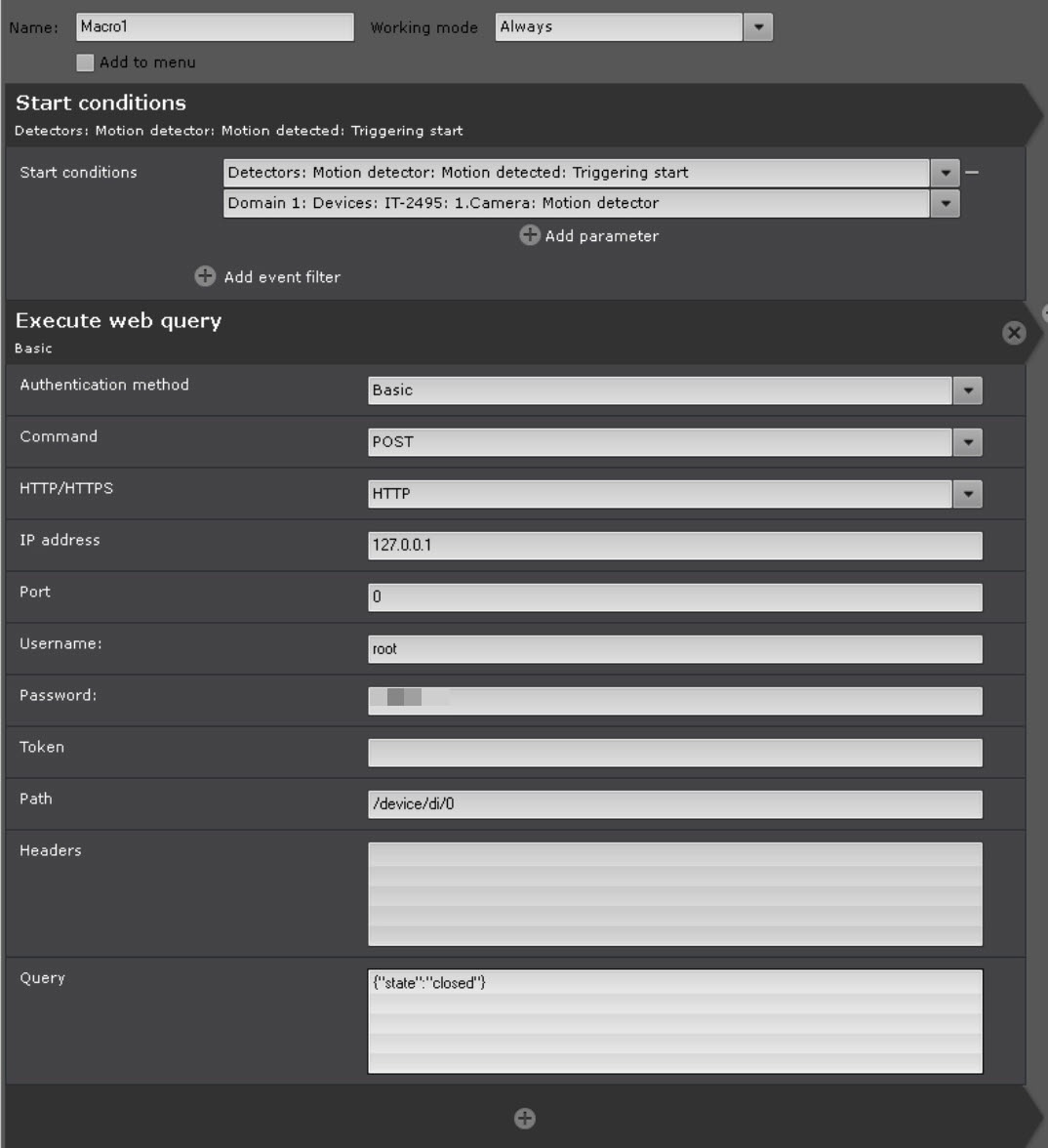
You can run macros and requests from the Dialog board (see Configuration of a Dialog Board).
Display of the virtual input status on the map
You can add virtual inputs to the map just as you do with real ones. The color of the virtual input on the map changes depending on its state (see Configuration of maps).
Overview
Content Tools