
Go to documentation repository
Documentation for Axxon One 3.0/3.1 version. Documentation for Axxon One 2.0 version is also available.

To configure the Crowd estimation VA, do the following:
- Go to the Detectors tab.
Below the required camera, click Create… → Category: Retail → Crowd estimation VA.
By default, the detector is enabled and set to count crowds of people.
If necessary, you can change the settings of the detector parameters given in the table:
| Parameter | Value | Description |
|---|---|---|
| Object features | ||
| Video stream | Main stream | If the camera supports multistreaming, select the stream for which detection is needed |
| Record mask to archive | Yes | By default, the recording of the mask to the archive is disabled. To record the sensitivity scale of the detector to the archive (see Display of the information from a detector (mask)), select the Yes value |
| No | ||
| Object identification | ||
| Name | Crowd estimation VA | Enter the detector name or leave the default name |
| Enable | Yes | By default, the detector is enabled. To disable, select the No value |
| No | ||
| Type | Crowd estimation VA | Name of the detector type (non-editable field) |
| Number of frames processed per second | 0.017 | Enter the number of frames for the detector to process per second. The value must be in the range [0.016, 100] |
| Decoder mode | Select a processor for decoding video. CPU is selected by default | |
| Auto | GPU takes priority (decoding on NVIDIA NVDEC chips). If a suitable GPU isn't available, decoding is performed using Intel Quick Sync Video technology. Otherwise, decoding is performed on the CPU | |
| CPU | Decoding is performed on the CPU | |
| GPU | Decoding is performed on the GPU (decoding on NVIDIA NVDEC chips) | |
| HuaweiNPU | Decoding is performed on the HuaweiNPU | |
| Delayed start (sec) | 0 | Enter the time in seconds to delay the start of the detector after receiving the first frame. The delay is applied randomly, ranging from 0 to the specified value. The default value is 0, meaning the detector starts without delay. The optimal value of delay depends on the configuration and the number of detectors. We recommend entering a value of delay that is no less than the number of detectors. The value must be in the range [0, 3600] |
| Detection mode | CPU | Select a processor for the operation (see Selecting Nvidia GPU when configuring detectors) Attention! If you specify other processing resource than the CPU, this device will carry the most of the computing load. However, the CPU will also be used to run the detector. |
| Nvidia GPU 0 | ||
| Nvidia GPU 1 | ||
| Nvidia GPU 2 | ||
| Nvidia GPU 3 | ||
| Trigger to | Greater than or equal to threshold value | Select when you want to generate events. The Crowd estimation VA will generate events from the threshold value set in the Number of alarm objects field |
| Less than or equal to threshold value | ||
| Change in readings | ||
| Number of alarm objects | 1 | Enter the number of objects at which an event occurs. The value must be in the range [0, 10000] |
| Visualization settings | ||
| Detected objects | No | The default value is No. If you want to view detected objects, select the Yes value Attention! To ensure correct display of detected objects (to eliminate flickering), enter the value of at least 4 in Number of frames processed per second. After you complete configuration, we recommend entering the original value of 0.017 to reduce the load on the server. |
| Yes | ||
By default, the entire frame is the detection area. In the preview window, you can specify the detection areas using the anchor points  (see Configuration of a detection area). To delete the specified area, click the Delete
  button.
To save the parameters of the detector, click the Apply  button. To cancel the changes, click the Cancel
  button.
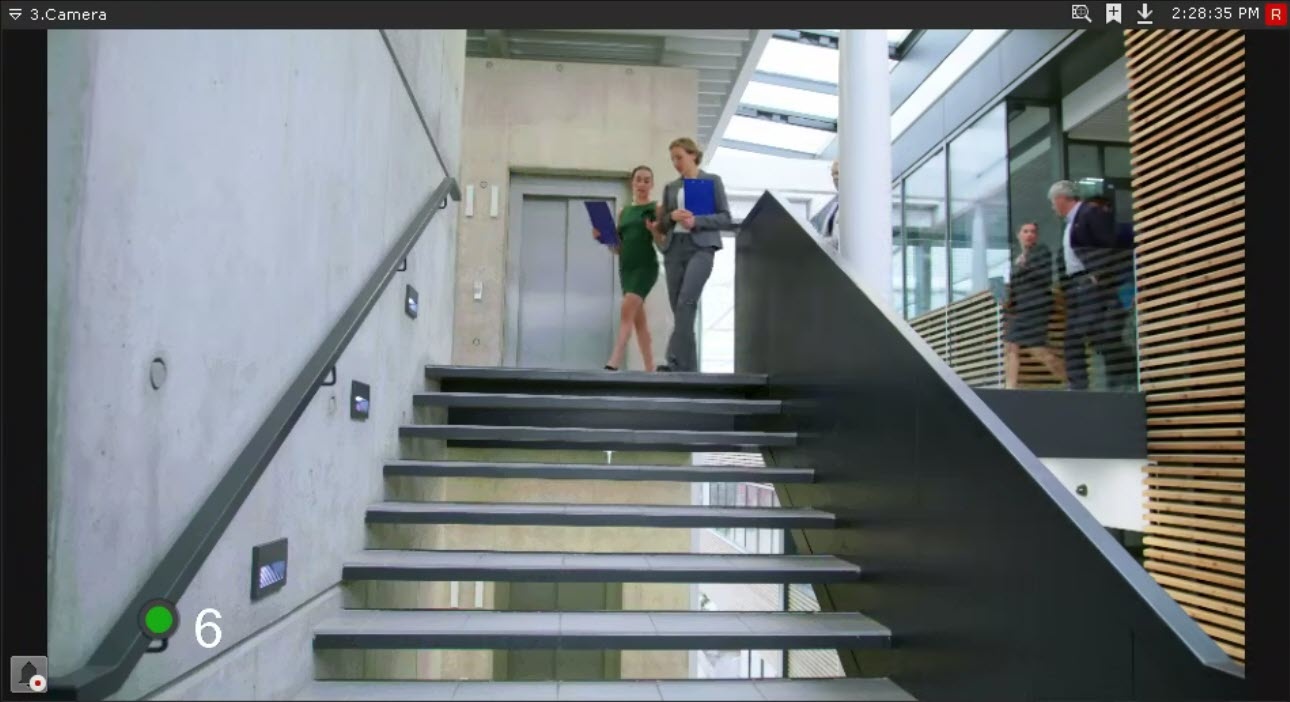
It is possible to display the sensor and the number of objects in the monitored area in the surveillance window on the layout (see Display the number of detected objects).
Overview
Content Tools