
Go to documentation repository
Documentation for Axxon One 3.0/3.1 version. Documentation for Axxon One 2.0 version is also available.

Attention!
- The Visitors counter detector can have a margin of error and is suitable for counting the average number of visitors.
- We cannot guarantee the correct operation of the detector with a fisheye lens.
To configure the Visitors counter, do the following:
- Go to the Detectors tab.
- Below the required camera, click Create… → Category: Retail → Visitors counter.
By default, the detector is enabled and set to count the number of people in a queue.
If necessary, you can change the settings of the detector parameters given in the table:
| Parameter | Value | Description |
|---|---|---|
| Object features | ||
| Video stream | Main stream | If the camera supports multistreaming, select the stream for which detection is needed |
| Record mask to archive | Yes | By default, the recording of the mask to the archive is disabled. To record the sensitivity scale of the detector to the archive (see Display of the information from a detector (mask)), select the Yes value |
| No | ||
| Object identification | ||
| Name | Visitors counter | Enter the detector name or leave the default name |
| Enable | Yes | By default, the detector is enabled. To disable, select the No value |
| No | ||
| Type | Visitors counter | Name of the detector type (non-editable field) |
| Number of frames processed per second | 25 | Specify the number of frames for the detector to process per second. The larger the value, the greater the load on the CPU. The value must be in the range [0.016; 100] |
| Decoder mode | Auto | Select a processing resource for decoding video. When you select a GPU, a stand-alone graphics card takes priority (when decoding with Nvidia NVDEC chips). If there is no appropriate GPU, the decoding will use the Intel Quick Sync Video technology. Otherwise, CPU resources will be used for decoding |
| CPU | ||
| GPU | ||
| HuaweiNPU | ||
| Basic settings | ||
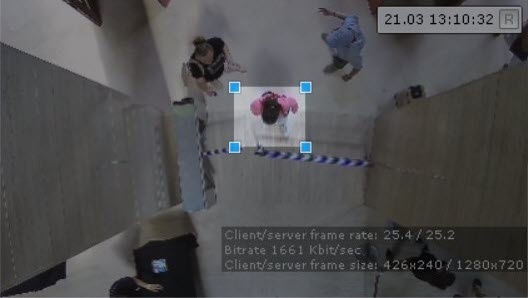
| Person size | 20 | Attention! You must specify the Person size taking into account Video stream and scene requirements for the Visitors counter and Image requirements for the Visitors counter. Specify the area of the rectangle around a person as a percentage of the frame area. Note that the size is calculated based on the compressed frame size, not the original size of the video stream. The value must be in the range [1, 75]. Note It is better to specify the minimum size of a person graphically; the number in the Person size field is a conditional value. Click the
|
| Advanced settings | ||
| Frame size change | 640 | The analyzed frames are scaled down to a specified resolution (by default, 1920 pixels on the longer side) by default. The following algorithm is used:
Note For example, the source image resolution is 2048*1536, and the specified value is set to 1000. In this case, the source resolution will be halved two times (512*384), as after the first division, the number of pixels on the longer side exceeds the specified value (1024 > 1000). If detection is performed on a higher resolution stream and detection errors occur, we recommend reducing the compression. |
| Indoor people counter | Yes | By default, the parameter is disabled. The detector generates events: Camera. Visitor access in the direction of "Entrance" and Camera. Visitor access in the direction of "Exit". If you also want to count visitors at the facility and generate an event when the threshold value is exceeded, select the Yes value |
| No | ||
| Indoor people counter threshold | 10000 | Specify the threshold value of the number of people indoors. If this value is exceeded, the detector generates an event. The value must be in the range [0, 100000] |
| Number of people indoor | 0 | Enter the number of people indoors at the time you are configuring the detector. The value must be in the range [0, 100000] |
| Visual Element | ||
| Visual Element | Detection area (polygon) | An area within which the detection is performed (non-editable field) |

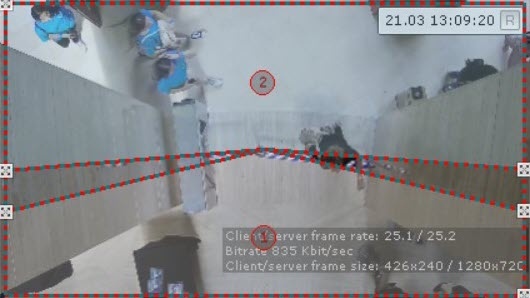
In the preview window, specify the detection area. The detection area is divided into two sectors—area 1 and area 2. The transition from area 1 to area 2 is the visitor's passage in the "Exit" direction. The transition from area 2 to area 1 is the visitor's passage in the "Entrance" direction. If the Indoor people counter parameter is enabled:
- Transition from area 1 to area 2—minus one to the visitors counter.
- Transition from area 2 to area 1—plus one to the visitors counter.
You can configure the sectors, using the anchor points  or lines. To swap sectors, click inside one of them.
Note
- For convenience of configuration, you can "freeze" the frame. Click the
 button. To cancel the action, click this button again.
 - Sectors are displayed by default. To hide them, click the
 button. To cancel the action, click this button again.
To save the parameters of the detector, click the Apply  button. To cancel the changes, click the Cancel
  button.
Configuration of the Visitors counter is complete.
Display of the people counting indicator
A people counting indicator can be displayed on the layout in the surveillance window. The indicator shows the current number of people in the detection area.
To configure the display of the people counting indicator:
- Go to the edit mode of the layout with the selected camera (see Configuration of layouts).
- Move the indicator icon to the required place in the cell.
- If necessary, adjust the font using the
 button.
 - If necessary, change the scale of the text and indicator using the button.
- Save changes to the layout (see Configuration of layouts).
After you save the layout, an icon of the people counting indicator appears in the surveillance window. When you enable the visitor counter, the indicator's readings are updated almost instantly after the detector generates an event. When you disable the visitor counter, the indicator's readings are reset.
Attention!
- If you specify an initial number of people in a room, it is used as the baseline for the count. For example, if the initial number is set to 100 people, each person entering increases the count by one: 100 → 101 → 102 → ... and so on.
- The number of people in a room always resets to 0 whenever you change the detector settings.
Overview
Content Tools