
Go to documentation repository
Documentation for Axxon One 3.0/3.1 version. Documentation for Axxon One 2.0 version is also available.

You can attach a map to a layout. This means that when you switch to the layout, the attached map opens automatically.
To attach a map to a layout:
- Select the layout with which you want to associate the map in the layout panel or create a new layout (see Configuration of layouts).
- Go to map editing mode (see the section Opening and closing the map)
- Go to an existing map with which you want to associate the layout or create a new map (see the sections Switching between maps and Adding a new map).
- Save changes and exit layout editing mode (see Configuration of layouts).
After you save the layout, its icon resembles that shown in the figure below.
If a map is open in 2D mode when you save a layout, when you switch to that layout, the map will always open in 2D mode. The layout icon resembles that shown in the figure below.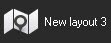
The map is now attached to the layout.
Overview
Content Tools