
Go to documentation repository
Documentation for Axxon One 3.0/3.1 version. Documentation for Axxon One 2.0 version is also available.

On the page:
General information
The web interface of the self-diagnostics service is available for monitoring the system status and analyzing its performance.
Using the service, you can:
- View system metrics of the server.
- Analyze resource usage (CPU, memory).
- Control cameras and detectors.
- Monitor archive state.
- Run queries to metrics using the Prometheus Query Language (PromQL).
Metrics can be displayed:
- As a table (current values).
- As graphs for a selected time period.
Access to the self-diagnostics service
To go to the monitoring interface:
- Open the web browser.
- In the address bar, enter: http://127.0.0.1:20040/.
- Press the Enter button.
Interface and queries execution
The interface allows you to run queries to metrics and analyze their values.
To run a query:
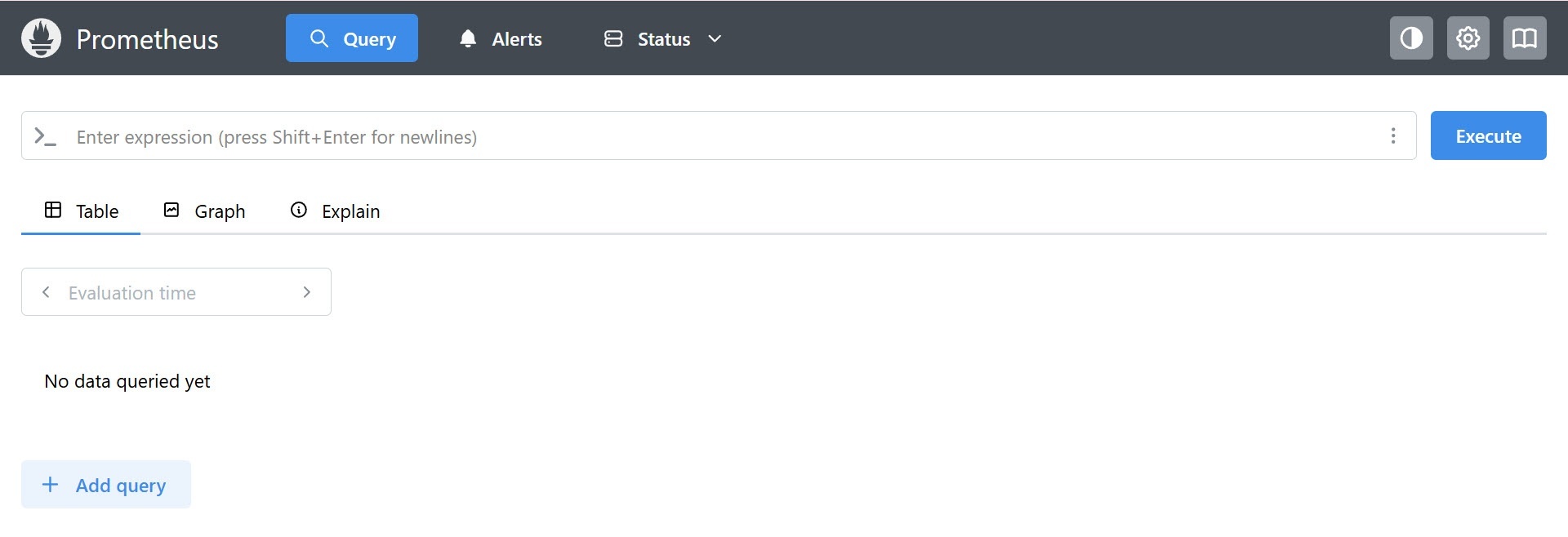
- Enter a metric in the Enter expression field.
Note
To view the metrics available in the Enter expression field, click the
 button → Explore metrics.
 - If necessary, specify a time span.
- Click the Execute button.
Complex queries can be executed using PromQL.
Basic query options
The basic options for executing queries are listed in the table:
| Options | Description |
|---|---|
| Usage of several metrics | You can use several metrics in one query |
| Filter by parameters | You can filter metrics by parameters (labels) using curly brackets. For example: ngp_fps{ep_name=~"hosts/TEST/DeviceIpint.2/SourceEndpoint.video:0:0"}
In this case, FPS values are displayed only for the specified source |
| Usage of logical and arithmetic operators to find anomalies | In queries, you can use:
For example: ngp_fps < 17 This query allows you to find sources with a frame rate below 17 FPS. For a full list of logical and arithmetic operators, see the Prometheus official documentation |
View query results
You can view query results in two modes:
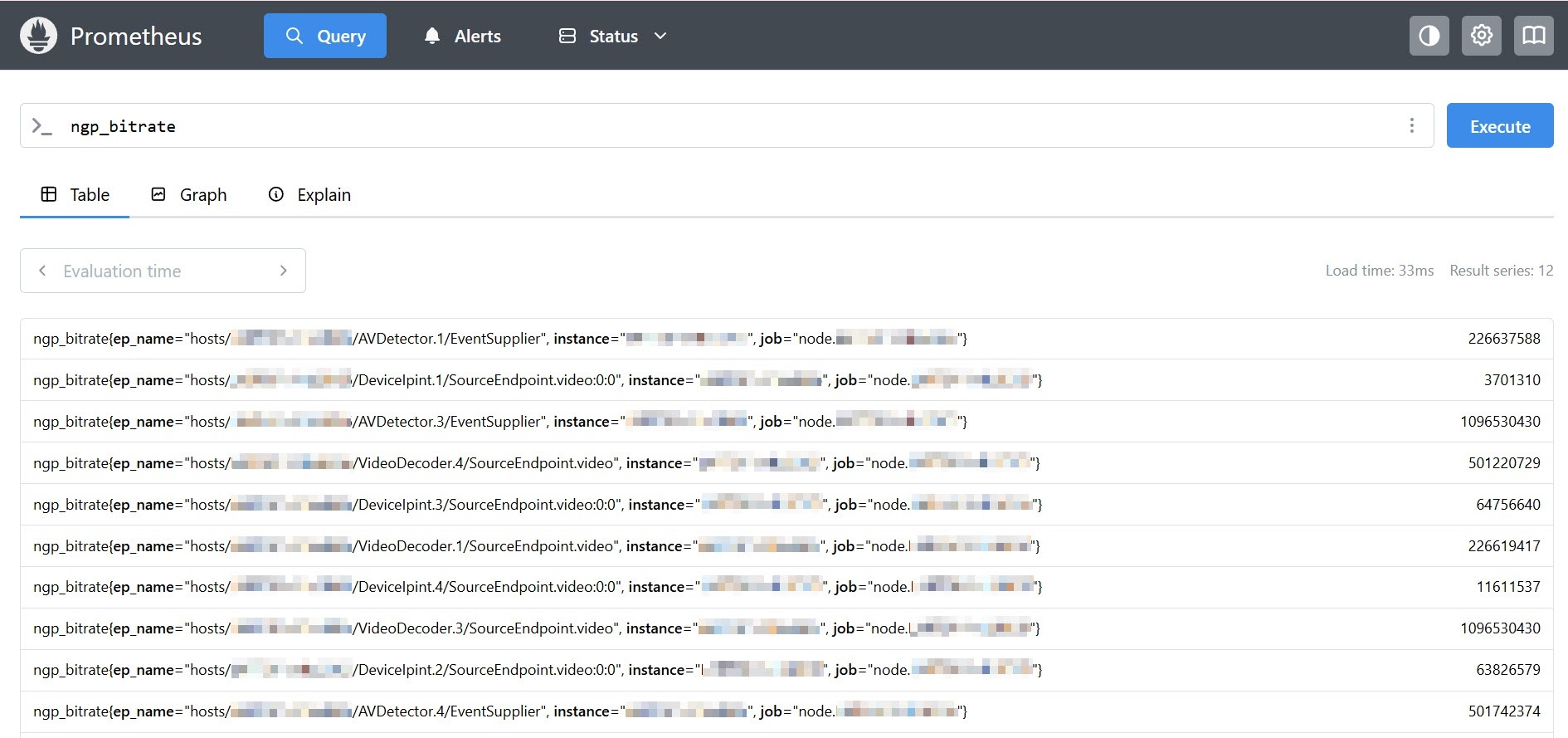
- Table:
- Displays current metric values as a table.
- Shows current metric values.
- Updates when you change the time span.
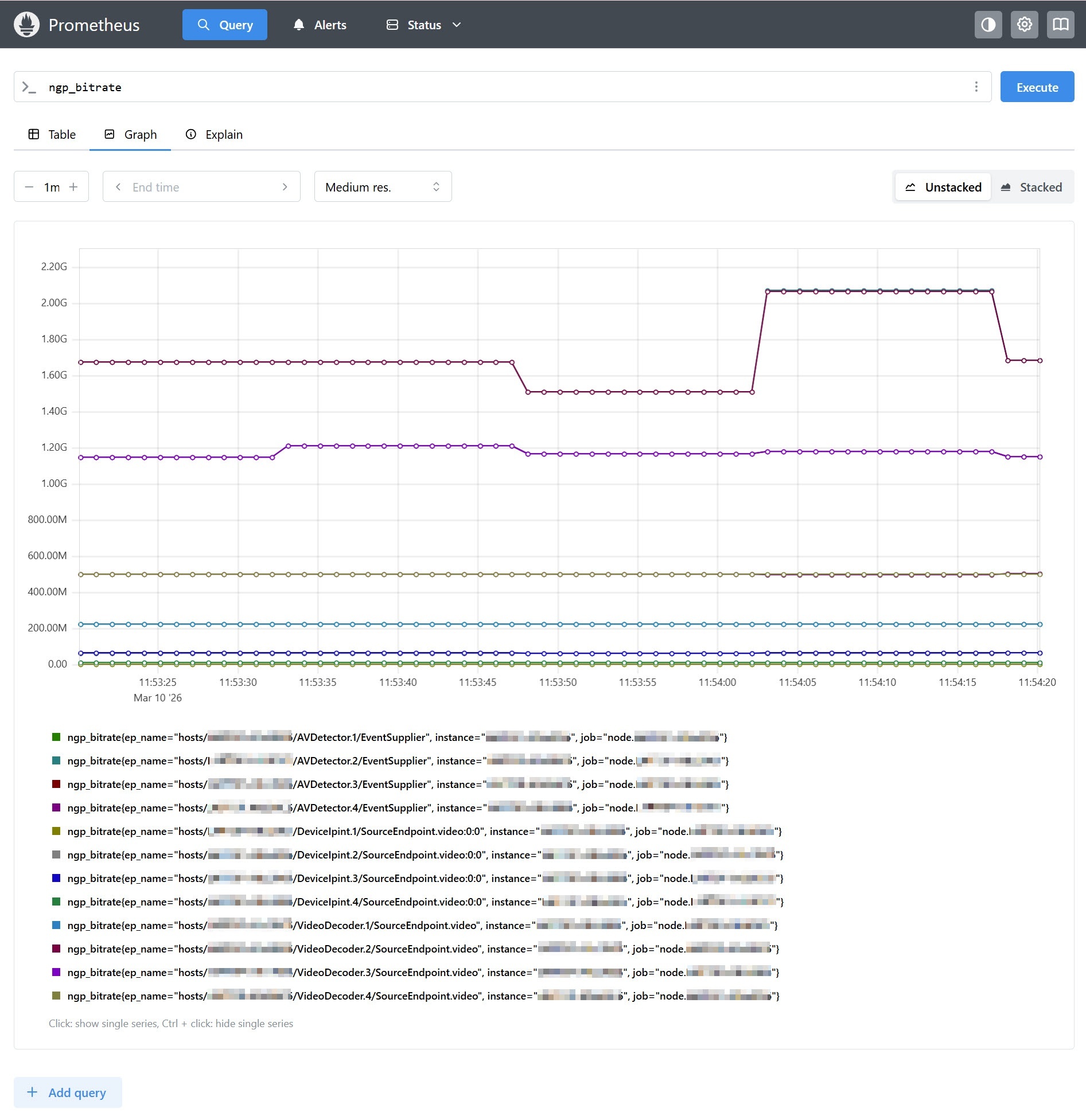
- Graph:
- Allows you to plot a graph of metric changes over time.
- You can set the time period for plotting a graph.
- You can set the end point of a graph.
- You can set the interval between data points.
- You can also enable stacking mode, which fills the area under the graph (the Unstacked/Stacked options).
The main metrics of the service
Below are the main metrics available in the self-diagnostic service.
Metric | Description |
|---|---|
Metrics of system status | |
ngp_cpu_total_usage | The CPU load of the server |
Archive metrics | |
ngp_archive_channel_fps | The frame rate of all cameras when recording to the archive |
ngp_archive_volume_size | The current total size of the archive (in bytes) |
Metrics of cameras and video analytics | |
ngp_fps | The frame rate of all cameras, detectors, and decoders |
ngp_people_count | The last captured number of people in the frame by the Crowd estimation VA detector |
ngp_errors | Number of errors in the operation of detectors: |
ngp_skipped_pp | Number of skipped frames by the Crowd estimation VA detector due to the lack of resources for processing |
Metrics of system status | |
ALERTS_FOR_STATE | Found and fixed malfunctions. Contains the alertname parameter with the problem type. Example ALERTS_FOR_STATE{alertname="ipint_is_not_activated",ep_name="hosts/Server1/DeviceIpint.99",instance="127.0.0.1:20108",job="ngp_exporter",ngp_alert="true"}
Decryption of the alertname values (see General information about the self-diagnostics service) for the ALERTS_FOR_STATE metric:
|
| Metrics of disk status (SMART) | |
| smartctl_device_smart_status | General disk status. The main metric values:
In such cases, we recommend checking:
|
| smartctl_device_attribute | Contains detailed SMART attributes of disks. There are several value types:
Example of interpretation: When the smartctl_device_attribute metric is analyzed, the attribute values can look like this:
Usage in monitoring:
|
Examples of useful queries for Windows OS
- The CPU load graph (analog of the System monitor):
sum by (process_id) (100 / scalar(wmi_cs_logical_processors) * (irate(wmi_process_cpu_time_total{process="AppHost"}[10m]))) or ngp_cpu_total_usage - RAM usage by the AppHost processes and a total memory space:
sum by (process_id) (avg_over_time(wmi_process_working_set{process="AppHost"}[5m])) / 1024 or avg_over_time(wmi_os_virtual_memory_bytes[5m]) / 1024 - The percentage of RAM usage:
100.0 - 100 * avg_over_time(wmi_os_virtual_memory_free_bytes[5m]) / avg_over_time(wmi_os_virtual_memory_bytes[5m])
Examples of useful queries for Linux OS
- The total RAM usage by the AppHost processes:
sum by (groupname) (namedprocess_namegroup_memory_bytes{memtype="resident"}) - The percentage of RAM usage:
100 - node_memory_MemAvailable_bytes * 100 / node_memory_MemTotal_bytes
- The CPU load by the AppHost processes as a percentage:
sum by (object_id) (rate(namedprocess_namegroup_cpu_seconds_total{groupname="AppHost"}[1m])) * 100 - The total CPU load as a percentage:
100 * avg without (cpu) (1 - rate(node_cpu_seconds_total{mode="idle"}[1m])) - RAM usage by the AppHost processes to detect the memory leak:
namedprocess_namegroup_memory_bytes{object_id=~"APP_HOST.*",memtype="proportionalResident"}
Overview
Content Tools