
Go to documentation repository
Documentation for Axxon One 3.0/3.1 version. Documentation for Axxon One 2.0 version is also available.

If a camera supports multistreaming, you can select the quality of the video stream that you want to display in the surveillance window.
To select the video stream quality:
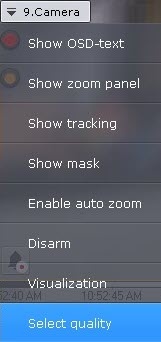
- In the context menu of the surveillance window, select the Select quality item.
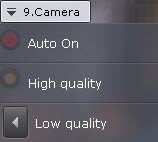
Select the quality of the video stream that you want for display in the surveillance window.
Menu item
Description
Auto On (GreenStream, default)
Algorithm for displaying a video stream in the surveillance window if there are several streams in the camera (see Camera):
- A suitable video stream is selected using the following algorithm:
- Determine the available space for video output on the layout.
- Select the video streams for which the Use for GreenStream option is enabled (see Camera) and sort them in ascending order of the original video width.
- For each stream:
- The original height and width are reduced while the proportions are maintained so that the new height and width do not exceed the available space for video output on the layout.
- If the size of the stream after inserting it into the output area does not exceed 110% of the original size, this stream is selected for further output.
- The stream that has the highest frame rate among other suitable video streams of the same resolution is selected.
- If several video streams were selected in the previous steps, the video stream with the maximum bitrate among them is selected.
If a stream was selected based on the maximum bitrate, then another stream will be selected only if its bitrate is more than 5% higher than the current one (to eliminate frequent switching if the values are approximately equal).
When characteristics of video streams are changed, the decision to change the stream to display is made only if the need for a change is confirmed within 35 seconds. This measure is also intended to eliminate frequent switching of video streams.
If you select the Auto On quality for the current layout, then when you select an active camera or enlarge the surveillance window, the video stream automatically switches to a high-quality video stream.
Note
You can specify the GREEN_STREAM_SCALE_RATIO environment variable (see Creating system variable), which allows you to change the resolution depending on the required video stream quality.
- To decrease the resolution (display a video stream of lower quality), set the value of the GREEN_STREAM_SCALE_RATIO variable greater than 1. For example: 1.25, 1.5, 2, or 3.
To improve the resolution (display a video stream of higher quality), set the value of the GREEN_STREAM_SCALE_RATIO variable less than 1. For example: 0.75, 0.5, or 0.25.
Note
You must select the values of the variable empirically.
High quality
Algorithm for displaying a high-quality video stream in the surveillance window if there are several streams in the camera (see Camera):
- Video streams for which the Use for GreenStream option is enabled (see Camera) are selected.
- Among the selected video streams, those that have the highest resolution are selected.
- Among the selected video streams with the highest resolution, the one with the highest frame rate is selected.
- If several video streams were selected in the previous steps, the stream with the maximum bitrate among them is selected
Low quality
Algorithm for displaying a low-quality video stream in the surveillance window if there are several streams in the camera (see Camera):
- Video streams for which the Use for GreenStream option is enabled (see Camera) are selected.
Among the selected video streams, those that have the lowest resolution are selected.
Among the selected video streams with the lowest resolution, the one with the highest frame rate is selected.
If several video streams were selected in the previous steps, the stream with the minimum bitrate among them is selected
Other
You can select a specific video stream from a camera to display in the surveillance window
- A suitable video stream is selected using the following algorithm:
- Click in the area between surveillance windows.
Selection of the video stream quality in the surveillance window is complete.
Overview
Content Tools