
Go to documentation repository


By default, the Axxon PSIM local database is used as a data source to display the state statistics. If you want to use a remote database, configure the connection to it in the following way:
- Go to the DB tab on the settings panel of the State statistics object.
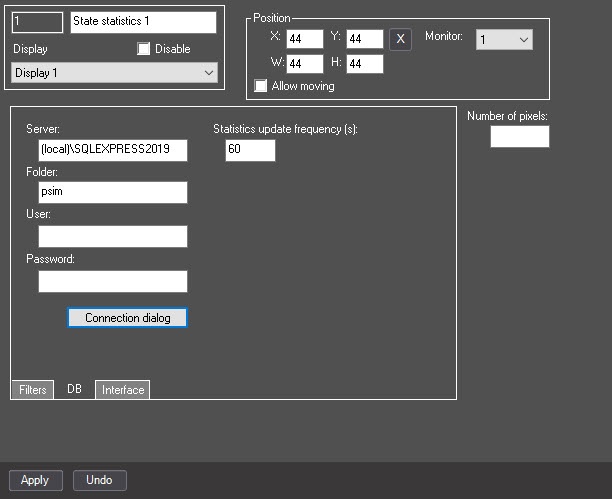
- By default, statistics are updated once every 60 seconds. If necessary, you can change the update frequency by entering a new value in seconds in the Statistics update frequency (s) field. We don't recommend setting the frequency to less than 5 seconds.
- Click the Connection dialog button. As a result, the SQL Server Login window opens.
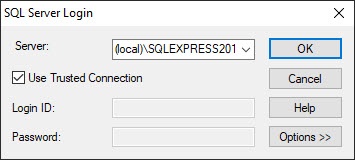
In the Server list, specify the SQL server to which you want to connect.
Note
If the Server list contains the required SQL server, then no further connection configuration is required.
When you work in a distributed configuration, you must specify the name of the computer on which the database is located without using the (local) value. For example, "WS1\SQLEXPRESS", where WS1 is the name of the computer on which the database is located.
If you want to enter the login and password for the SQL server authorization, clear the Use Trusted Connection checkbox. As a result, the Login ID and Password fields become editable.
Note
If you set the Use Trusted Connection checkbox, then the SQL server authorization is performed with Windows credentials.
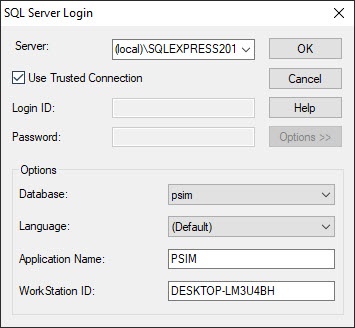
- To specify the additional connection parameters, click the Options >> button.
- From the Database drop-down list, select the database where the events must be stored.
- From the Language drop-down list, select the language of the SQL server system messages.
- In the Application Name field, enter the application name (the default value is PSIM).
- In the WorkStation ID field, enter the computer name (the default value is the computer identifier in Windows OS).
Click the OK button to save the settings.
Note
For help information about the SQL Server Login window, click the Help button.
Configuring connection to the database is complete.
Overview
Content Tools