
Go to documentation repository


Acceptance of calls received on the intercom subsystem is performed in the Intercom Control Monitor interface object.
Note
Calls in the Intercom Control Monitor interface object are displayed as a list. Completed calls are not displayed.
The Intercom Control Monitor is activated when a new call is received.
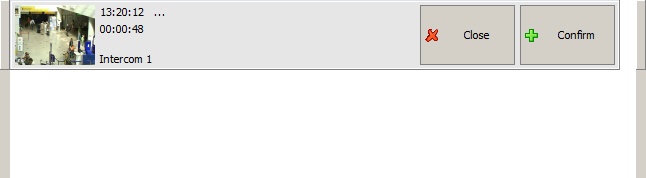
One of the following statuses can be assigned to the received call:
Call status | Status description |
Waiting | The call is received by the intercom subsystem but is not accepted by the operator. The status is assigned automatically when the call is received in the intercom subsystem |
Accepted | The call the operator is currently on |
Accepted by another operator | The call that another operator is currently on |
Suspended | The call that was accepted by operator but then was suspended for a time |
Suspended by another operator | The call that was accepted by another operator but then was suspended for a time |
Completed | The call when the operator broke the connection or finished the communication |
Operator can accept the following calls:
- Waiting
- Suspended
- Suspended by another operator.
Operator can complete the following calls:
- Waiting
- Suspended
- Suspended by another operator
- Accepted.
You cannot change the status of a call accepted by another operator.
If the list contains only waiting, suspended, and/or suspended by another operator calls, the operator hears a looping audio recording stored in the <Axxon PSIM installation directory>\Wav\client.wav file. This audio recording is not played if there is an accepted call.
Note
Parameters of the client.wav and monitoring.wav files (<Axxon PSIM installation directory>\Wav folder) are the same: the files store single-channel (15 kbps) PCM audio with a sampling frequency and depth of 8 kHz and 16 bits, respectively.
The time interval in seconds between two consecutive repetitions of the client.wav audio recording is specified as the value of the notification_repeat_delay string parameter in the registry section HKLM\SOFTWARE\Wow6432Node\AxxonSoft\PSIM\MonitoringCenter (see Registry keys reference guide).
The call display for different statuses is shown in the figures below.
Note
The color of the call outline corresponds to call status and depends on the settings of the Intercom Control Monitor object (see Configure displaying the list of calls).


Functions of call display elements are presented in the table.
№ | Executed function | Comment |
1 | The field displays the video from the camera of security intercom terminal | The video frequency is 1 FPS |
2 | The field displays the time of call reception by the intercom subsystem | NA |
3 | The field displays the time from the moment of call reception | NA |
4 | The field displays the name of intercom object corresponding to the security intercom terminal | NA |
5 | The button is used to accept a call | The button is displayed for waiting and suspended calls |
6 | The button is used to end a call | NA |
7 | The field displays the name of Intercom Control Monitor object in which the call was received | The field is displayed for accepted calls |
8 | The field displays the name of user who accepted the call | The field is displayed for accepted calls in case users have rights and passwords for authorization in Axxon PSIM |
9 | The button is used to assign the Suspended status to accepted calls | The button is displayed for accepted calls |
Note
For information on how to assign user rights and passwords for authorization in the Axxon PSIM, see Axxon PSIM Software System: Administrator's Guide.
After you click the Close button, a dialog window can be displayed (this feature depends on the system settings—see Configure displaying the list of calls). To end the call, click the Yes button, to cancel the operation, click the No button.
Overview
Content Tools