
Go to documentation repository

Documentation for Axxon PSIM 2.0. Documentation for other versions of Axxon PSIM is available too.
Previous page Next page

By default, a single video surveillance monitor displays all surveillance windows that belong to it. The buttons on the top left side of the toolbar are used for changing the number of the surveillance windows displayed on the video surveillance monitor.
Note
If the display of the control panel is disabled (see Setting the parameters of the Monitor interface window), then the surveillance windows are positioned automatically in such a way as to fill the area of the monitor interface window. Moreover, if the Keep camera ratio parameter is disabled, then the video image in the surveillance windows is "stretched" or "compressed" to the width of the monitor interface window.
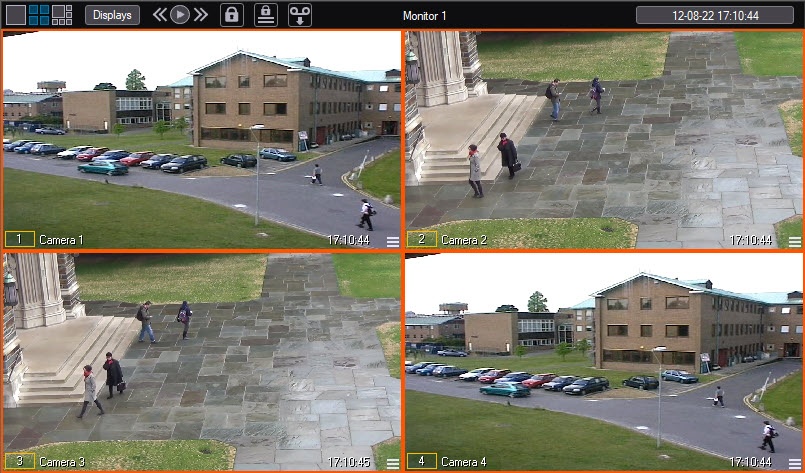
The one-fold button  is used to display a single selected surveillance window, other buttons are used to simultaneously display a certain number of windows (4, 6, 9, or 16) on the video surveillance monitor. The set of displayed buttons changes automatically depending on the maximum number of cameras corresponding to this video surveillance monitor.
There is a special layout with six surveillance windows featuring one surveillance window larger than the other five. This layout has certain restrictions mentioned below. The special six-fold layout can only be displayed using the  button if the toolbar is enabled in the video surveillance monitor. See the figures below for examples of the six-fold layout with the toolbar enabled and disabled.
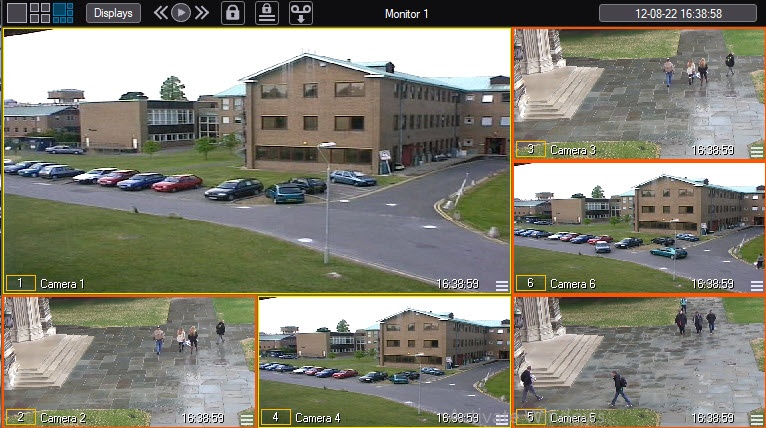
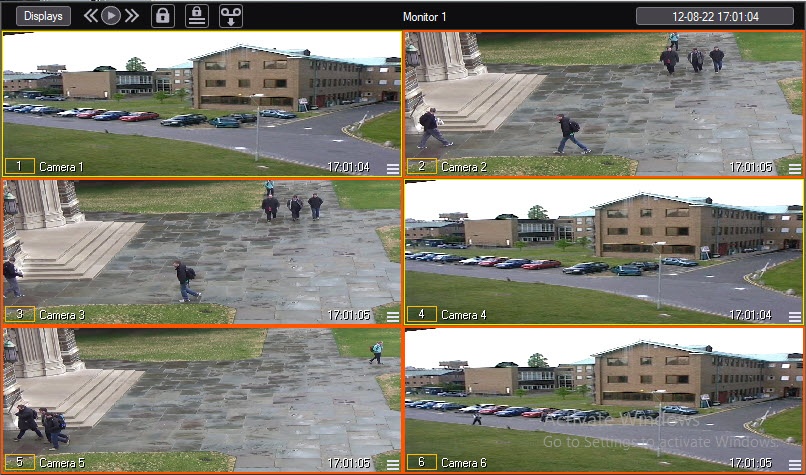
Double left-clicking any layout in the surveillance window, except for the six-fold layout, allows increasing the size of the surveillance window, while some surveillance windows are hidden on the video surveillance monitor. Double right-clicking the video allows returning to the original layout.
Managing the number of the surveillance windows with the mouse can be changed with the registry keys (see Registry keys reference guide). When using the MaximizeCameraOnDblClk registry key, double left-click switches the surveillance window to the one-fold layout from any layout, including the six-fold layout. Also, the switching to the one-fold layout and back can be enabled with the UseOneClkToMaximizeOrMinimizeCamera key.
The MaximizeCameraOnDblClk, MinimizeCameraOnDblClk, and UseOneClkToMaximizeOrMinimizeCamera key features are described in the table:
| Key values | Action on mouse double-click |
MaximizeCameraOnDblClk = 0 UseOneClkToMaximizeOrMinimizeCamera = 0 or 1 | Standard behavior, the number of the windows doesn't increase in the six-fold layout |
MaximizeCameraOnDblClk = 1 UseOneClkToMaximizeOrMinimizeCamera = 0 or 1 | The six-fold layout switches to the one-fold layout with a left double click. The one-fold layout switches to the six-fold layout with right double-click |
MaximizeCameraOnDblClk = 1 UseOneClkToMaximizeOrMinimizeCamera = 0 | The current layout switches to the one-fold layout with a left double click. The layout switches to the smaller window size with right or left double-click |
MaximizeCameraOnDblClk = 1 UseOneClkToMaximizeOrMinimizeCamera = 1 | The current layout switches to the one-fold layout with a left or right click. The layout switches to the smaller window size with right or left click Note. The first mouse click in the surveillance window enables the camera, so if the window isn't initially active, two clicks are required to enlarge it |
In addition, the number of the surveillance windows can be changed using the custom layouts (see Layout of surveillance windows on the video surveillance monitor). However, a left double-click always enlarges the surveillance window to the entire video surveillance monitor. Moreover, if the custom layout is selected, the layout mode icons are disabled, regardless of the number of the surveillance windows displayed on the selected layout.
If GreenStream is configured (see Configuring automatic selection of video stream for display), then when changing the number of the surveillance windows and scaling the video, the video streams used for their display can be automatically changed.
Note
The toolbar of the video surveillance monitor can be unavailable if the system is configured accordingly (see Setting the parameters of the Monitor interface window).
If the Overlay 1 mode is enabled during the system configuration, then the surveillance window scaling by left double-click is disabled, and the surveillance window layout cannot be changed.
Overview
Content Tools