
Go to documentation repository

Documentation for Axxon PSIM 2.0. Documentation for other versions of Axxon PSIM is available too.
Previous page Next page

You can control a PTZ device using the mouse in the surveillance window of the corresponding camera.
Note
To control a PTZ device using the mouse, you must enable the telemetry control panel. To enable the telemetry control panel, left-click it.
In the surveillance window corresponding to a PTZ camera, there is an icon you can use to enable or disable the control of the PTZ camera using a mouse. Mouse control is only available if PTZ is enabled for the camera, that is, if the icon looks like this  . If the icon looks like this
  , PTZ mouse control is not available. You can enable or disable the PTZ mouse control by left-clicking this icon or using the key combination Ctrl+L.
Attention!
When the PTZ camera uses digital zoom, the PTZ control icon disappears, and PTZ control is blocked. In particular, if you exit the archive mode in the digital zoom mode, then PTZ control is not available. To restore PTZ control features, you must not use digital zoom.
The default mouse control functions for the PTZ device are described in the table.
New control features are used by default, and their description is given in the New function column.
Note
If you want to use the previous PTZ control features, then set the 0 value for the TelemetryMouseAlternative registry key (see Registry keys reference guide).
Action | Previous function | New function |
|---|---|---|
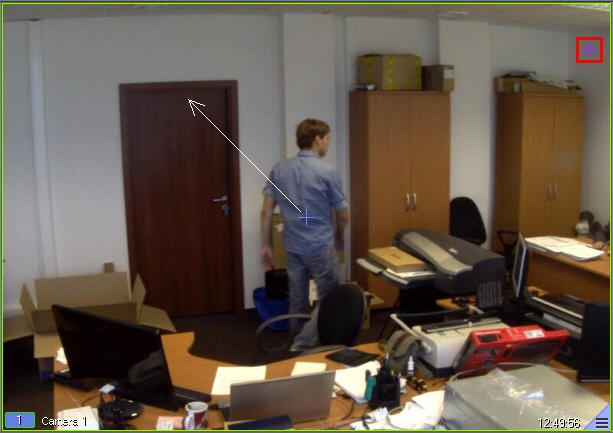
Left-click | - | Change the orientation of the camera lens in the direction of the cursor. The direction of the orientation change is indicated by an arrow (see figure). By default, only half the arrow is displayed; to change the length of the displayed arrow, use the TelemetryArrowLen registry key (see Registry keys reference guide) |
| Click and hold down the left mouse button, moving the cursor | Changing the orientation of the camera lens in the direction of the mouse cursor movement | The speed of orientation change depends on the cursor's distance from the center of the video image that is marked with a cross. The faster the speed, the longer the arrow. The lens orientation can be changed in continuous or discrete mode. If the camera supports continuous mode, it is used by default. Otherwise, discrete mode is used, which allows lens orientation to be changed in eight directions: up, down, right, left, up-left, up-right, down-right, and down-left. You can disable continuous mode during the system setup (see Guide for installing and configuring security system components). For the information on whether a camera supports the PTZ control, see Documentation Drivers Pack |
Click the middle mouse button | Automatically reorients the camera lens to the area where the mouse button is clicked (Point&Click). Positioning occurs at a minimum speed, which is independent of the value specified in the telemetry control panel. You can change this speed using the tweaki.exe utility, but this can affect the performance (see The settings panel of the PTZ section). Note. The change of orientation with the middle mouse button is performed by the Axxon PSIM algorithms and works with any PTZ camera but can be unstable under certain conditions. If your camera supports the Point&Click feature, we recommend using it. The change of orientation with the right mouse button is calculated by the camera and can only be performed if this functionality is supported by the camera driver and integrated into Axxon PSIM | |
Click the right mouse button | ||
Click and hold down the right mouse button | The Point&Click feature activates at regular intervals. This feature is processed by the camera driver. You can specify the intervals using the TelemetryPointAndClickDelay registry key (see Registry keys reference guide) | |
Click and hold down the left mouse button | Increase of the lens zoom (zoom in on a video image) | NA |
Right hold | Decrease of the lens zoom (zoom out on a video image) | NA |
Select an area by moving the cursor while holding down the right mouse button and the Ctrl key. Note. The area is outlined with a frame that disappears after you release the mouse button | Zoom in on the image and center the image on the selected area (AreaZoom). Note. The action is performed only if the AreaZoom feature is supported by the camera driver and integrated into Axxon PSIM | |
Left-click while holding down the Shift key | Increase focus | |
Right-click while holding down the Shift key | Decrease focus | |
| Scroll the mouse wheel up | Zoom in on the image | Increase of the optical zoom (zoom in on the image) |
| Scroll the mouse wheel down | Zoom out on the image | Decrease of the optical zoom (zoom out on the image) |
| Scroll the mouse wheel up + Ctrl | NA | Zoom in on the image |
Scroll the mouse wheel up when the PTZ control is disabled (the icon looks like this | ||
| Scroll the mouse wheel down + Ctrl | NA | Zoom out on the image |
Scroll the mouse wheel down when the PTZ control is disabled (the icon looks like this | ||

Note
The above mouse actions are not supported in the surveillance windows corresponding to the cameras without PTZ.
Overview
Content Tools