
Go to documentation repository

Documentation for Axxon PSIM 2.0. Documentation for other versions of Axxon PSIM is available too.
Previous page Next page

On the page:
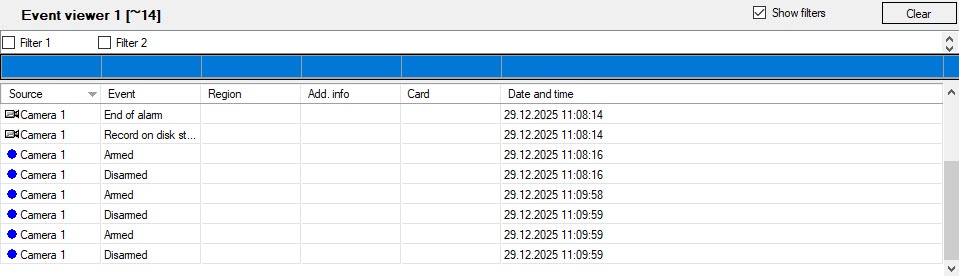
The Event viewer window displays all messages registered by the system or messages of a certain type according to the preconfigured filters.
Attention!
If you want to view all events for all objects in the system in the Event viewer window, you must create a blank filter, that is, a filter in which all columns are left blank. Also, all events are displayed in the event viewer if there is no filter at all, see Configuring event filters for displaying in the Event viewer.
If you delete all previously created filters, a blank filter is left. If you select it, all events are displayed.
To view events while controlling the PTZ devices (cameras with telemetry), use the SendEventToCore=1 parameter of the HKEY_LOCAL_MACHINE\SOFTWARE\AxxonSoft\PSIM\Telemetry registry (for more details, see Registry keys reference guide; for information on working with the registry, see Working with Windows OS registry).
Filters
The Show filters checkbox displays the list of event filters configured during the system setup (see Configuring event filters for displaying in the Event viewer). To activate the filter, set the checkbox next to its name. You can activate several filters simultaneously. Options for using filters are described in the table:
| Filter use option | Filter settings made beforehand | Result in the Event viewer |
|---|---|---|
| The checkbox is set next to the filter | Certain objects and their events are selected | Only events that match the filter are displayed |
| The checkboxes next to several filters are set | Certain objects and their events are selected in each of the filters | Only events that match at least one of the selected filters are displayed |
| No filter is selected (all checkboxes next to filters are cleared) | Certain objects and their events are selected in each of the filters | Only events that match at least one of all created filters are displayed |
| The checkbox next to the "Blank" filter is set | No object or event is selected | All events from all system objects are displayed |
There are no filters created for the event viewer in the system, there is nothing to apply | NA | All events from all system objects are displayed |
The selection of filters as well as the settings for displaying the filter lists are saved when Axxon PSIM is restarted, that is, if you select certain filters and hide the list of filters, then after you restart Axxon PSIM, the event viewer displays events according to the previously selected filters.
Events of different types are highlighted in different colors depending on the filter settings. The color of the event string can change or return to the default color when you switch filters.
Besides, there is the dynamic filter in the column headers that allows displaying only events from objects matching the search condition. The entered condition is applied when you press the Enter key.
Working with the list of events
The Event viewer window displays the table containing the list of the events registered by the system for the objects of a certain type. The object types for which the registered events are displayed in the event viewer, as well as the number of events simultaneously displayed within one event window, are specified at the system configuration stage.
Note
Most events from the system objects are described in Description of events and reactions of system objects.
By default, events are sorted by the date and time in the Event viewer window. You can sort events by any of the columns. To enable or disable sorting, left-click the header of the required column. When you change filters, the sorting is saved.
When you sort by time, new events are added to the end of the list in the Event viewer window. The list is scrolled in such a way that the last event is always displayed and highlighted in the window. When you select an event different from the last one, the list is fixed, and scrolling stops; new events are added to the end of the list. You can resume scrolling in the following cases:
- The last event in the list is selected. You can do it by using the Ctrl+End or Ctrl+Home key combinations on the keyboard.
- The user doesn't perform any actions in the interface window for three minutes. You can change this time by using the UserActivityTimeout registry key—see Registry keys reference guide.
- The list is sorted by the new column, or the filter is changed.
The table gives the following data for each event:
| Column name | Source | Event | Region | Add. info | Card | Date and time |
| Description | The ID of the event source object. Note. This column displays the information from the objid column of the dbo.PROTOCOL table of the Axxon PSIM database | Event name. Note. This column displays the information from the action column of the dbo.PROTOCOL table of the Axxon PSIM database | The ID of the region where the event occurs. Note. This column displays the information from the region_id column of the dbo.PROTOCOL table of the Axxon PSIM database | Additional information about the event (if any). Note. This column displays the information from the param0 column of the dbo.PROTOCOL table of the Axxon PSIM database | Card code for the access-related events (for example, ACCESS_IN). Note. This column displays the information from the param3 column of the dbo.PROTOCOL table of the Axxon PSIM database | Date and time of the event. Note. This column displays the information from the date column of the dbo.PROTOCOL table of the Axxon PSIM database |
| For details about the dbo.PROTOCOL table, see Base Axxon PSIM database tables. | ||||||
Additionally, the icon next to the name of the event source object displays the current status of the given source object.
The Clear button is used to clear the list of events in the Event viewer window.
Note
After you clear the Event viewer window, restart Axxon PSIM with the Load protocol checkbox set if you want to display the hidden events again (see The parameters of the Event viewer).
Event source objects
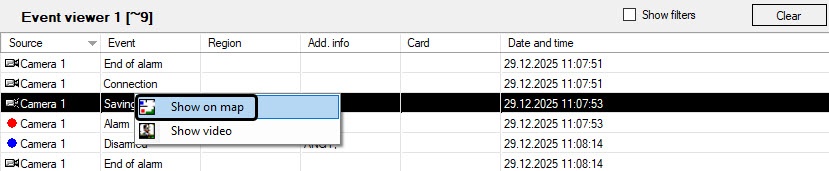
To display the location of an object on the map, select the Show on map item in the function menu of the source object. As a result, the map containing the source object opens (see Working with the map). The corresponding object is outlined with green dots and marked with concentric black-and-white circles.
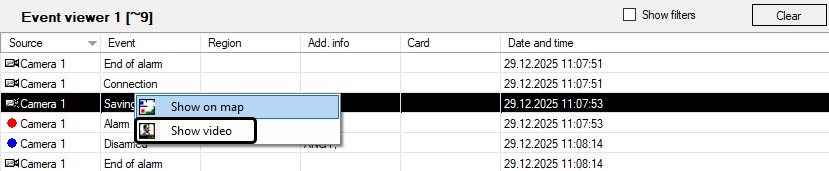
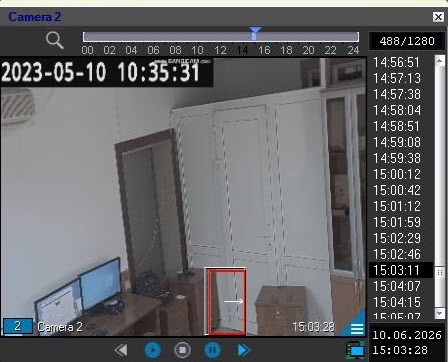
To play back the video of the Saving to disc event, select the Show video item in the function menu of the Camera object (source object).
In the child window that opens, the surveillance window is displayed in the archive playback mode.
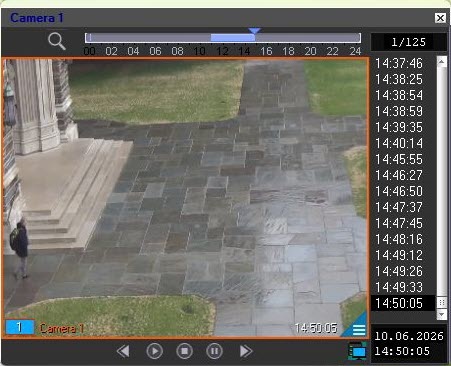
The current playback position is set to the position corresponding to the start of the video recording.
You cannot change the video source object in this video surveillance window.
Note
If you configure the option for detecting the abandoned objects (see Configuring smart video detection tools), abandoned objects are outlined when you play back the video.
Overview
Content Tools