
Go to documentation repository

Documentation for Axxon PSIM 2.0. Documentation for other versions of Axxon PSIM is available too.
Previous page Next page

On the page:
Indication of camera status
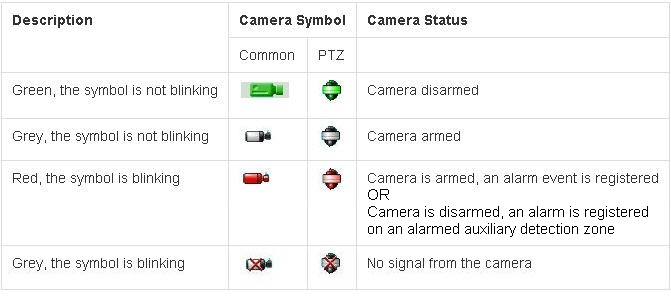
The camera icon on the map depends on the type of camera: a PTZ camera or a regular camera. The camera icons on the map are shown in the figure:

Regular camera

PTZ camera
The camera status is indicated through different colors and intermittent blinking of the given camera icon on the map.
Note
If the camera performs recording, then the camera icon is marked with REC:  or
or  .
.
Camera control
You can control the camera via the function menu of the given camera icon shown on the map.
You can access the function menu of the camera by right-clicking the corresponding camera icon.
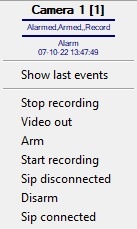
The function menu of the camera provides access to various functions of the camera.
Item of the function menu | Function | Comments |
|---|---|---|
Camera No./Connection | Displays the identifier of the selected camera, as well as the date and time of the first connection of the camera | |
Stop recording | Stops recording | See Stop recording |
Video out | Outputs the camera image to the analogue monitor connected to the system | |
Arm | Arms the camera in the main detection area | |
Start recording | Starts recording on the operator's command | |
Sip disconnected | Disconnection of a SIP device | |
Disarm | Disarms the camera in the main detection area | |
| Sip connected | Connection of a SIP device |
Note
The Start video export and Stop video export menu items cannot be used on the map because the reactions corresponding to them need extra settings. You can use these reactions using macros and scripts (see Administrator's Guide).
Display of the camera on the video surveillance monitor when selected on the map
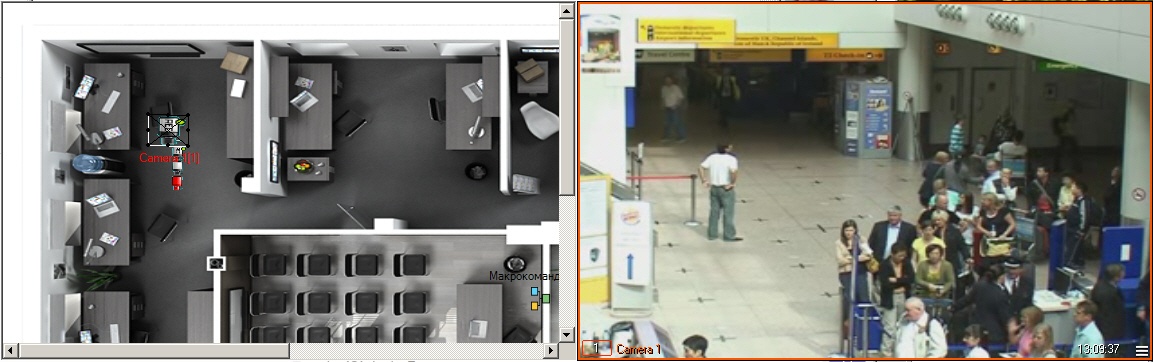
If you configure the video surveillance monitor in the Active camera mode at system setup (see Configuration of the display mode of camera windows), then video from a camera is displayed on such a video surveillance monitor when you select the camera icon on the map.
Overview
Content Tools