
Go to documentation repository

Documentation for Axxon PSIM 2.0. Documentation for other versions of Axxon PSIM is available too.
Previous page Next page

To provide the operation of the distributed system, you must configure the interaction between servers, Remote Administrator’s workstations, and Remote Clients. The interaction between servers, Remote Administrator’s workstations, and Remote Clients means the database replication (for servers and Remote Administrator’s workstations only) and the event exchange. During configuration, you must specify for each server, the Remote Administrator’s workstation, and the Remote Client the lists of interacting and non-interacting servers, Remote Administrator’s workstations, and Remote Clients.
You can configure the interaction of the surveillance system components from the administration server or, if there are allocated subnetworks, from the node server or the Remote Administrator’s workstation.
To configure the interaction between the distributed surveillance system components, do the following:
- Go to the Architecture tab in the System settings dialog window (1).

The Computer column displays the list of network names of servers, Remote Administrator’s workstations, and Remote Clients registered on the Hardware tab (2). In the Computer column, left-click the cell where the network name of the server, the Remote Administrator’s workstation, or the Remote Client is specified and for which you want to change the interaction settings with any server, the Remote Administrator’s workstation, or the Remote Client. Text in the selected cell becomes grey.
Note
To search for a computer by name, use the Ctrl+F key combination. The Search in tree window opens, where you must enter the computer name fully or partially and press the Enter button. The found computer is highlighted in grey in the list.
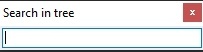
- The With computer column displays the list of those Servers, Remote Administrator’s workstations, and Remote Clients, with which the selected server, the Remote Administrator’s workstation, or the Remote Client can interact (3).
In the IP address column, specify addresses of the computers to which you want to connect (4). Features:
By default, you must specify the IP address, but if the DNS instead of IP allowed checkbox is set on the Programming tab of the Security zone object settings panel, you can specify the DNS name instead of the IP address.
If computer addresses in the network are set automatically (DHCP is configured), you can leave the IP address field blank.
- If the computer name is correct, the IP address can be filled in automatically. For this, enter the question mark "?" in the IP address field and press the Enter key on the keyboard.
- You cannot add computers with the same IP addresses; a warning message appears if you try to do so:
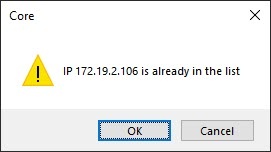
If the entered IP address is already assigned to some computer in the system, the address is assigned to the added computer, and the address of the computer that previously had the address is reset.
If you want to set the specified IP address for all connections with this computer in the distributed system, right-click the IP address field, and in the menu that opens, select Replace <Computer name> with <IP-address> connections. You can do it if computers with one network interface are used in the distributed system, and the specified IP address must be used to connect with these computers.
Attention!
When you click the Apply button (see step 10), the changes are saved only for the current computer. To save the IP address described above for all computers of the distributed system, click the Apply button while holding down the Ctrl key on the keyboard.If the checkbox is set in the cell that crosses the Connection column and the row corresponding to the server or the Remote Administrator’s workstation, it means that the data about system configuration parameters of the selected server or the Remote Administrator’s workstation is exchanged with any server or the Remote Administrator’s workstation (5). To exclude the exchange of configuration parameters with the selected server or the Remote Administrator’s workstation, clear the corresponding checkbox in the Connection column.
Note
Server or the Remote Administrator’s workstation always exchanges the configuration parameters with the Remote Client, regardless of whether the Connection checkbox is set for this Remote Client or not.If the checkbox is set in the cell that crosses the Send events column and the row corresponding to the server or the Remote Administrator’s workstation, it means that events between the selected server or the Remote Administrator’s workstation and any server or the Remote Administrator’s workstation are exchanged (6). To exclude the exchange of events with the selected server, the Remote Administrator’s workstation, clear the corresponding checkbox in the Send event column.
Note
Server or the Remote Administrator’s workstation always exchanges events with the Remote Client, regardless of whether the Send events checkbox is set for this Remote Client or not.Note
To set all checkboxes in the Connection or the Send events column, select a cell in the required column and press Ctrl+A. To clear all checkboxes, select a cell and press Shift+A.- If you use a modem for connecting the distributed system components, then fill in the Connection, User, and Password fields in the properties of the Computer object on the Hardware tab according to the settings of the Windows modem connection used (the connection name, login, and password, respectively).
- Repeat steps 2-6 for each pair of servers, Remote Administrator’s workstations, and Remote Clients.
- Click the Apply button.
Configuring the interaction between the distributed surveillance system components is complete.
For example, let's consider the configuration of the server and the Remote Client connection via the video gate. The diagram of the components' interaction for this example is shown in the figure.
Note
Videogate is used in large distributed video surveillance systems and designed for routing video signals between servers and clients located in different subnetworks. For more details, see General information on the videogate.
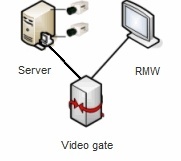
According to the diagram shown in the figure, you must exclude the interaction between the server (SERVER1) and the Remote Client (MN1). As a result, the Architecture tab displays the following configuration parameters:
- For the video gate (GATE), the interaction must be set with the server (SERVER1) and with the Remote Client (MN1).

- For the Remote Client (MN1), the interaction must be set with the video gate (GATE), and the interaction with the server (SERVER1) must be excluded.

- For the server (SERVER1), the interaction must be set with the video gate (GATE), and the interaction with the Remote Client (MN1) must be excluded.

In Axxon PSIM, the Computer object corresponding to the Remote Client (MN1) isn't displayed on the Hardware tab of the System settings window on the server (SERVER1).
However, if you set the Send events checkbox (the Connection checkbox must be cleared), the Computer object corresponding to the Remote Client (MN1) is displayed on the Hardware tab on the Server (SERVER1), but it is marked with the  icon, and the object name is highlighted in grey color. It means that administration of the given object is forbidden.
Overview
Content Tools