
Go to documentation repository

Documentation for Axxon PSIM 2.0. Documentation for other versions of Axxon PSIM is available too.
Previous page Next page

On this page:
Configuring the SIP-device
Before you start configuring the SIP-device connection to Axxon PSIM, you must configure the device itself. Configure rach SIP-device individually according to the manufacturer's documentation, however, you must always perform the following basic steps:
- Specify the IP address of the Axxon PSIM server as the SIP server.
- Check or specify the SIP-device identification number (the number used for calls).
- Set the password to connect to the SIP-server.
- If the SIP-device doesn't support dialing from the keyboard and has only one button for calling the concierge, you must configure this button to call the Axxon PSIM operator (see Configuring SIP-operators on the SIP server of Axxon PSIM).
Configuring the SIP-device connection to Axxon PSIM
To configure the connection of the SIP-device to the Axxon PSIM SIP-server, do the following:
- Create the SIP-device object based on the SIP-terminal object of the SIP-server type (1).

- In the User ID field (1), enter the SIP-device identification number, that is, the number to call it.
In the Device IP address field (2), enter the SIP-device IP address. If you aren't going to send data to the SIP-device, there is no need to fill in this field.
In the Password field (3), enter the password specified on the SIP-device. The SIP-device with the specified identifier is connected to Axxon PSIM only if the passwords on the device and in Axxon PSIM are identical.
- The State field (4) indicates the current status of the SIP-device.
- From the Device type drop-down list (5), select the icon type used to display the device on the Map.
- From the Device priority drop-down list (6), select the priority of calls from this device in the SIP panel window of incoming calls. The lower the number, the higher the priority, and, hence, the higher the call is displayed in the list. If you leave the field blank, the priority is considered minimal. Calls from devices with the same priority are sorted by the time of the call occurrence.
- Click the Apply button (7).
Configuring video and audio
To configure the video and audio of the SIP-device, do the following:
- Go to the Video / Audio tab (1) on the settings panel of the SIP-device object.

Set the Video switch (2) to the position corresponding to the camera used for calls:
Off—the video isn't used during the call.
SIP camera—the SIP-device camera connected via the SIP protocol is used. If the wrong device is selected by default in the Camera (3) drop-down list, change the selection. The corresponding Camera object may not be created in the Axxon PSIM objects tree at this step; in this case, it is created automatically after you click the Apply button.
Other—any other camera from the Axxon PSIM hardware tree is used. In this case, select the name of the required Camera object from the Camera drop-down list (3).
Set the Audio switch (4) to the position corresponding to the microphone used for calls:
Off—the audio isn't used during the call.
On—when you make a call, the microphone of the SIP-device, displayed in the Microphone information field (5), is used. The corresponding Microphone object may not be created in the Axxon PSIM objects tree at this step; in this case, it is created automatically after you click the Apply button.
- Click the Apply button (6).
Note
If necessary, the pre-configured missing Camera and Microphone objects are automatically created in the Axxon PSIM objects tree.
Configuring the tone DTMF commands
To configure the sending of tone messages to the SIP-device (for example, combinations for door opening), configure the relay.
To configure the relay of the SIP-device, do the following:
- Go to the Relay tab (1) on the settings panel of the SIP-device object.
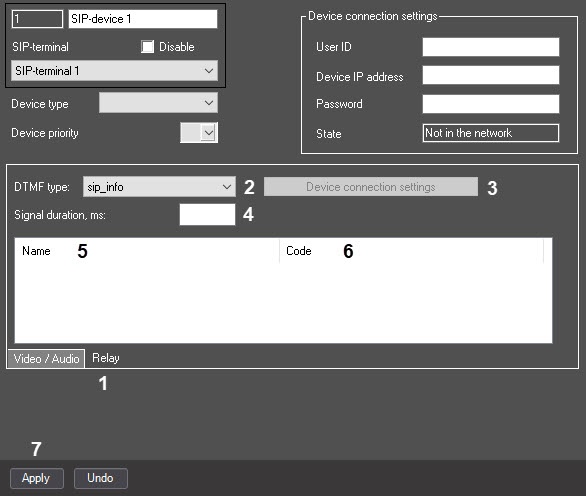
- From the DTMF type drop-down list (2), select the type of tone signal:
- sip_info—signals are transmitted in the INFO message of the SIP protocol.
- sip_notify—signals are transmitted in the NOTIFY message of the SIP protocol.
- in-band—the signal is transmitted as normal sound in the audio stream.
- http_bas—signals are transmitted over the HTTP protocol. When you select this tone type, the Device connection settings button (3) becomes active. Click the button to open the device connection settings window:
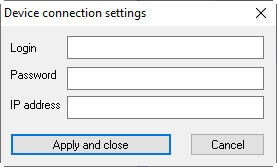
In this window, specify the Login, Password and IP address of the SIP device. If the port is different from the actual one (for example, 8180, not 80), then also specify the port in the IP address field. If you leave the IP address field blank, then the IP address is taken from the session, and the port is presumed to be 80.
- In the Signal duration, ms field (4), enter the time period in milliseconds during which the DTMF signal must be sent. The field is unavailable when you select the http_bas tone signal.
- In the Name field (5), enter the name of the command that is displayed on the SIP panel.
In the Code field (6), enter the unique command code.
Note
If you use the http_bas tone type signal, then enter a request according to the documentation of the SIP device in the Code field, for example: GET access/general/lock/open/remote/accepted/1.
- Click the Apply button (7).
Note
The corresponding Relay object is created in the Axxon PSIM hardware tree.
Configuring the SIP-device of the Axxon PSIM SIP server is complete.
Overview
Content Tools