
Go to documentation repository

Documentation for Axxon PSIM 2.0. Documentation for other versions of Axxon PSIM is available too.
Previous page Next page

To attach objects to the interactive map layer, use the Map editor utility.
Note
To open the Map editor utility window, click the Edit layer button on the settings panel of the Layer object (see Creating the layers of the interactive map).
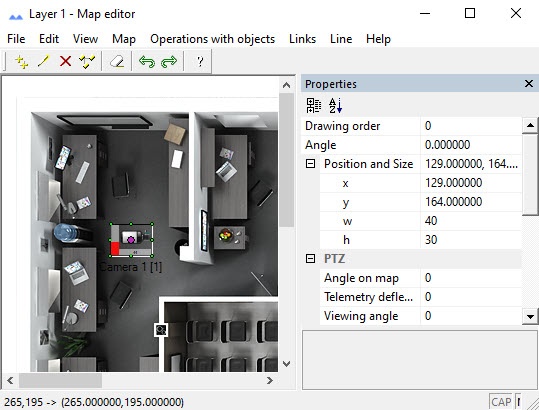
To attach objects to the interactive map layer, do the following:
- Open the New object window of the Map editor utility in one of three ways:
- In the main menu, select Operations with objects → New object.
- Click the
 button on the toolbar.
 - In the context menu, select New object (to open it, click anywhere on the graphic plan).
In the objects tree of the New object window (1), select the required object.
You can expand the objects tree of the New object window (1) by using the → button on the keyboard, to close it, use the ← button.
The objects tree displays only the objects that you can add to a layer or objects whose child objects you can add to a layer.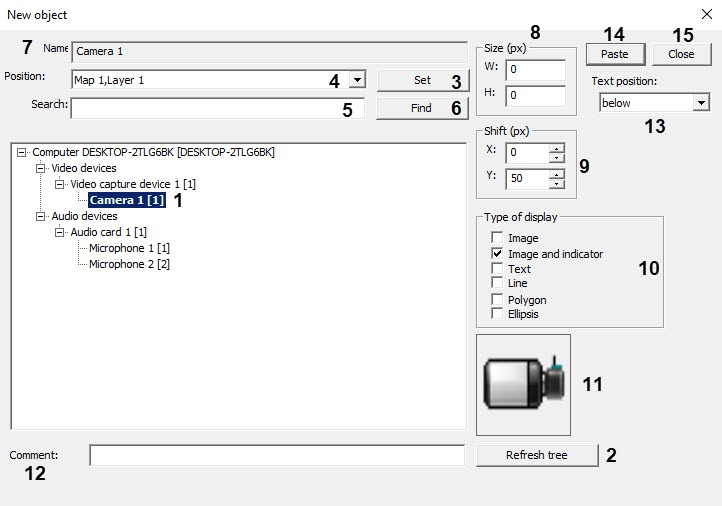
Capabilities when you select an object:- The Refresh tree button (2) refreshes the objects tree.
- When you click the Set button (3), the objects that are already added to any layer of one of the maps are put in bold in the objects tree. When you select an object in the objects tree, all layers and maps to which the selected object is added are displayed in the Position drop-down list (4).
- To search the object by the name or a part of the name, enter the search string in the Search field (5) and click the Find button (6). If you leave the search field blank, the Find button selects the top object in the objects tree. You can use the Find button to move through the objects tree, including the child objects. As a result, the name of the selected object is automatically displayed in the Name field (7).
- Enter the object icon size in the W (icon width) and H (icon height) fields (8). The icon size is expressed in pixels. If you set 0 for W and H values, the object icon is displayed in the original scale.
Enter the icon shift along the X and Y axes in pixels (9). The first icon is added in such a way that the upper left corner of its rectangle is the point of the last mouse click. The subsequent icons are added with the specified shift.
Note
If you enter the 0 value in the X and Y fields, the object icons are displayed on top of one another.
In the Type of display group (10), set the checkboxes next to the required types of the icon display. If you select several types, then several separate icon variants of the selected object are simultaneously added to the map. Subsequently, you can remove and edit these icons independently of one another.
Type of display item
Object icon display type
Usage
Image
Object schematic view
Objects of base configuration
Image and indicator
Object schematic view and indicator of the object state
SCADA objects
Text
Object name and text set using the script (see the The Script object. Programming using the JScript language the Examples of scripts in the JScript language section).
The icons with the Text display type can be used to place a comment on the map (descriptions, notes, additional information). You can specify the comment text after adding the object using the Text information parameter on the Properties panel, see Editing object properties using the Properties panel.
Note. If the object is displayed as text, its value is displayed on the map as "Value = <value>". To display the object value without "Value =", you must change the value of the HideAnalogName parameter to 1 in the Windows OS registry (see Registry keys reference guide)
SCADA objects
Line
Object image as straight line or a polyline
SCADA objects
Polygon Object image as polygon of the specified color and transparency with an arbitrary number of apexes SCADA objects Ellipsis Object image as ellipse of the specified color and transparency SCADA objects The object icon is automatically displayed in the Preview field (11) in accordance with the selected display type.
Note
Values and states of objects with the Image and indicator or the Text display type are saved when you restart Axxon PSIM only if new object values/states are received during the map operation. If new values/states aren't received before you close Axxon PSIM , they aren't saved.
- In the Comment field (12), enter, if necessary, the additional information about the object.
- From the Text position drop-down list (13), select the object name display position relative to the icon: none (that is, to display only the icon without the name), above, on the right, below, on the left.
- Click the Paste button (14) or press the Insert button on the keyboard to attach the object to the layer of the interactive map.
- Repeat steps 2-8 for all required objects.
- Click the Close button (15) to close the New object window.
Note
If you attach many objects (1-2 thousand) to the layer, there can be problems with their display in the interactive map window due to operating system limitations. In this case, enable the Acceleration of image viewing setting in the Map menu.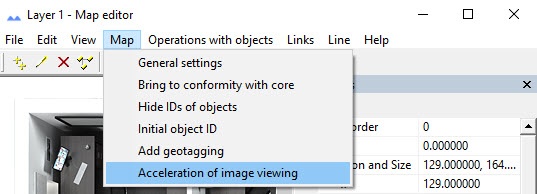
If you attach even more objects to the layer, increase the values of the following registry keys multiple times to improve their display:
HKEY_LOCAL_MACHINE\SOFTWARE\Microsoft\Windows NT\CurrentVersion\Windows\GDIProcessHandleQuota and USERProcessHandleQuota.
However, we don't recommend attaching more than a thousand objects to the layer.
Attaching objects to the layer of the interactive map is complete.
Overview
Content Tools