
Go to documentation repository

Documentation for Axxon PSIM 2.0. Documentation for other versions of Axxon PSIM is available too.
Previous page Next page

To configure the display of the Map editor utility window, use the View menu.
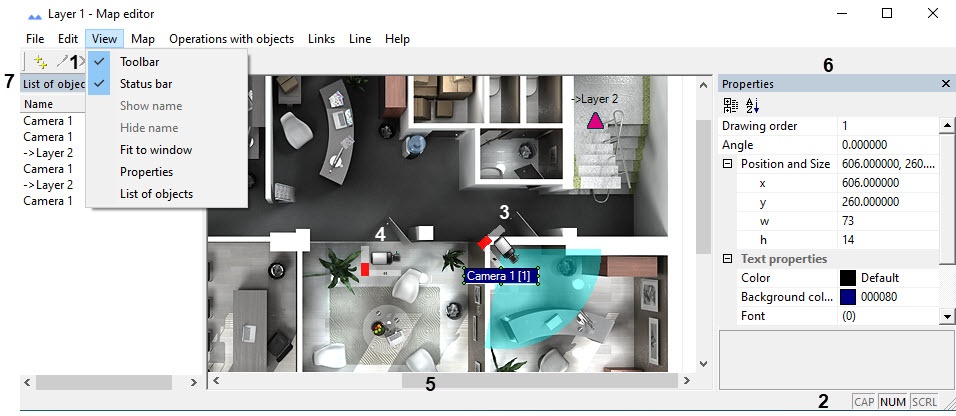
Find the description of menu items in the table.
Menu item | Function |
Tools panel | Show and hide the tools panel (1) |
State panel | Show and hide the state panel (2) |
Show name | Enable the display of the selected object name (3) |
Hide name | Disable the display of the selected object name (4) |
Fit the window | Set the scale level at which the map image fits entirely into the Map editor utility window (5). If you set this checkbox, you cannot change the scale of the map image in the Map editor utility window by scrolling with the pressed Ctrl key on the keyboard. To change the scale this way, you must clear this checkbox. Note 1. Setting this checkbox doesn't affect the scale of the map image in the map window. This scale is set separately. Note 2. If you set this checkbox for any layer, this checkbox is automatically set for all other layers. To disable the automatic activation of the Fit the window checkbox, you must set the 0 value for the InscribeEditor parameter (see Registry keys reference guide, for more details about working with the registry, see Working with Windows OS registry) |
Properties | Display the Properties panel (6) |
List of objects | Display the list of objects added to the map (7) |
Overview
Content Tools