
Go to documentation repository

Documentation for Axxon PSIM 2.0. Documentation for other versions of Axxon PSIM is available too.
Previous page Next page

To set the position of the State statistics interface window on the screen, do the following:
- Go to the settings panel of the State statistics object.

- Set the position of the State statistics interface window in one of the following ways:
- Manually:
- Specify the coordinates of the State statistics window position on the screen. To do this, change the values in the X and Y fields.
The values of the X and Y fields correspond to the coordinates of the upper left corner position on the screen and are expressed as percentages relative to the screen size horizontally and vertically. - Specify the width and height of the State statistics window displayed on the screen. To do this, change the values in the W and H fields.
The values of the W and H fields are expressed as percentages relative to the screen size horizontally and vertically.
- Specify the coordinates of the State statistics window position on the screen. To do this, change the values in the X and Y fields.
- Using the test window:
- Click the
 button.
 - Place the Specify dimensions opened test window where the State statistics window must be displayed:
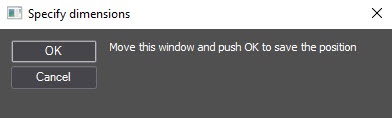
- Click the OK button.
As a result, the coordinates in the X, Y, W, H fields are set in accordance with the size and position of the test window.
- Click the
- Manually:
- From the Monitor drop-down list, select the physical computer monitor on which you want to display the interface window.
Monitors are numbered in the order of their physical location from left to right and from top to bottom, regardless of the numeration in the operating system. - Set the Allow moving checkbox if you want to allow the operator to change the position of the State statistics window.
- Click the Apply button to save the settings.
Setting the position of the State statistics window on the screen is complete.
Overview
Content Tools