
Go to documentation repository

Documentation for Axxon PSIM 2.0. Documentation for other versions of Axxon PSIM is available too.
Previous page Next page

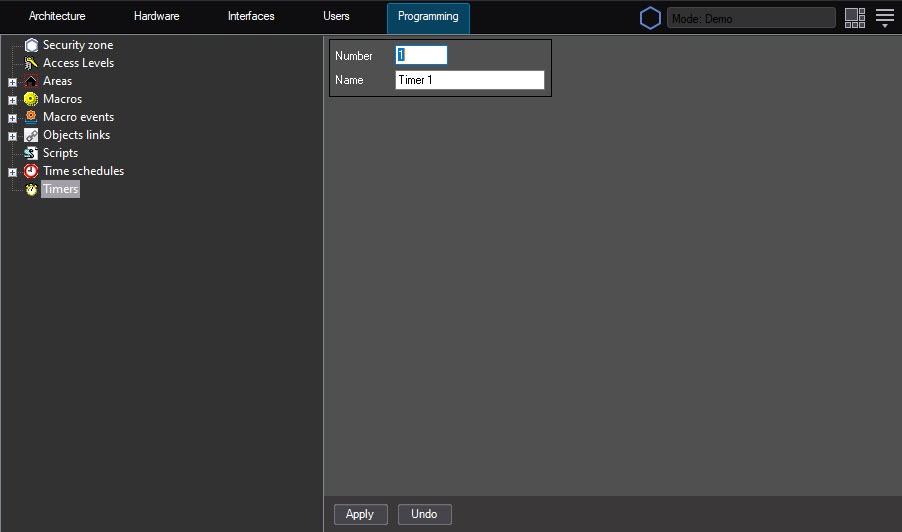
To create the Timer object, do the following:
- Open the Programming tab.
- Create the Timer object on the basis of the Timers object in the objects tree.
- Enter the number and the name of the Timer object in the corresponding fields of the identification panel.
- Click the Apply button.
As a result, the Timer object appears in the objects tree.
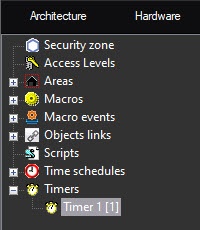
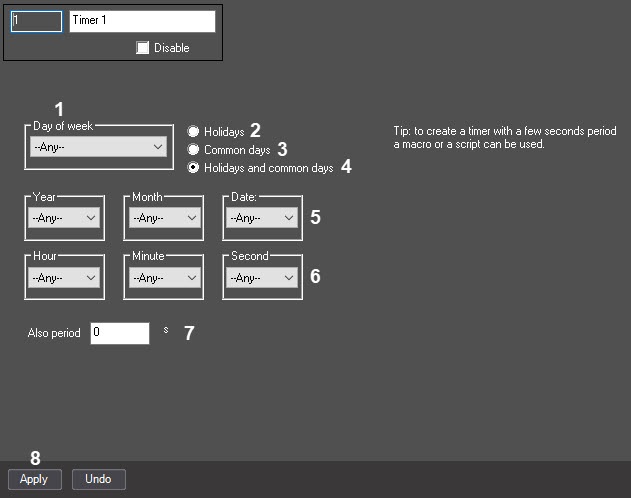
To configure the Timer object, do the following:
- Select the Timer object in the objects tree.
- Set the values of the time point parameter using one of the following methods:
- Select the day of the week from the drop-down list (1) and the exact time (hour, minute, second) in the corresponding fields (6).
- Select the exact date (year, month, day) from the corresponding fields (5) and the exact time (hour, minute, second) in the corresponding fields (6).
- To keep the timer triggering with the specified periodicity in seconds after the first triggering, enter the required value in seconds in the Also period field (7).
- Set the switch to one of the following positions:
Holidays (2), if you want to take into account the dates/days of the week that fall on holidays (set in the settings of the Security zone object).
Common days (3), if you don’t want to take into account the dates/days of the week that fall on holidays.
Holidays and common days (4), if you want to take into account both the common days and the dates/days of the week that fall on holidays.
- Click the Apply button (8) to save the settings.
To create the list of holidays, do the following:
- Open the Programming tab.
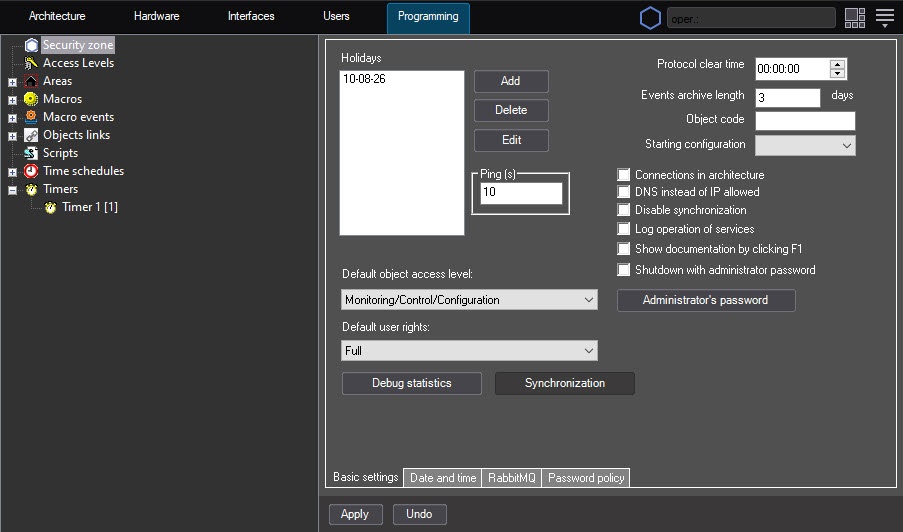
- Select the Security zone object.
- Enter the holiday date by clicking the Add button.
- Click the Apply button.
Creating and configuring the Timer object is complete.
Overview
Content Tools