
Go to documentation repository

Documentation for Axxon PSIM 2.0. Documentation for other versions of Axxon PSIM is available too.
Previous page Next page

In Axxon PSIM, you can create objects on the basis of a template. The creation of a template is possible by means of the Save function that is available in the main function menu.
Note
You can also copy and paste objects using the Ctrl+C and Ctrl+V keys (see Copy objects on the The procedure for configuring system objects page). If you use Ctrl+C and Ctrl+Shift+V, an object is pasted along with the child one. You can paste the once-copied object multiple times. The copied object is stored in the clipboard until Axxon PSIM restarts or until the clipboard content is replaced by the new copied object.
Below there is the order of creating the Camera object by a template using the Save function.
First of all, select the already created and configured object, for example, the Camera 1 object. The figure displays the settings panel with the highlighted parameters of the Camera 1 object that are changed (differ from the default settings).
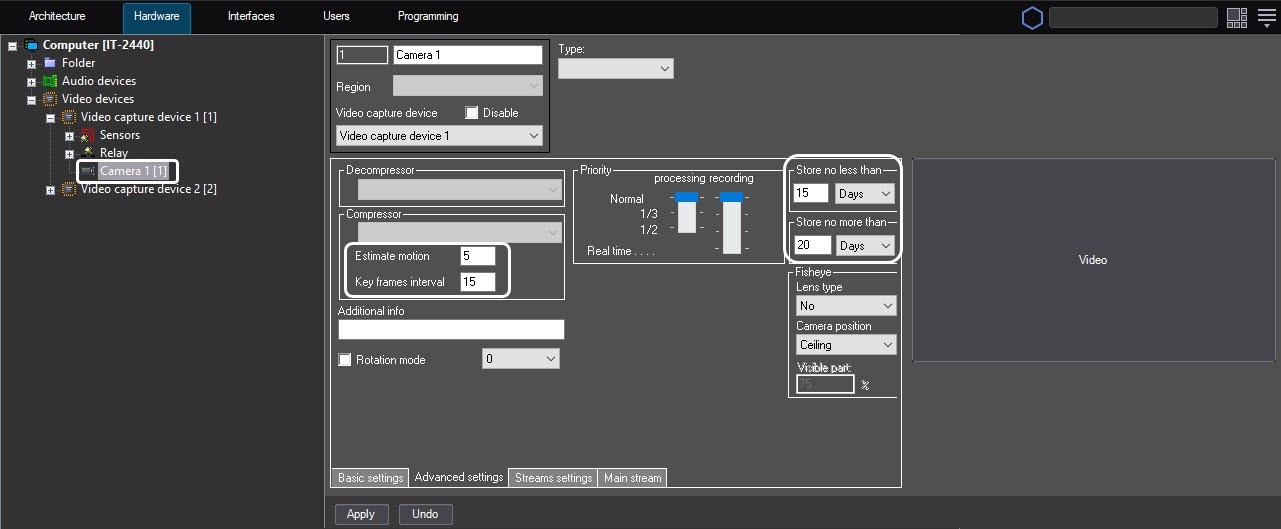
To create a template based on this object, do the following:
- Open the context menu of the Camera 1 object.
- Select the Save menu item.
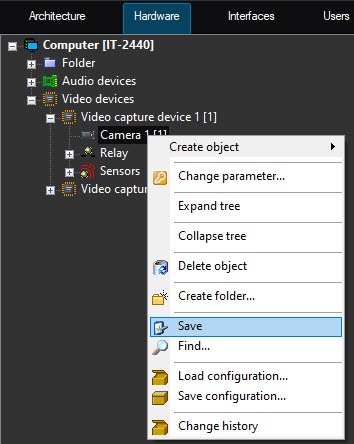
As a result, the template of the Camera object with the settings of the Camera 1 object is created.
Then you must create the Camera 2 object based on the Video capture device 1 object (see the The Create object function section). By default, the newly created Camera 2 object has the same settings as the Camera 1 object.
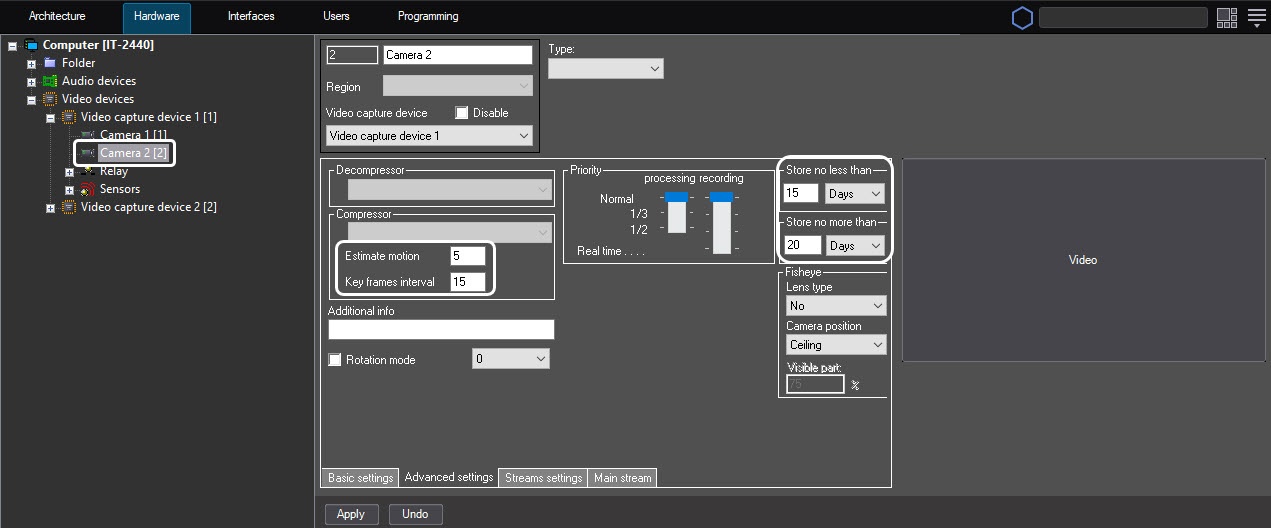
The created object template is saved until the clipboard is cleared (for example, when you restart Axxon PSIM) or replaced with new content. Thus, if you continue to create the Camera objects, they will have the settings of the Camera 1 object as long as the clipboard contains the saved template.
Overview
Content Tools