
Go to documentation repository

Documentation for Axxon PSIM 2.0. Documentation for other versions of Axxon PSIM is available too.
Previous page Next page

The Find item of the menu is used to search for an object in the tree. Axxon PSIM has two methods of searching for an object:
- Searching within a tree. This method is used when only an object name (type) is known. To find an object, do the following:
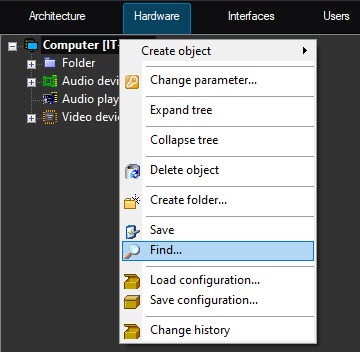
- Open the context menu of the objects tree.
Select the Find item in the menu.
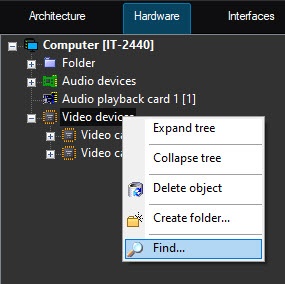
As a result, the Search in tree input window of the searched object is displayed on the computer screen.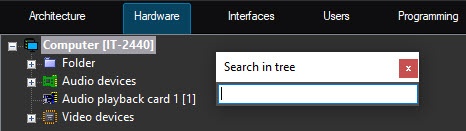
Note
You can open this window using the Ctrl+F key combination.
- Enter the name of the required object.
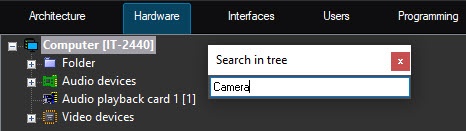
- Press the Enter button on the keyboard to start searching.
If the object is found, it is highlighted grey in the objects tree.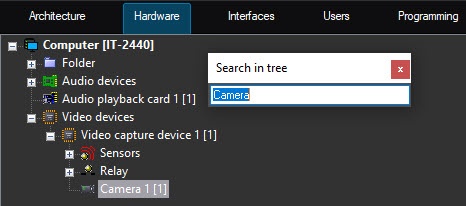
If the object isn't found, none of the objects in the objects tree are highlighted.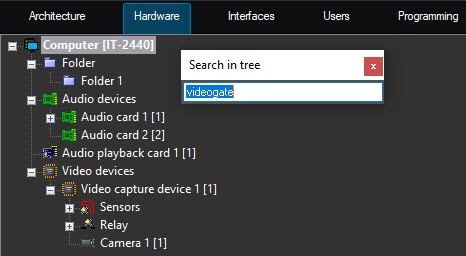
To close the input window, when the search is complete, click the left mouse button, hovering over the window field displaying the objects tree.
Search from the selected object.
To find an object whose location in the objects tree is known approximately, do the following:Select an object in the tree below which you want to search.
Note
To search for an object in the tree, we recommend selecting an object that is a child of the Computer object. Otherwise, the search is performed down the branch of the selected object.
- Open the context menu of the objects tree.
- Select the Find item.
Then the search is performed in the order corresponding to the first method.
Overview
Content Tools