
Go to documentation repository

Documentation for Axxon PSIM 2.0. Documentation for other versions of Axxon PSIM is available too.
Previous page Next page

You can create IP devices in Axxon PSIM as follows:
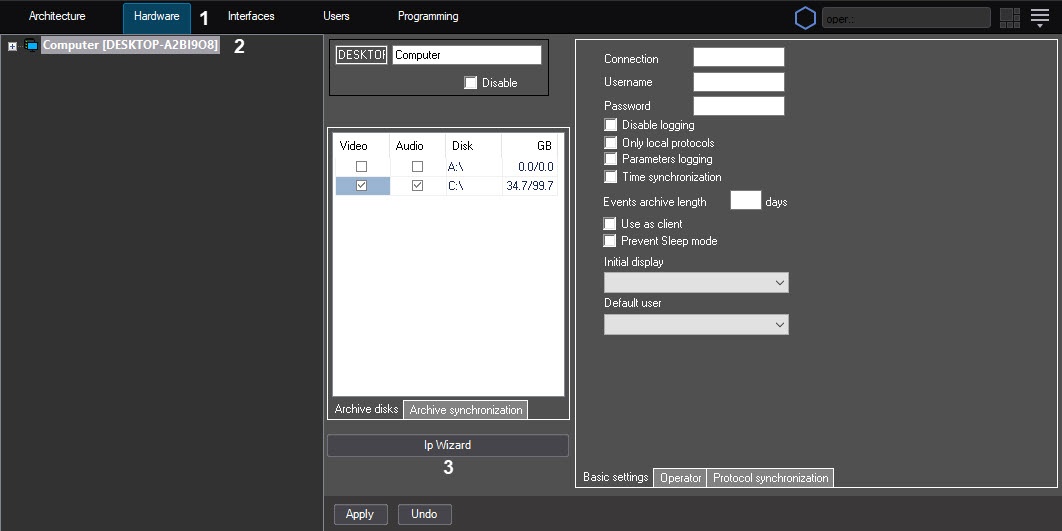
- Go to the Hardware tab (1) in the System settings window.
- In the object tree, select the Computer object (2) corresponding to the server that you are configuring.
- Click the Ip Wizard button (3) on the settings panel of the selected object.
As a result, the Camera discovery tool window opens. Found IP devices are displayed at the top of the window.
Attention!
Video capture cards can also be displayed in the list. However, we highly do not recommend adding them to the configuration using the Camera discovery tool window. You can configure video capture cards manually, see Configuring video capture cards in Axxon PSIM.
By default, the list also displays the found archived devices that are no longer supported in the installed Drivers Pack version. If you don't want to display such devices, create the UseObsoleteAttribute registry key with the 1 value (see Registry keys reference guide).
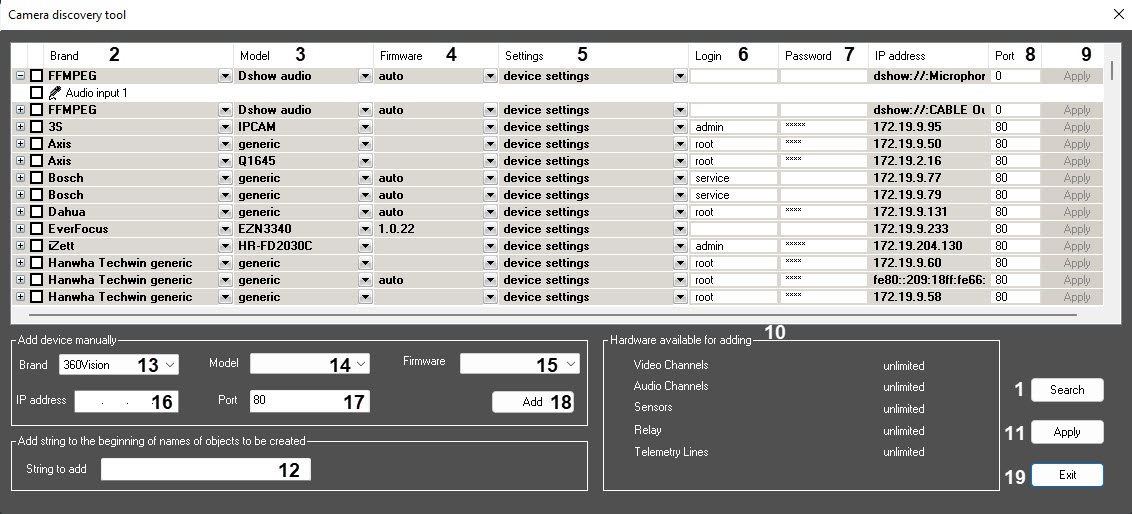
To sort devices in the Camera discovery tool window, click the name of the corresponding column. The data is sorted alphabetically, including IP addresses. For example, when you sort IP addresses in ascending order, 10.0.12.98 is lower than 10.0.12.252 in the list. - If the required device isn't displayed in the list, click the Search button (1). Wait for the list to update, as the device search can take several seconds.
To stop the search process, click the Stop button (it appears in place of the Search button). All found devices are displayed in the list.Note
If necessary, you can increase the wait time for a response from the device by setting the additional time in milliseconds in the parameter of the AdditionalSearchTime registry key (see Registry keys reference guide, for more information on working with the registry, see Working with Windows OS registry).
- Check the correctness of the brand (2), model (3), and firmware (4) for the found IP device. If necessary, make changes by opening the drop-down list and selecting the required value.
- From the drop-down list (5), select which settings must be set on the IP device when you add it to the hardware tree: leave the specified device settings or apply the video server settings.
- Check the correctness of the TCP/IP port (8). If necessary, specify the required value in the field.
- Enter the login (6) and password (7) to connect the IP device. Login and password are specified in the documentation for the connected network device.
- If necessary, add additional information to the beginning of the names of created objects (for example, the path where the object is located). Enter the value in the String to add field (12). Limitations: Latin and Cyrillic letters, service characters except for the > and < characters; the number of characters is up to 60, including the length of the object name, which is set by default. The setting is applied to the selected objects in the next step.
Select the objects that you want to create on the basis of the IP device.
Note
The number of objects that you can create on the basis of the IP device is automatically displayed in the Hardware available for adding table (10).
Expand the list of objects supported by the IP device by clicking the + button:
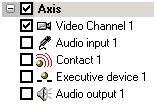
Correspondence of object names in the Camera discovery tool window to the branches of the object tree is given in the table.Name of object in the Camera discovery tool window
Branch of object tree in Axxon PSIM
Video channel
The Video capture device object → The Camera object
Audio input
The Audio card object → The Microphone object
Contact
The Video capture device object → The Sensor object
Executive device
The Video capture device object → The Relay object
Telemetry line
The Telemetry controller object → The PTZ device object
Audio output
The Playback card object → The Speaker object
Set the checkboxes next to the objects that you want to create.
Note
To create/delete all objects, set/clear the checkboxes next to the brand of the IP device.
Click the Apply button for each selected device (9) or for all selected devices (11).
The selected objects are created automatically in the object tree on the Hardware tab.Repeat steps 4–8 for each IP device that you want to create in the system.
Note
To delete the IP device from the Camera discovery tool window, right-click the corresponding line in the table and select the Delete camera <IP address> from the list item. To delete the IP device or objects created on the basis of it from the hardware tree by means of the Camera discovery tool, you must clear the set checkboxes next to the corresponding objects and click the Apply button.
If the IP device isn't found, you can add it manually.
- From the Brand, Model, and Firmware drop-down lists, select the brand, model, and firmware installed on the IP device (13–15).
- In the IP address and Port fields (16, 17), enter the IP address of the device and the number of the TCP/IP port.
- Click the Add button (18).
As a result, the IP device with the specified parameters is displayed at the top of the window.
- To complete the IP device creation, repeat steps 6–8.
- Click the Exit button to close the Camera discovery tool window (19).
IP device creation is complete.
Overview
Content Tools