
Go to documentation repository

Documentation for Axxon PSIM 2.0. Documentation for other versions of Axxon PSIM is available too.
Previous page Next page

This keyboard is connected to Axxon PSIM as a standard joystick—see Configuring the joystick for telemetry control. When you connect the keyboard to the computer, you must press SET + 5 keys on it, in this case, it will be detected by the system as a USB gaming device.
There is no need to create the Control panel object on the basis of the Telemetry controller object.
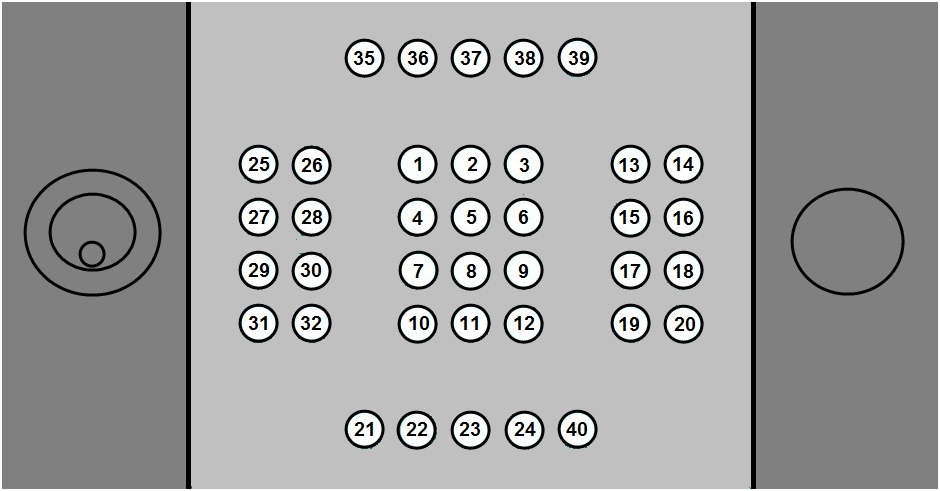
The figure below shows the correspondence of the key codes to the buttons on the keyboard.
Attention!
The external left joystick is not supported in Axxon PSIM.
The right joystick allows controlling the rotation of the camera lens along the X, Y, and Z axes.
When you press keyboard buttons, Axxon PSIM receives events of the following form:
TELEMETRY|1.1||joystick<1>,button <29>,tel_prior <1>,monitor <1>,speed <0>,cam <1>,operator <>,vy <0>,vx <0>
Attention!
By default, the keyboard automatically sends ZOOM_IN and ZOOM_OUT commands to the Axxon PSIM when you press key 1 or 2. For proper operation of the keyboard, you must reset the command values for the keyboard buttons. For this, create empty string values 1, 2, 3, 4, 5, 6, 7, and 8 in the section HKEY_LOCAL_MACHINE\SOFTWARE\AxxonSoft\PSIM\Telemetry for the 64-bit system (HKEY_LOCAL_MACHINE\SOFTWARE\Wow6432Node\AxxonSoft\PSIM\Telemetry for 32-bit) on the computer to which the keyboard is connected.
You can assign actions to pressed buttons using a script or program (find more information on creating scripts in The Script object. Programming using the JScript language). The example of this script can be downloaded here.
This example assigns the following actions to the buttons of the keyboard:
Key code | Action |
10 | Activate previous camera |
12 | Activate next camera |
13 | Focus in |
14 | Focus out |
15 | Enable autofocus |
16 | Set the number of the preset |
18 | Delete the number of the preset |
21 | Activate layout with 1 camera |
22 | Activate layout with 4 cameras |
23 | Activate layout with 9 cameras |
24 | Activate layout with 16 cameras |
40 | Activate layout with all cameras |
25 | Go to the live video mode |
26 | Go to archive mode |
32 | Start patrolling |
Overview
Content Tools