
Go to documentation repository

Documentation for Axxon PSIM 2.0. Documentation for other versions of Axxon PSIM is available too.
Previous page Next page

The Script system object is used to initialize a script developed in the JScript language in Axxon PSIM and to set the parameters for its execution.
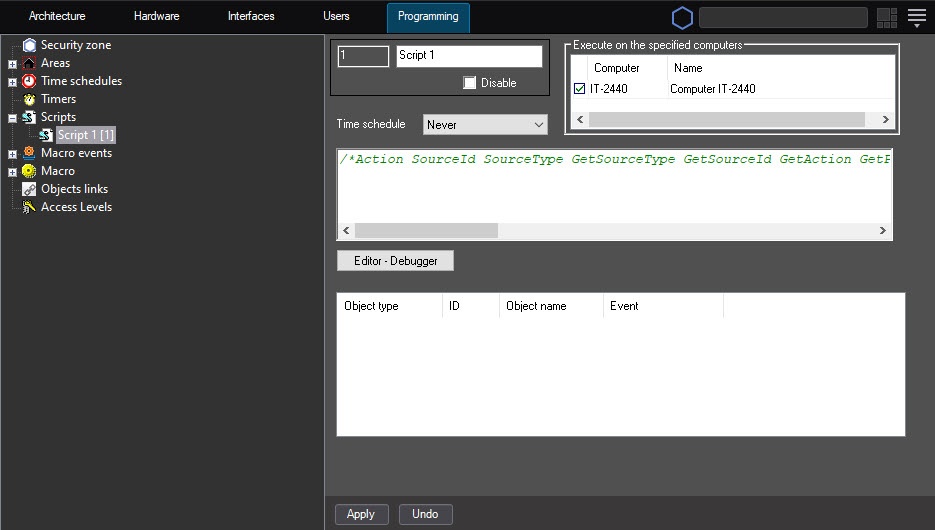
The settings panel of the Script system object is shown in the figure:
Attention!
If you create a large number of the Script objects (more than 100), it can cause system instability.
In the settings panel of the Script system object, you can specify the time schedule of the script execution and the computers (kernels) on which you want to execute a script.
Note
To set checkboxes next to all computers, you must select a cell in the column with checkboxes and press Ctrl+A. To clear all checkboxes, select a cell and press Shift+A.
The button for starting the Editor-Debugger utility and the panel for viewing the script text created by this utility are also located on the settings panel of the Script system object. You can edit the script in the Editor-Debugger utility or directly from the settings panel for the Script object.
Besides, you can configure the events filter—the list of events that the Script system object processes. Entering an event to the filter is equal to the if operator in the script text, that is, when you specify the event is in the table, you can omit this operator.
Attention!
You must set the events filter when you create a script in large distributed configurations. Otherwise, the module processes all incoming events and can operate improperly.
Example
Let's the Macro value is specified in the Object type column of the table, the 1 value is selected in the Identifier column, and the Executed value is in the Event column. Then, instead of the script
if (Event.SourceType == "MACRO" && Event.SourceId==1 && Event.Action == "RUN")
{
 DoReactStr("CAM", "2", "REC", "");
}
you can use the script:
DoReactStr("CAM", "2", "REC", "");
For more information about the elements of the Script object settings panel, refer to Administrator's guide.
Example
When you control the PTZ camera from the surveillance monitor, start recording on camera 1.
For this, you must configure the Script object in the following way:
- Select the required time schedule when the script must be executed.
- Enter the script text:
if (Event.GetParam("source_type") == "TELEMETRY") { DoReactStr ("CAM","1","REC",""); } - Configure the filter in the following way:
- From the Object type drop-down list, select CORE.
- In the Event field, enter DO_REACT.
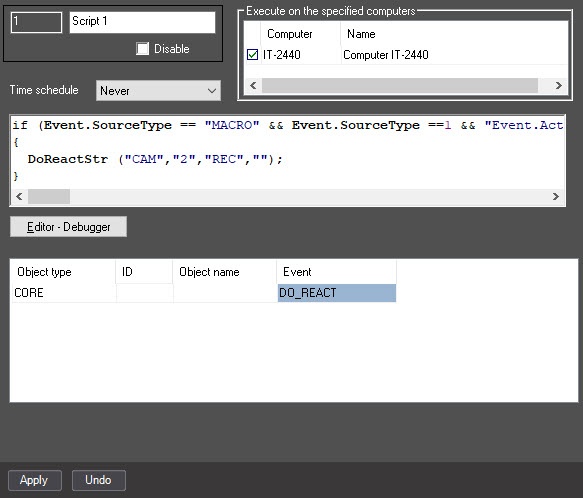
You can fill in this filter by using the UPDATE_OBJECT event of the CORE object. Example of the command for adding the Camera object with identifier 1 to the filter of the Script object with identifier 2:
NotifyEventStr("CORE","","UPDATE_OBJECT","objtype<SCRIPT>,objid<2>,EVENT.objid.0<1>,EVENT.objid.1<10>,EVENT.action.count<2>,flags<>,EVENT.action.0<>,EVENT.action.1<>,EVENT.objtype.0<CAM>,EVENT.objtype.count<2>,EVENT.objtype.1<CAM>,EVENT.objid.count<2>");
Overview
Content Tools