
Go to documentation repository

Documentation for Axxon PSIM 2.0. Documentation for other versions of Axxon PSIM is available too.
Previous page Next page

The Debug 4 mode is enabled by default. To change the debug mode, do the following:
- Shut down Axxon PSIM.
Run the Advanced Tweaki.exe utility.
Note
You can change the debug mode without using the tweaki.exe utility. To do this, set the Debug string parameter to 1, 2, 3, or 4 in the section HKEY_LOCAL_MACHINE\SOFTWARE\AxxonSoft\PSIM of the Windows registry (HKEY_LOCAL_MACHINE \Software\Wow6432Node\AxxonSoft\PSIM for 64-bit systems).
- Select the PSIM section in the tree on the left side of the utility window.
- Change the value of the Debug mode parameter from Debug 4 to Debug 1, Debug 2, or Debug 3. The difference between these modes is in the amount of information written to the log files (see The settings panel of the Base system section).
- Click the OK button.
- Start Axxon PSIM.
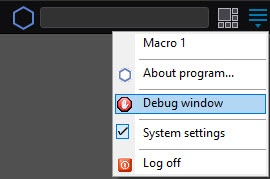
Note
This menu is also available from the Windows notification area (system tray)—left-click the
 icon or briefly press the F8 key.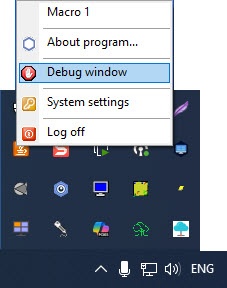
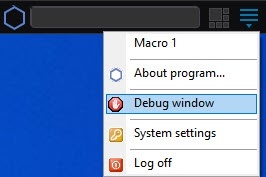
- Select the Debug window item on the main control panel to display the debug window on the screen. The selected Debug window item is marked with a check mark.
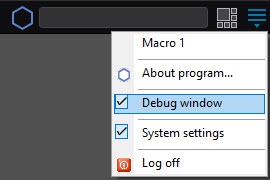
To hide the debug window, re-select the Debug window item on the main control panel.
Note
To disable the debug window, select the Disable value in the Debug mode parameter in the tweaki.exe utility, or set the Debug string parameter to 0 in the section HKEY_LOCAL_MACHINE\SOFTWARE\AxxonSoft\PSIM of the Windows registry (HKEY_LOCAL_MACHINE \Software\Wow6432Node\AxxonSoft\PSIM for 64-bit systems). You must do these actions after you log out. For more information, see Registry keys reference guide. For more information on working with the registry, see Working with Windows OS registry.
Overview
Content Tools