
Go to documentation repository

Documentation for Axxon PSIM 2.0. Documentation for other versions of Axxon PSIM is available too.
Previous page Next page

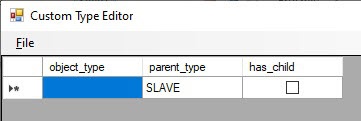
The xml file is prepared using the CustomTypeEditor.exe utility that is located in the <Axxon PSIM installation directory>\Tools64 folder. The general view of the utility window is shown in the figure.
To create the xml file for a custom object, do the following:
- In the object_type field (1), enter the name of the object type.
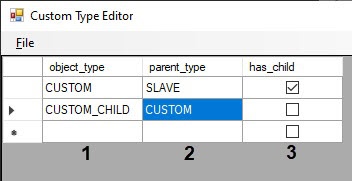
- In the parent_type field (2), enter the name of the parent type.
- If the object type has child types, set the checkbox in the has_child column (3).
- Repeat steps 1-3 for all object types.
- Save the file with any name and the .xml extension in the Axxon PSIM installation directory using the File → Save menu command. For example, the "CUSTOM.xml" file name is recommended for the object shown in the picture above.
Creating the xml file is now complete. The created file has the following content:
<?xml version="1.0" standalone="yes"?>
<objects>
    <object>
        <object_type>CUSTOM</object_type>
        <parent_type>SLAVE</parent_type>
        <has_child>1</has_child>
</object>
    <object>
        <object_type>CUSTOM_CHILD</object_type>
		<parent_type>CUSTOM</parent_type>
    </object>
</objects>
In particular, you can add the <include_parent_id>1</include_parent_id> object parameter to the xml file. When you set the value of this parameter to 1, the IDs of the child custom objects include the ID of the parent object. For example, if the CUSTOM object has the CUSTOM_CHILD child object, and the ID of the CUSTOM object is 3, then the CUSTOM_CHILD objects are created with identifiers 3.1, 3.2, and so on.
Overview
Content Tools